Why You're Seeing "ACORNS*" on Your Bank Statement
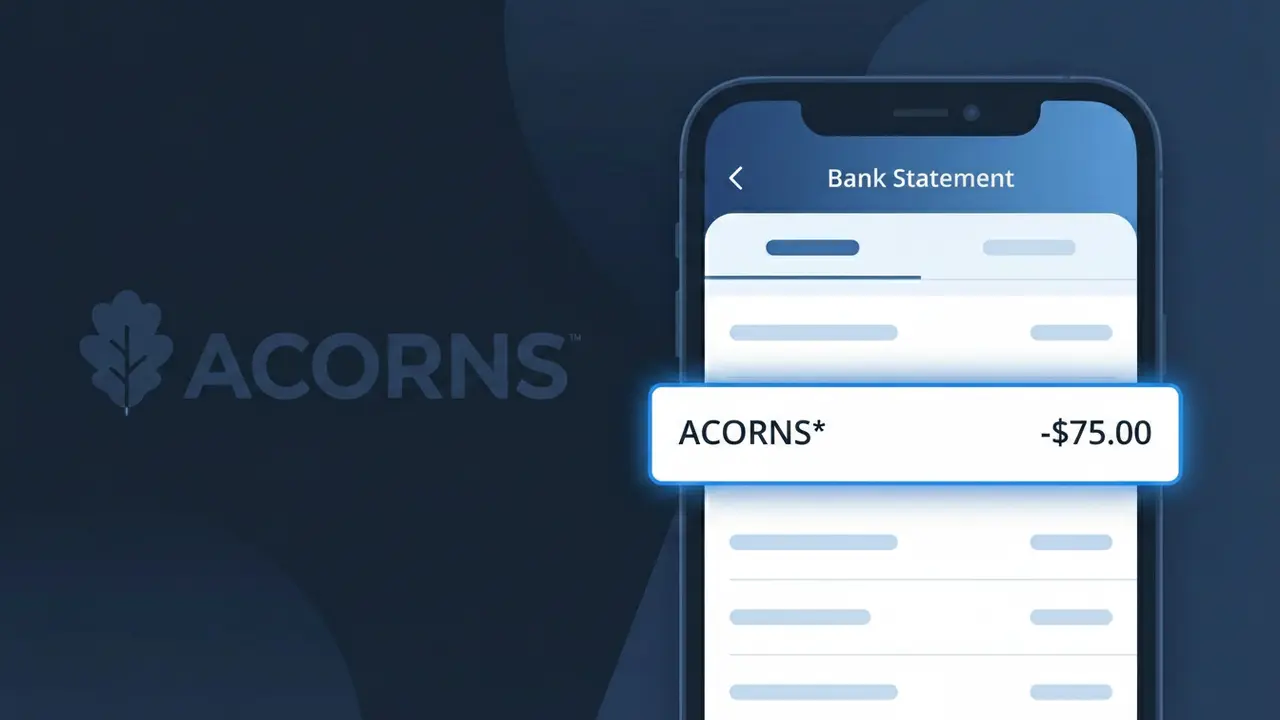
What Is "ACORNS*" on My Bank Statement?
The ACORNS* charge on your bank statement comes from Acorns, a popular micro-investing app that automatically rounds up your everyday purchases and invests the spare change. This charge represents your monthly subscription fee for using the Acorns platform, which offers investment portfolios, retirement accounts, and financial education tools. The asterisk following 'ACORNS' is a common billing convention used to separate the company name from additional transaction details. If you see this charge and have an active Acorns account, it is almost certainly your recurring subscription being billed.
The descriptor ACORNS* appears on your bank statement because Acorns uses this shorthand format when submitting charges through their payment processor, which is standard practice for subscription-based financial services. The asterisk acts as a delimiter that payment networks use to append plan type or billing cycle information to the merchant name. This truncated format is often all that fits within the character limits imposed by banks and card networks when displaying transaction details.
ℹ️ Note
In most cases, seeing "ACORNS*" on your statement is completely normal. Before assuming fraud, check your recent purchases — most mystery charges have a simple explanation.
Is the ACORNS* Charge Legitimate or Fraud?
If you see ACORNS* on your bank or credit card statement, it is most likely a legitimate charge from Acorns, the popular micro-investing and financial wellness app. Acorns bills users a monthly subscription fee for access to its investment, retirement, and banking services, and this fee appears as ACORNS* on your statement.
Common reasons you may see the ACORNS* charge include:
- You are subscribed to the Acorns Personal plan ($3/month) or Acorns Family plan ($5/month)
- A free trial period ended and Acorns began billing your linked payment method
- A household member signed up for an Acorns account using your card
- You upgraded your Acorns subscription tier without realizing a higher fee would apply
While the ACORNS* charge is typically legitimate, you should investigate further if you have never signed up for Acorns or if the charge amount does not match any known Acorns subscription tier.
How to Verify the ACORNS* Charge
- 1
Log into your Acorns account
Visit app.acorns.com or open the Acorns mobile app and sign in. Navigate to Settings > Subscription to confirm your current plan and the billing amount, which should match the ACORNS* charge on your statement.
- 2
Search your email for Acorns receipts
Search your inbox for emails from Acorns (support@acorns.com or notifications@acorns.com). Acorns sends billing confirmation emails each month that will align with the ACORNS* charge date and amount.
- 3
Check if a household member signed up
Ask family members or anyone with access to your payment method whether they created an Acorns account. The Acorns Family plan allows multiple accounts under one subscription billed to a single card.
- 4
Review your linked payment methods in Acorns
Inside the Acorns app, go to Settings > Payment Methods to see which card or bank account is being charged. If your card is listed there, the ACORNS* charge is coming directly from your Acorns subscription.
- 5
Contact your bank for more details
If you still cannot identify the ACORNS* charge, call your bank and ask for the full merchant descriptor and transaction details. This can help confirm whether the charge originated from Acorns or from a fraudulent source using a similar name.
How to Dispute the ACORNS* Charge
- 1
Act within 60 days of the charge
Most banks require you to dispute unauthorized charges within 60 days of the statement date. If the ACORNS* charge is unrecognized, act quickly to preserve your right to a full chargeback under federal consumer protection rules.
- 2
Contact Acorns support first
Reach out to Acorns directly at support@acorns.com or through the in-app chat before filing a dispute. Acorns may issue a refund for accidental charges or duplicate billing, which is faster than going through your bank.
- 3
File a chargeback with your bank
If Acorns does not resolve the issue, contact your bank or card issuer and formally dispute the ACORNS* charge. Provide the transaction date, amount, and any communication with Acorns to support your chargeback claim.
- 4
Request a new card number
If the ACORNS* charge appears to be fraudulent and you did not authorize any Acorns account, ask your bank to issue a new card number immediately to prevent further unauthorized charges from Acorns or other merchants.
Tips for Managing ACORNS* Charges
Enable Acorns app notifications so you receive an alert every time the ACORNS* subscription fee is processed.
Review your Acorns subscription plan annually to ensure you are on the right tier and not overpaying for unused features.
Keep your Acorns account login credentials updated and secure to prevent unauthorized access that could alter billing details.
Note that Acorns bills on the same date each month — mark your calendar so the ACORNS* charge never surprises you.
Use a dedicated debit or credit card for your Acorns subscription to make ACORNS* charges easy to spot and isolate.
Use WhatIsThisCharge.net to identify any other unfamiliar charges that appear alongside ACORNS* on your statement.
Frequently Asked Questions About the ACORNS* Charge
Was this article helpful?