Why You're Seeing "AMAZON SA*" on Your Bank Statement
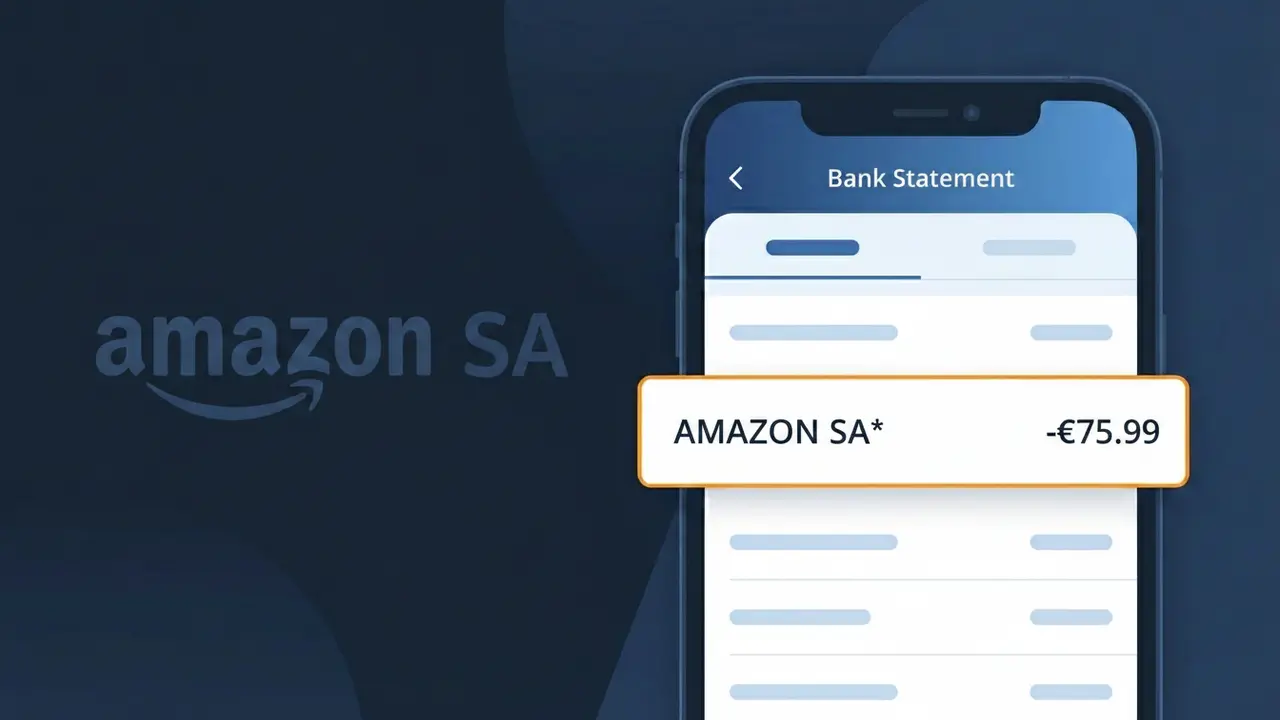
What Is "AMAZON SA*" on My Bank Statement?
The AMAZON SA* charge on your bank statement comes from Amazon Saudi Arabia (Amazon.sa), the e-commerce platform serving customers in the Kingdom of Saudi Arabia. This charge appears whenever you make a purchase through Amazon's Saudi Arabian marketplace, whether for physical goods, digital products, or subscription services. The 'SA' in the descriptor stands for Saudi Arabia, helping Amazon distinguish regional transactions across its global network of marketplaces. If you or someone with access to your payment details has recently shopped on Amazon.sa, this charge is almost certainly the result of that purchase.
Amazon uses the shortened descriptor AMAZON SA* on bank statements to identify transactions processed through its Saudi Arabian marketplace, with 'SA' representing the country code for Saudi Arabia. The asterisk (*) is a standard banking convention that typically separates the merchant identifier from an order number or additional transaction detail that may follow. Because payment processors often truncate merchant names to fit within character limits on bank statements, you may not see the full 'Amazon Saudi Arabia' name displayed on your statement.
ℹ️ Note
In most cases, seeing "AMAZON SA*" on your statement is completely normal. Before assuming fraud, check your recent purchases — most mystery charges have a simple explanation.
Is the AMAZON SA* Charge Legitimate or Fraud?
If you've spotted AMAZON SA* on your bank or credit card statement, it is most likely a legitimate charge from AMAZON SA, Amazon's entity used for certain transactions, particularly those processed through Amazon's South Africa or specialized merchant services division. This descriptor commonly appears when you purchase digital content, subscribe to an Amazon service, or buy from a third-party seller fulfilled through Amazon's platform.
- You recently purchased a digital product, eBook, or app through Amazon
- You have an active Amazon Prime, Kindle Unlimited, or Audible subscription billed via AMAZON SA
- A family member or household user made a purchase on a shared Amazon account
- You enabled 1-Click ordering and may have accidentally triggered a purchase
However, if you do not recognize the charge at all and cannot trace it to any Amazon activity, it is worth investigating further, as fraudulent charges occasionally use similar merchant descriptors to disguise unauthorized transactions.
How to Verify the AMAZON SA* Charge
- 1
Log into your Amazon account
Visit Amazon.com and go to 'Returns & Orders' or 'Account & Lists > Your Account > Order History' to look for any recent purchases that match the AMAZON SA* charge amount and date.
- 2
Search your email for receipts
Search your inbox for emails from amazon.com or noreply@amazon.com around the charge date. AMAZON SA typically sends order confirmations or subscription renewal notices immediately after billing.
- 3
Check your Amazon subscriptions
Go to 'Account & Lists > Memberships & Subscriptions' to review all active services like Prime, Kindle Unlimited, or Audible that may be generating recurring AMAZON SA* charges.
- 4
Ask household members
Check with family members who share your Amazon account or payment method — they may have made a purchase that triggered the AMAZON SA* charge without your direct knowledge.
- 5
Contact your bank for details
If you still can't identify the charge, call the number on the back of your card and ask for the full merchant details associated with the AMAZON SA* transaction to get more identifying information.
How to Dispute an AMAZON SA* Charge
- 1
Act within 60 days
Most banks require disputes to be filed within 60 days of the statement date. Don't delay if you believe the AMAZON SA* charge is unauthorized or incorrect — time limits are strictly enforced.
- 2
Contact AMAZON SA directly first
Visit Amazon's Customer Service at amazon.com/help or call their support line. Explain the unrecognized AMAZON SA* charge — Amazon is often able to issue refunds quickly for mistaken or unauthorized charges.
- 3
File a chargeback with your bank
If AMAZON SA is unresponsive or refuses to refund, contact your bank or credit card issuer to formally dispute the AMAZON SA* charge and initiate a chargeback process under consumer protection rules.
- 4
Request a new card number
If you suspect fraud and believe your card details were compromised to generate the AMAZON SA* charge, ask your bank to cancel the current card and issue a new one with a different number.
Tips for Managing AMAZON SA Charges
Enable bank alerts so you're notified instantly whenever an AMAZON SA* charge posts to your account.
Review your Amazon Order History monthly to reconcile every AMAZON SA* charge on your statement.
Secure your AMAZON SA account with a strong password and two-factor authentication to prevent unauthorized purchases.
Note your Amazon subscription renewal dates to anticipate recurring AMAZON SA* charges before they appear.
Use a virtual card number for Amazon purchases to limit exposure if your payment details are ever compromised.
Use WhatIsThisCharge.net to identify related charges that may appear alongside AMAZON SA* on your statement.
Frequently Asked Questions About AMAZON SA*
🔍 Decode this charge instantly
Search our database for AMAZON SA* and similar charges.
Decode AMAZON SA* →Was this article helpful?