Why You're Seeing "AMZN*" on Your Bank Statement
What Is "AMZN*" on My Bank Statement?
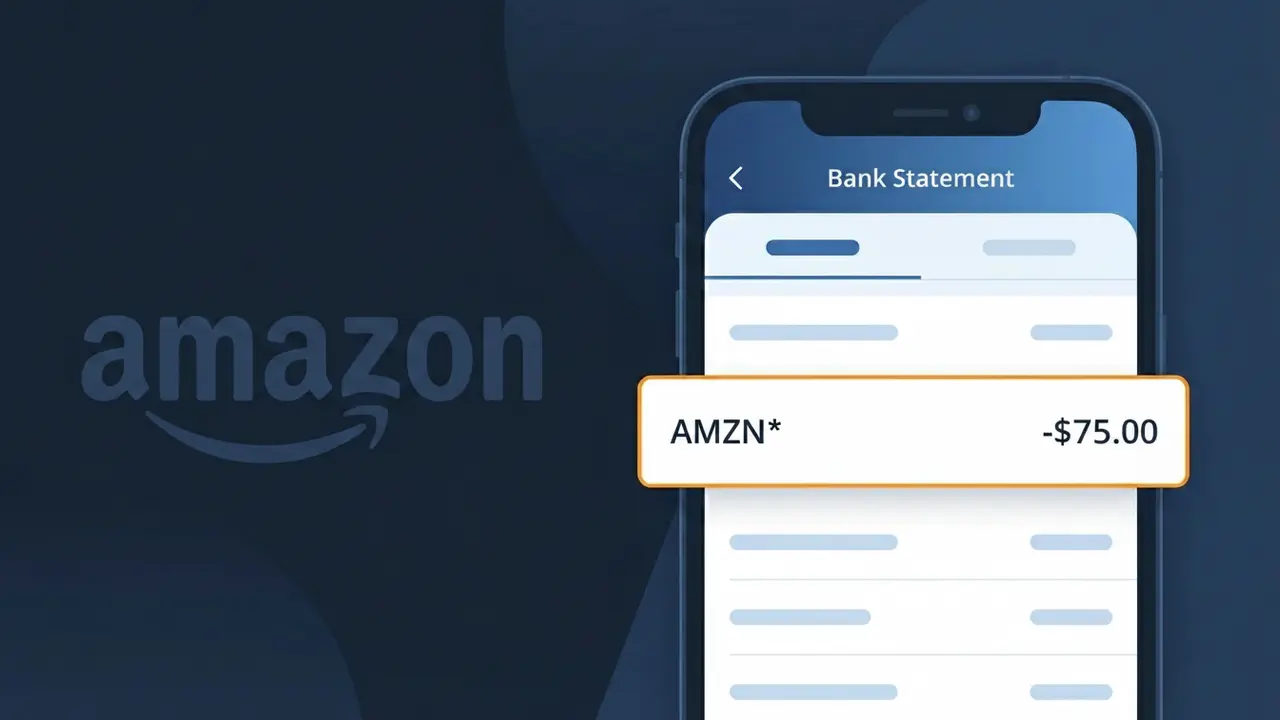
The AMZN* charge on your bank statement is a purchase made through Amazon.com, the world's largest online retailer. This descriptor is used by Amazon to identify transactions processed through their marketplace, which can include physical products, digital content, or third-party seller purchases. If you see AMZN* followed by additional characters or numbers, those typically reference the specific order or product category involved. Seeing this charge simply means money was spent on Amazon's platform, either by you or someone with access to your payment method.
Amazon uses the shortened descriptor AMZN* on bank statements because payment processors often have strict character limits for transaction descriptions, making full brand names impractical. The asterisk following AMZN is a standard separator that allows Amazon to append additional order-specific information within that limited space. This is a completely normal and legitimate billing practice used by large e-commerce companies to help identify individual transactions while staying within banking system constraints.
ℹ️ Note
In most cases, seeing "AMZN*" on your statement is completely normal. Before assuming fraud, check your recent purchases — most mystery charges have a simple explanation.
Is the AMZN* Charge Legitimate or Fraud?
The AMZN* charge on your bank or credit card statement is almost always a legitimate transaction from Amazon. This prefix is used by Amazon across a wide range of purchases and services, including physical goods, digital content, Amazon Prime, Kindle books, and third-party marketplace orders fulfilled through Amazon.
Common reasons you may see an AMZN* charge include:
- A recent Amazon.com product order shipped to your address
- An Amazon Prime membership renewal (monthly or annual)
- A digital purchase such as a Kindle eBook, Prime Video rental, or in-app item
- An Amazon Music, Audible, or other AMZN subscription auto-renewal
- A purchase made by a family member or household user on a shared Amazon account
While most AMZN* charges are genuine, unauthorized charges do occasionally occur due to compromised account credentials or accidental purchases. Always verify the amount and date against your Amazon order history before assuming fraud.
How to Verify the AMZN* Charge
- 1
Check your Amazon order history
Log into your account at amazon.com, go to 'Returns & Orders,' and match the AMZN* charge amount and date to a recent order or subscription renewal.
- 2
Search your email for Amazon receipts
Search your inbox for emails from amazon.com matching the charge date. Amazon sends order confirmations and subscription renewal notices that will list the exact amount billed.
- 3
Review your Amazon subscriptions
Visit amazon.com, go to 'Account & Lists' > 'Memberships & Subscriptions' to see all active AMZN subscriptions, including Prime, Audible, and Amazon Music.
- 4
Check household or family members
If you share an Amazon Household account, ask other members whether they placed an order. AMZN* charges from shared accounts will appear on the linked payment method.
- 5
Contact your bank if still unsure
If you cannot match the AMZN* charge to any Amazon activity, call the number on the back of your card and ask your bank for the full merchant descriptor to get more detail.
How to Dispute an AMZN* Charge
- 1
Act within 60 days
Most banks require you to dispute an unauthorized AMZN* charge within 60 days of your statement date, so act quickly once you identify a charge you don't recognize.
- 2
Contact Amazon Customer Service first
Visit amazon.com/help or call 1-888-280-4331. Amazon can often issue an immediate refund for accidental purchases, unauthorized orders, or duplicate AMZN* charges faster than a bank dispute.
- 3
Secure your Amazon account
If you suspect unauthorized access, change your Amazon password immediately, enable two-step verification, and review your saved payment methods and recent account activity.
- 4
File a chargeback with your bank
If Amazon does not resolve the issue, call your bank or card issuer and formally dispute the AMZN* charge. Provide your order history screenshots and any communication with Amazon as evidence.
- 5
Request a new card number
If fraud is confirmed, ask your bank to issue a new card number so no further unauthorized AMZN* or other charges can be made against your old card details.
Tips for Managing AMZN* Charges
Enable Amazon order notifications so you get an email or app alert every time an AMZN* charge is triggered.
Regularly review your Amazon order history monthly to catch any unexpected AMZN* charges before your billing cycle closes.
Secure your AMZN account with a strong unique password and two-step verification to prevent unauthorized AMZN* charges.
Note your Amazon Prime and Audible renewal dates in your calendar so AMZN* subscription charges never come as a surprise.
Use a dedicated card for Amazon purchases so all AMZN* charges are isolated and easy to track in one place.
Use WhatIsThisCharge.net to identify related charges that may appear alongside AMZN* on your statement.
Frequently Asked Questions About the AMZN* Charge
Was this article helpful?