Why You're Seeing "APPLE*" on Your Bank Statement
What Is "APPLE*" on My Bank Statement?
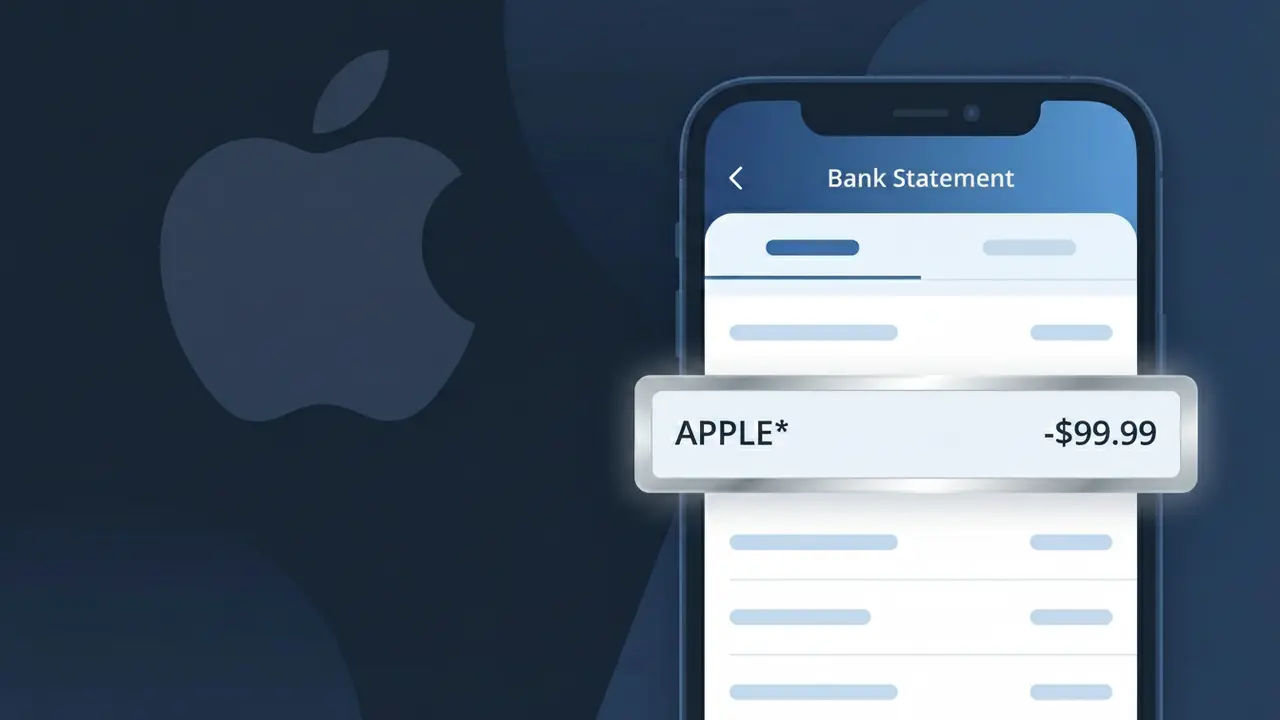
An APPLE* charge on your bank statement comes from Apple Inc. and typically indicates a purchase or subscription made through one of Apple's many services. You might see this descriptor following a transaction on the App Store, iTunes, Apple Music, iCloud, Apple TV+, or any other Apple platform. The asterisk following 'APPLE' is commonly used by Apple's payment processing system to separate the company name from additional transaction details. If you notice this charge and don't immediately recognize it, it's worth checking your Apple ID purchase history to identify the exact product or service.
The APPLE* descriptor appears on bank statements because Apple uses a truncated billing format that combines their company name with a transaction identifier, which your bank then displays in its shortened form. Payment processors often clip or standardize merchant names to fit within character limits on bank statements, which can make charges from familiar companies look unfamiliar. Apple operates a large ecosystem of services and digital storefronts, all of which may route payments under this same descriptor, making it a commonly seen but sometimes confusing charge.
ℹ️ Note
In most cases, seeing "APPLE*" on your statement is completely normal. Before assuming fraud, check your recent purchases — most mystery charges have a simple explanation.
Is the APPLE* Charge Legitimate or Fraud?
The APPLE* charge on your bank or credit card statement is typically a legitimate transaction processed by Apple Inc. for one of their many digital products or services. Apple uses the APPLE* prefix followed by a service name (such as APPLE*MUSIC, APPLE*ICLOUD, or APPLE*APP) to identify purchases made through their ecosystem.
Common legitimate reasons you may see an APPLE* charge include:
- App Store purchases or in-app purchases made on your iPhone, iPad, or Mac
- Apple Music, Apple TV+, Apple Arcade, or Apple One subscription renewals
- iCloud+ storage plan monthly or annual billing
- Apple News+ or Apple Fitness+ subscription charges
- One-time purchases such as movies, books, or paid apps from Apple's digital stores
However, if you do not recognize the specific APPLE* charge or did not authorize the purchase, it could indicate unauthorized access to your Apple ID or potential fraud, and you should investigate immediately.
How to Verify the APPLE* Charge
- 1
Check your Apple ID purchase history
Sign in at reportaproblem.apple.com with your Apple ID to view a full list of recent purchases. The APPLE* charge should match an item in this list with the same date and amount.
- 2
Search your email for Apple receipts
Apple sends email receipts for every transaction to your Apple ID email address. Search your inbox for emails from 'no_reply@email.apple.com' to find the receipt matching the APPLE* charge.
- 3
Check all household members' devices
If you share payment methods with family through Apple Family Sharing, a spouse or child may have made a purchase that resulted in the APPLE* charge on your statement.
- 4
Review your active Apple subscriptions
On your iPhone or iPad, go to Settings > [your name] > Subscriptions to see all active and expired Apple subscriptions that could be generating recurring APPLE* charges.
- 5
Contact Apple Support directly
If you still cannot identify the APPLE* charge, contact Apple Support at support.apple.com or call 1-800-275-2273. Have the charge amount and date ready to help their team locate the transaction.
How to Dispute an APPLE* Charge
- 1
Act within 60 days of the charge
Most banks and credit card issuers require you to dispute unauthorized charges within 60 days of the statement date. Don't delay if you spot an unfamiliar APPLE* charge on your account.
- 2
Request a refund directly from Apple first
Visit reportaproblem.apple.com, find the APPLE* transaction, and click 'Report a Problem.' Apple often resolves billing disputes quickly and may issue a refund without requiring a bank chargeback.
- 3
File a chargeback with your bank or card issuer
If Apple denies your refund request, contact your bank or credit card company to initiate a chargeback. Provide documentation including your Apple purchase history and any communication with Apple Support.
- 4
Secure your Apple ID immediately
If the APPLE* charge appears fraudulent, change your Apple ID password and enable two-factor authentication at appleid.apple.com to prevent further unauthorized purchases.
- 5
Request a new card number from your bank
If fraud is confirmed, ask your bank to cancel your current card and issue a new one. Update your payment method in your Apple ID settings to prevent service interruptions on legitimate subscriptions.
Tips for Managing APPLE* Charges
Enable purchase notifications in your Apple ID settings to get alerted every time an APPLE* charge is processed.
Regularly review your Apple subscriptions list to cancel any unused services before the next APPLE* billing cycle hits.
Secure your Apple ID with a strong, unique password and two-factor authentication to prevent unauthorized APPLE* charges.
Note your Apple subscription renewal dates so recurring APPLE* charges never catch you off guard on your statement.
Use a dedicated card for Apple purchases to quickly isolate and identify any suspicious APPLE* charges.
Use WhatIsThisCharge.net to identify related charges that may appear alongside APPLE* on your statement.
Frequently Asked Questions About the APPLE* Charge
Was this article helpful?