Why You're Seeing "APPLE TV*" on Your Bank Statement
What Is "APPLE TV*" on My Bank Statement?
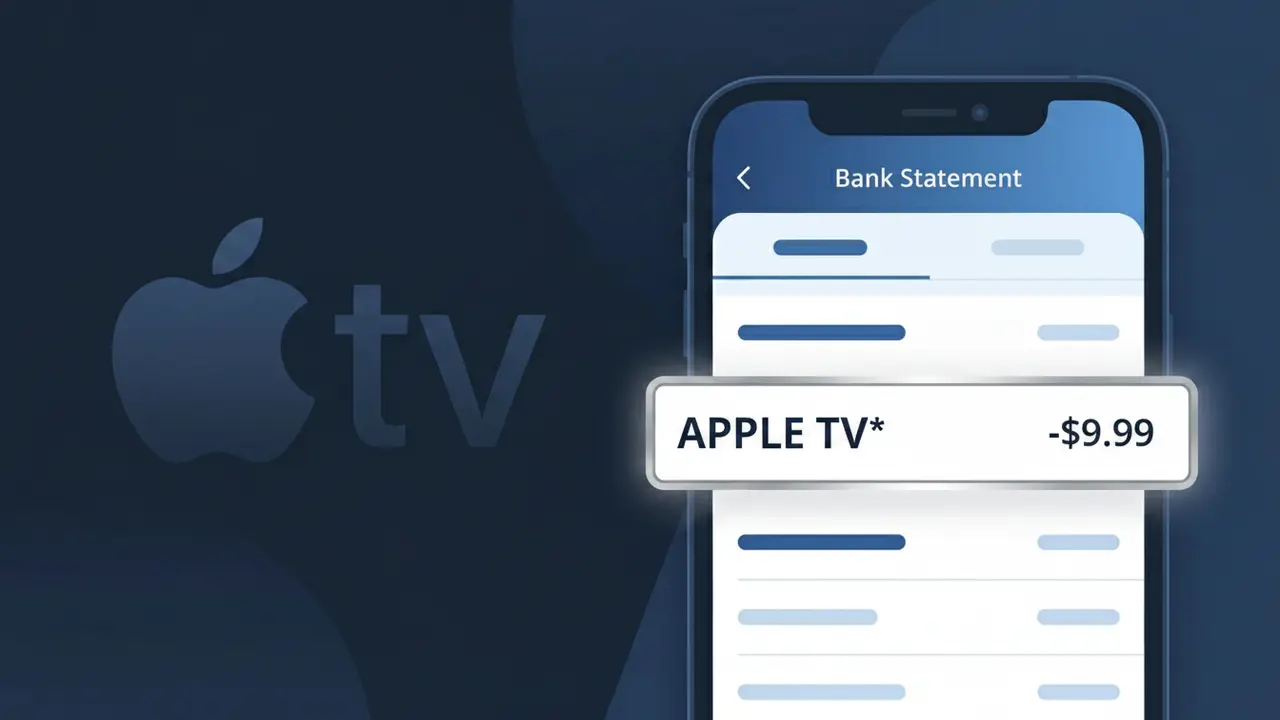
The APPLE TV* charge on your bank statement comes from Apple TV+, Apple's subscription-based video streaming service. This charge appears when you have an active Apple TV+ subscription, which gives you access to Apple's library of original movies, TV shows, and documentaries. You might also see this charge if you signed up for a free trial that has since converted to a paid plan, or if a family member on your Apple Family Sharing plan has an active subscription. The asterisk following 'APPLE TV' in the descriptor is a common formatting convention used in Apple's billing system.
Apple uses the shortened descriptor APPLE TV* on bank statements rather than the full brand name 'Apple TV+' due to character limits imposed by payment processors and banking systems. The asterisk (*) is often used by Apple to separate the service name from additional billing details, such as a location or account identifier, which may or may not be visible depending on your bank's statement format. This truncated format is standard across Apple's various subscription services and is the official billing descriptor registered with card networks like Visa and Mastercard.
ℹ️ Note
In most cases, seeing "APPLE TV*" on your statement is completely normal. Before assuming fraud, check your recent purchases — most mystery charges have a simple explanation.
Is the APPLE TV* Charge Legitimate or Fraud?
If you see APPLE TV* on your bank or credit card statement, this charge is most commonly a legitimate billing from APPLE TV, Apple's streaming subscription service. Apple uses the APPLE TV* descriptor for monthly or annual subscription fees tied to Apple TV+, the premium video streaming platform offering original shows, movies, and documentaries.
- You or a family member may have signed up for an Apple TV+ free trial that recently converted to a paid subscription
- The charge could reflect a bundled Apple One subscription that includes Apple TV+ alongside other Apple services
- A device purchase (such as an iPhone, iPad, or Apple TV device) may have included a complimentary Apple TV+ trial that has now ended
- If you did not authorize this charge and have no Apple account, it could indicate unauthorized use of your payment details and should be investigated immediately
How to Verify the APPLE TV* Charge
- 1
Check your Apple ID subscriptions
Sign in at appleid.apple.com or open Settings on your iPhone/iPad, tap your name, then 'Subscriptions' to see if an active Apple TV+ plan is listed under your account.
- 2
Search your email for Apple receipts
Search your inbox for emails from 'no_reply@email.apple.com' with the subject 'Your receipt from Apple.' These receipts will reference the APPLE TV* charge and include the billing date and amount.
- 3
Check household and family sharing members
If you use Apple Family Sharing, a family member may have subscribed to Apple TV+ or Apple One, and the APPLE TV* charge may be billed to the family organizer's payment method.
- 4
Review your Apple One bundle
Log into your Apple account and confirm whether you are subscribed to Apple One, which bundles Apple TV+ with other services — the APPLE TV* charge may appear as part of this combined plan.
- 5
Contact your bank for charge details
Ask your bank for the full merchant descriptor and transaction date for the APPLE TV* charge. Cross-reference this with your Apple subscription billing cycle to confirm it matches.
How to Dispute a APPLE TV* Charge
- 1
Act within 60 days of the charge
Most banks require you to dispute an unauthorized APPLE TV* charge within 60 days of the statement date. Review your statement promptly and act quickly to protect your chargeback rights.
- 2
Contact Apple TV support first
Visit support.apple.com or call Apple Support at 1-800-275-2273 to report the unauthorized APPLE TV* charge. Apple can verify account activity and issue a refund directly, which is faster than a bank dispute.
- 3
File a chargeback with your bank
If Apple does not resolve the issue, contact your bank or card issuer and formally dispute the APPLE TV* charge as unauthorized. Provide any communication you have had with Apple Support as supporting evidence.
- 4
Request a new card number
If you suspect your payment details were compromised and used to create an Apple account with Apple TV+, ask your bank to issue a new card number to prevent future unauthorized APPLE TV* charges.
Tips for Managing APPLE TV* Charges
Enable billing notifications in your Apple ID settings so you're alerted immediately when an APPLE TV* charge is processed.
Regularly audit your Apple subscriptions page to ensure you're only paying for Apple TV+ if you actively use the service.
Secure your Apple ID with two-factor authentication to prevent unauthorized sign-ups that could trigger unexpected APPLE TV* charges.
Note your Apple TV+ billing date each month so you can anticipate the APPLE TV* charge and avoid confusing it with fraud.
If sharing payment info across Apple devices, review Family Sharing settings to avoid surprise APPLE TV* charges from family members.
Use WhatIsThisCharge.net to identify related charges that may appear alongside APPLE TV* on your statement.
Frequently Asked Questions About the APPLE TV* Charge
🔍 Decode this charge instantly
Search our database for APPLE TV* and similar charges.
Decode APPLE TV* →Was this article helpful?