Why You're Seeing "ASANA*" on Your Bank Statement
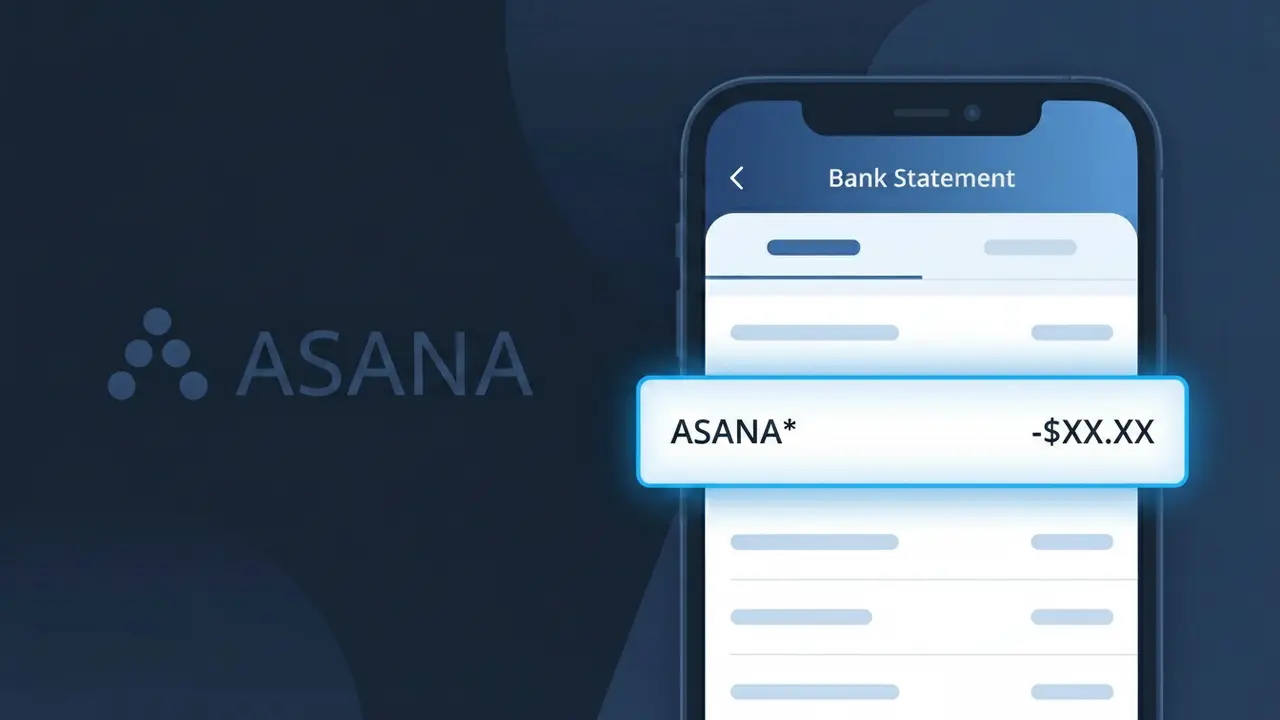
What Is "ASANA*" on My Bank Statement?
The ASANA* charge on your bank statement comes from Asana, a popular cloud-based project management and team collaboration platform. This charge represents a subscription payment for Asana's software service, which helps teams organize tasks, track projects, and manage workflows. You'll typically see this descriptor if you or someone at your organization signed up for one of Asana's paid plans, such as Premium, Business, or Enterprise. If you don't recognize this charge, it's possible a team member at your company set up an account using a shared payment method.
The ASANA* descriptor appears on your bank statement because Asana uses a truncated version of their company name when processing subscription billing transactions through their payment processor. The asterisk following the name is commonly used by SaaS companies to separate the merchant name from additional billing details such as a plan identifier or billing period. This is standard practice for software subscription services and is simply how Asana's charges are transmitted to your bank's transaction records.
ℹ️ Note
In most cases, seeing "ASANA*" on your statement is completely normal. Before assuming fraud, check your recent purchases — most mystery charges have a simple explanation.
Is the ASANA* Charge Legitimate or Fraud?
If you see ASANA* on your bank or credit card statement, it most likely represents a legitimate subscription charge from Asana, the popular project management and team collaboration platform. Asana offers free and paid plans (Premium, Business, and Enterprise), and billing is processed under the ASANA* descriptor. Before assuming fraud, consider these common reasons the charge appears:
- You or a team member signed up for an Asana Premium or Business plan
- A free trial of Asana converted into a paid subscription automatically
- Your organization renewed its annual or monthly Asana workspace subscription
- Someone in your household or company used your payment method to upgrade an Asana workspace
How to Verify the ASANA* Charge
- 1
Log into your Asana account
Visit asana.com and sign in. Navigate to your Admin Console or Billing settings to review your current plan and any recent charges associated with your workspace.
- 2
Search your email for Asana receipts
Search your inbox for emails from billing@asana.com or noreply@asana.com. Asana sends receipts for every successful charge, which should match the ASANA* amount on your statement.
- 3
Check with teammates or household members
Ask colleagues or family members if they upgraded an Asana workspace using your shared payment method, since workspace admins can add billing details independently.
- 4
Review your active subscriptions
Check subscription management tools like your Apple ID, Google Play, or any company expense accounts to see if an Asana subscription is listed and active.
- 5
Contact your bank for details
If you still cannot identify the ASANA* charge, call your bank and ask for the exact merchant name, transaction date, and amount to cross-reference with your Asana billing history.
How to Dispute an ASANA* Charge
- 1
Act within 60 days
Most banks require you to dispute an unrecognized ASANA* charge within 60 days of the statement date. Act quickly to preserve your right to a chargeback.
- 2
Contact Asana support first
Reach out to Asana directly at asana.com/support or via email. Asana's billing team can investigate the ASANA* charge and issue a refund if it was made in error or after an accidental upgrade.
- 3
File a chargeback with your bank
If Asana does not resolve the issue, contact your bank or card issuer to file a formal dispute. Provide your Asana correspondence and the ASANA* transaction details as evidence.
- 4
Request a new card number
If you suspect your card was used without authorization to pay for Asana, ask your bank to issue a new card number to prevent any future unauthorized ASANA* charges.
Tips for Managing ASANA* Charges
Enable billing notifications in Asana so you receive email alerts before each ASANA* charge is processed.
Regularly review your Asana workspace billing page to confirm your plan tier and number of seats being charged.
Ensure only trusted admins have access to billing settings in your Asana workspace to avoid surprise ASANA* charges.
Note your Asana renewal date — annual plans trigger a larger ASANA* charge once per year, which can be easy to forget.
Use a dedicated virtual card for your Asana subscription so ASANA* charges are isolated and easy to track or cancel.
Use WhatIsThisCharge.net to identify any related or unfamiliar charges that appear alongside ASANA* on your statement.
Frequently Asked Questions About the ASANA* Charge
Was this article helpful?