Why You're Seeing "AWS*" on Your Bank Statement
What Is "AWS*" on My Bank Statement?
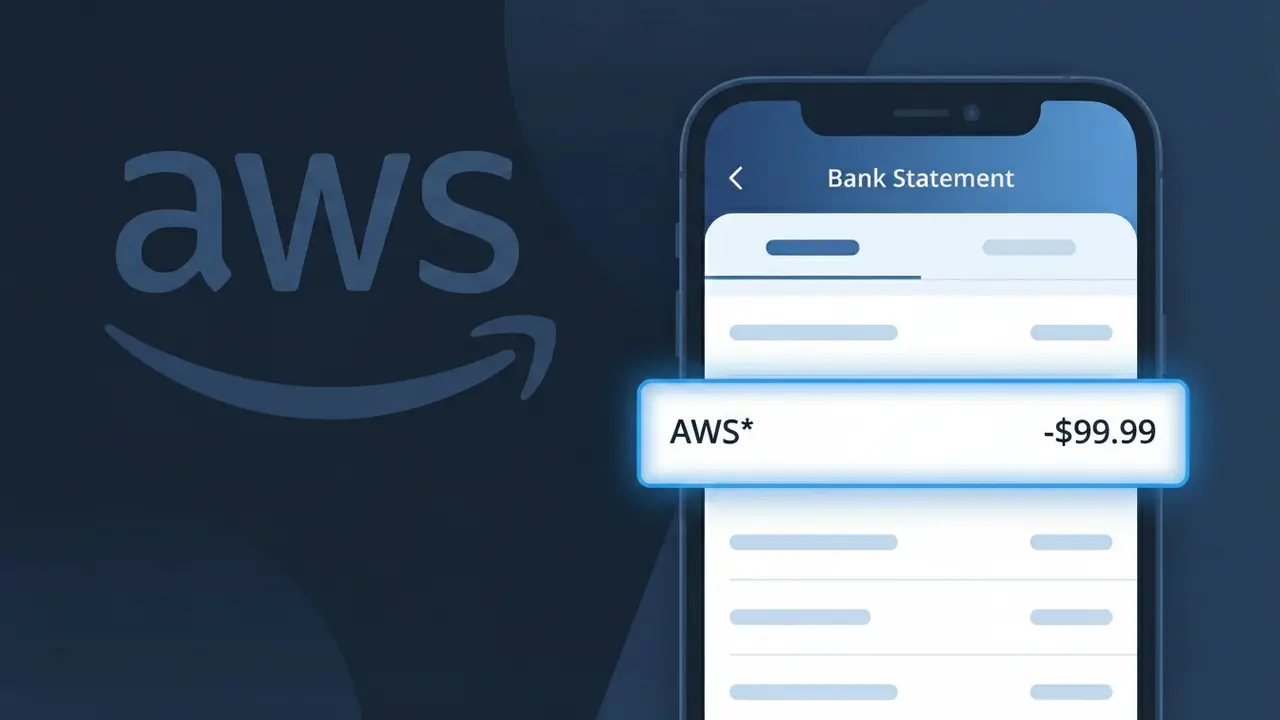
An AWS* charge on your bank statement comes from Amazon Web Services, the world's leading cloud computing platform. This charge appears when you or someone with access to your payment details has an active AWS account being billed for cloud services such as computing power, storage, databases, or other hosted infrastructure. The 'AWS*' descriptor is Amazon's shorthand identifier used across billing systems to tag charges related to their cloud division. If you weren't expecting this charge, it's worth checking whether a free trial has converted to a paid plan or whether a developer or business associate added your card to an AWS account.
Amazon Web Services uses the abbreviated descriptor AWS* on bank statements rather than the full company name due to character limits imposed by payment processing networks, which typically restrict merchant descriptors to a short alphanumeric string. The asterisk following 'AWS' is a common billing convention that often separates the company identifier from an account or service suffix, though it may appear alone depending on your bank's display format. This truncated descriptor is standard practice for large tech companies that process millions of transactions across multiple sub-services under a single billing identity.
ℹ️ Note
In most cases, seeing "AWS*" on your statement is completely normal. Before assuming fraud, check your recent purchases — most mystery charges have a simple explanation.
Is the AWS* Charge Legitimate or Fraud?
The AWS* charge on your bank or credit card statement is most commonly a legitimate billing from Amazon Web Services (AWS), Amazon's cloud computing platform. AWS bills customers for services like EC2 instances, S3 storage, Lambda functions, and more — often with unfamiliar truncated descriptors like AWS* followed by an account ID or service code.
- You or someone in your household may have signed up for AWS Free Tier, which can incur charges once limits are exceeded
- Developers or businesses often set up AWS accounts and forget about running services that continue to bill monthly
- AWS charges appear as AWS* because merchant name truncation is common with Amazon's billing systems
- Fraudulent use of your card to purchase AWS services is possible if your card details were compromised
How to Verify the AWS* Charge
- 1
Log into your AWS account
Visit console.aws.amazon.com and sign in. Navigate to 'Billing & Cost Management' to see a full breakdown of charges that match the AWS* amount on your statement.
- 2
Search your email for AWS receipts
Search your inbox for emails from 'aws-receivables-support@email.amazon.com' or 'no-reply@amazon.com' with subject lines referencing your AWS invoice or billing statement.
- 3
Check if a family member or colleague has access
Someone with your card saved in their AWS account — such as a developer, spouse, or employee — may have generated the AWS* charge unknowingly.
- 4
Review your AWS Cost Explorer
Inside the AWS Billing dashboard, use Cost Explorer to identify exactly which services generated the charge, broken down by date and service type.
- 5
Contact your bank for merchant details
Ask your bank for the full merchant descriptor and transaction ID associated with the AWS* charge, which can help you match it to a specific AWS account.
How to Dispute a AWS* Charge
- 1
Act within 60 days
Most banks require you to dispute an unrecognized AWS* charge within 60 days of the statement date. Don't delay — start the process as soon as you spot the charge.
- 2
Contact AWS Support first
Visit aws.amazon.com/contact-us or call AWS Support to report an unrecognized AWS* charge. AWS can investigate the account linked to your card and issue a refund if appropriate.
- 3
File a chargeback with your bank
If AWS cannot resolve the issue, contact your bank or card issuer to initiate a chargeback for the AWS* transaction. Provide any AWS correspondence as supporting evidence.
- 4
Request a new card number
If you believe the AWS* charge is fraudulent and your card details were stolen, ask your bank for a new card number to prevent further unauthorized AWS or other charges.
Tips for Managing AWS* Charges
Set AWS billing alerts in CloudWatch to get notified when your AWS* charges exceed a threshold you define.
Review your AWS Cost & Usage Report monthly to catch unexpected AWS* charges before your card is billed.
Enable MFA on your AWS account to prevent unauthorized users from launching services that generate AWS* charges.
AWS bills on the first of each month — mark your calendar to review your AWS* statement charge every month.
Use AWS Budgets to set hard spending caps and reduce the risk of surprise AWS* charges on your card.
Use WhatIsThisCharge.net to identify related charges that may appear alongside AWS* on your statement.
Frequently Asked Questions About the AWS* Charge
Was this article helpful?