Why You're Seeing "GOOGLE*PLAY" on Your Bank Statement
Why You're Seeing "GOOGLE*PLAY" on Your Bank Statement
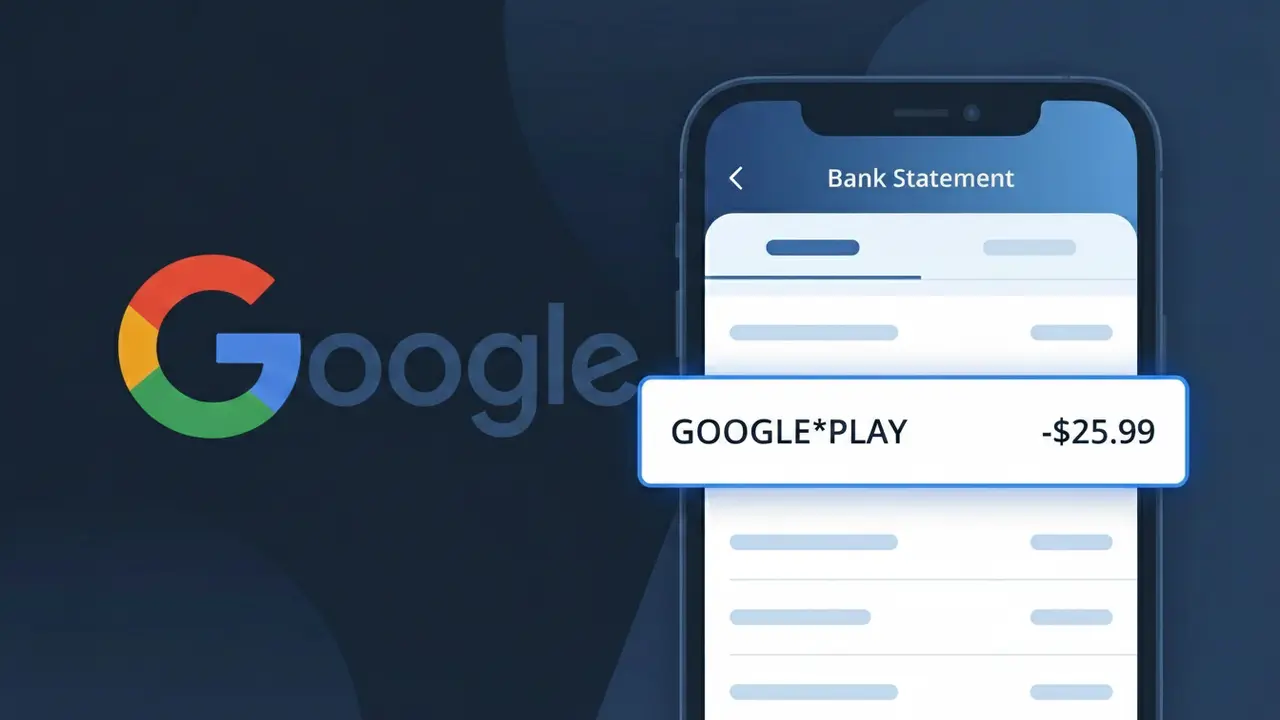
A GOOGLE*PLAY charge on your bank statement comes from the Google Play Store, which is Google's official digital marketplace for Android apps, games, movies, books, and subscriptions. This charge appears whenever you make a purchase or have an active recurring subscription through the Play Store on your Android device or through a web browser. Whether you downloaded a paid app, bought in-game currency, or signed up for a streaming service through Google Play, this descriptor is how the transaction shows up on your statement. If you don't recognize it immediately, it's worth checking your Google Play purchase history to identify the exact item or subscription tied to the charge.
The GOOGLE*PLAY descriptor appears on your bank statement because Google uses a standardized billing format where "GOOGLE*" identifies Google as the merchant and "PLAY" specifies the Play Store platform — rather than listing the individual app or service you purchased. This truncated format is common among large digital marketplaces that process millions of transactions across thousands of different apps and developers. As a result, a single subscription to a fitness app or a one-time game purchase will all show the same GOOGLE*PLAY label, making it important to cross-reference your Play Store purchase history if you need to identify the specific transaction.
ℹ️ Note
In most cases, seeing "GOOGLE*PLAY" on your statement is completely normal. Before assuming fraud, check your recent purchases — most mystery charges have a simple explanation.
Is This Charge Legitimate or Fraud?
Most unrecognized charges are legitimate transactions with unfamiliar descriptors. Common reasons for seeing GOOGLE*PLAY:
- You or a family member made a recent purchase from Google Play Store
- An annual renewal you forgot about
- A pre-authorization hold that has not yet settled
- A purchase processed through a parent company or payment aggregator
If you are certain you did not authorize this charge, follow the dispute steps below.
How to Verify This Charge (Step-by-Step)
- 1
Check your purchase history
Log into your account with Google Play Store and review your order or billing history for the charge amount and date.
- 2
Ask household members
If your card is shared, check whether a family member made the purchase. This is one of the most common explanations.
- 3
Search your email
Search your inbox for "GOOGLE*PLAY", the charge amount, or the word "receipt" around the date the charge appeared.
- 4
Check active subscriptions
Review subscriptions in Apple, Google Play, PayPal, and your bank app to see if any match this merchant.
- 5
Contact your bank
Your bank can provide full merchant details including the registered business name, location, and category code.
💡 Tip
Tap the charge in your banking app for more details — it usually shows the full merchant name, location, and transaction ID not visible on your statement.
How to Dispute This Charge If Unauthorized
- 1
Act quickly
Credit card disputes must be filed within 60 days of the statement date. Debit card disputes require action within 2 business days for full Regulation E protection.
- 2
Contact the merchant first
Reach out to Google Play Store directly — they can often issue a refund faster than a formal bank dispute.
- 3
File a bank chargeback
Contact your bank and formally dispute the charge. Provide the transaction date, amount, and reason.
- 4
Request a new card if compromised
If you believe your card details were stolen, request a new card number immediately to stop further unauthorized charges.
- 5
Monitor your account
Enable real-time transaction alerts to catch any future unauthorized charges the moment they happen.
⚠️ Warning
Never ignore an unrecognized charge for more than a few days. Most consumer protection laws have strict time windows for reporting unauthorized transactions.
Pro Tips: Avoid Unexpected Charges in the Future
Enable real-time push notifications for every card transaction in your banking app.
Review your full bank statement at least once a month — not just your balance.
Use a dedicated card for online subscriptions so you can monitor them separately.
Set calendar reminders before free trials end to decide whether to keep or cancel.
Use virtual card numbers for online shopping to reduce fraud risk.
Bookmark WhatIsThisCharge.net to look up any unknown charge instantly.
Frequently Asked Questions
🔍 Decode this charge instantly
Search our database for GOOGLE*PLAY and similar charges.
Decode GOOGLE*PLAY →Was this article helpful?