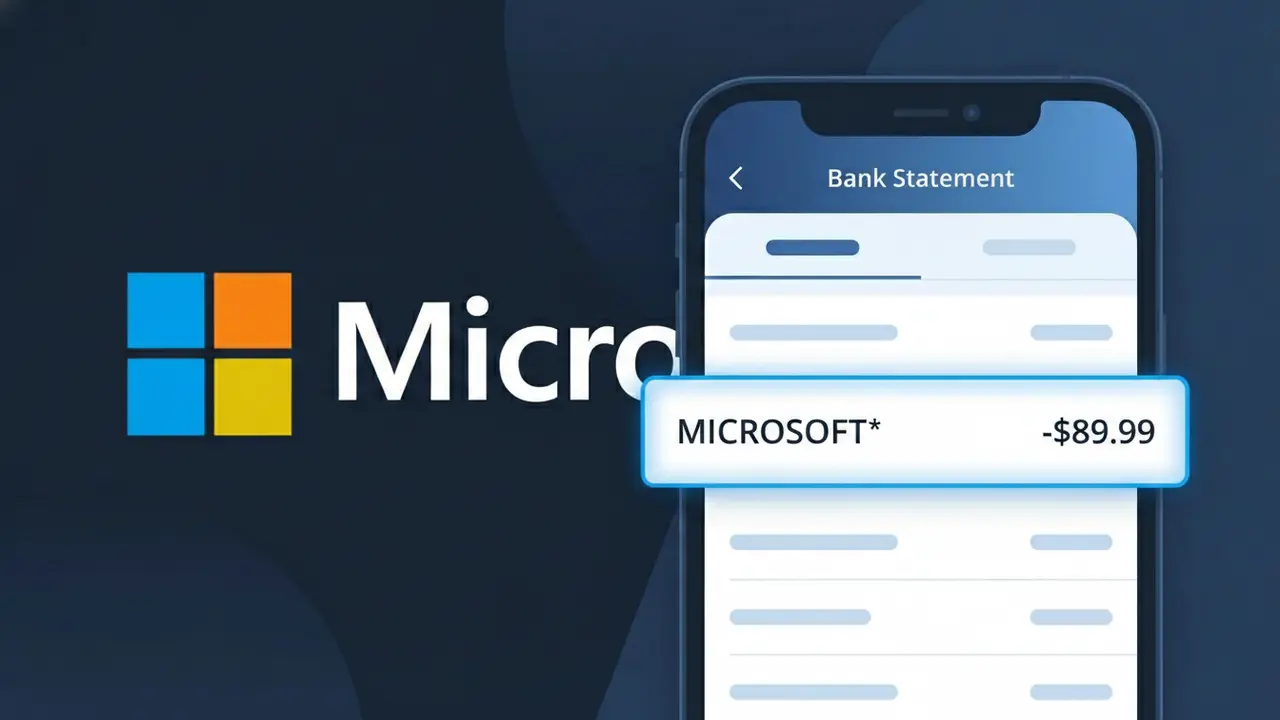
MICROSOFT* Charge (What It Is + Is It Legit?)
✓ LegitimateThe "MICROSOFT*" charge is from Microsoft 365. Microsoft 365 subscription.
Microsoft 365
Microsoft 365 subscription.
Category
Tech
Avg. Charge
$6.99
Country
US
Billing Cycle
Monthly
Cancel At
account.microsoft.com/services
Support
See website
Understanding this descriptor
Microsoft processes payments for its Microsoft 365 subscription service through its own internal billing infrastructure, which truncates the full product name down to "MICROSOFT*" due to the character limits imposed by payment networks like Visa and Mastercard on transaction descriptors. The asterisk following "MICROSOFT" is a standard separator used in merchant descriptors to indicate that additional identifying information would follow if space allowed, a common practice among large tech companies that sell multiple products under one parent brand. If you see this charge for around $6.99 on a monthly basis, it almost certainly corresponds to a Microsoft 365 Personal or family plan subscription tied to your Microsoft account.
Recommended actions
Confirm Your Microsoft 365 Subscription
Visit microsoft.com and sign in to your Microsoft account to verify that you have an active Microsoft 365 subscription. Check the plan name, billing cycle, and renewal date to confirm the MICROSOFT* charge on your bank statement matches what you signed up for.
Review Your Microsoft 365 Billing History
Go to account.microsoft.com/services and navigate to your billing history to see a full breakdown of past MICROSOFT* charges. Make sure the amount charged matches your current Microsoft 365 plan pricing, whether monthly or annual.
Check Who Is Using the Subscription
From your Microsoft 365 account settings at microsoft.com, review how many users or devices are linked to your subscription. If you share a Microsoft 365 Family plan, confirm that all listed members are people you recognize and authorized.
Cancel or Adjust Your Microsoft 365 Plan If Needed
If you no longer want the Microsoft 365 subscription or want to switch plans, visit account.microsoft.com/services to manage or cancel your subscription before the next billing date to avoid another MICROSOFT* charge appearing on your bank statement.
How to cancel Microsoft 365
Microsoft 365 bills you Monthly. To stop future charges, cancel from your account directly.
Cancel at Microsoft 365Is this charge fraudulent?
No, this is a legitimate charge from Microsoft 365. However, if you did not authorize this charge or cancelled your subscription, you may be eligible for a refund.
ℹ️ Note
"MICROSOFT*" is a legitimate charge from Microsoft for a Microsoft 365 subscription. If you or a family member uses Word, Excel, Outlook, or OneDrive through a paid plan, this $6.99 monthly charge is expected and will recur automatically until the subscription is cancelled.
Is the MICROSOFT* Charge Legitimate or Fraud?
If you see a MICROSOFT* charge on your bank or credit card statement, it is most likely a legitimate billing from Microsoft for one of their many subscription services or digital purchases. Microsoft uses the MICROSOFT* prefix followed by a product name (e.g., MICROSOFT*365, MICROSOFT*XBOX, MICROSOFT*STORE) to identify transactions on your statement.
Common legitimate reasons you might see a MICROSOFT* charge include:
- A Microsoft 365 (formerly Office 365) personal or family subscription renewal
- An Xbox Game Pass, Xbox Live Gold, or Xbox subscription billing
- A purchase from the Microsoft Store for software, apps, or games
- An Azure cloud services or developer tool subscription
- A OneDrive cloud storage plan renewal
- A Copilot Pro or other Microsoft AI subscription charge
However, if you do not recognize the charge and have not signed up for any Microsoft services, it could indicate unauthorized use of your payment method. Always verify before dismissing or disputing any MICROSOFT* charge.
How to Verify the MICROSOFT* Charge
- 1
Check your Microsoft account order history
Sign in at account.microsoft.com and navigate to 'Order History' to see all recent purchases and subscription renewals billed under your account. The charge amount and date should match your bank statement.
- 2
Search your email for Microsoft receipts
Look in your inbox for emails from microsoft.com with subject lines like 'Your Microsoft order' or 'Receipt for your Microsoft purchase.' Microsoft always sends a confirmation email when a MICROSOFT* charge is processed.
- 3
Check all household members' accounts
Ask family members or roommates if they used a shared payment method to buy from the Microsoft Store or sign up for Xbox or Microsoft 365. A MICROSOFT* charge may have been authorized by someone else in your household.
- 4
Review your active Microsoft subscriptions
Go to account.microsoft.com/services to see all active subscriptions tied to your Microsoft account, including Microsoft 365, Xbox Game Pass, and OneDrive plans, along with their billing dates and amounts.
- 5
Contact your bank for charge details
If you still cannot identify the MICROSOFT* charge, call the number on the back of your card. Your bank can provide the full merchant descriptor, exact transaction date, and sometimes a customer service number linked to the charge.
How to Dispute a MICROSOFT* Charge
- 1
Act within 60 days of the charge
Most banks and card issuers require you to dispute an unauthorized MICROSOFT* charge within 60 days of the statement date. Acting quickly improves your chances of a successful chargeback and full refund.
- 2
Contact Microsoft support first
Visit support.microsoft.com or call Microsoft at 1-800-642-7676 to report the unrecognized MICROSOFT* charge. Microsoft can investigate the transaction, identify which account it belongs to, and issue a refund without needing a bank dispute.
- 3
File a chargeback with your bank
If Microsoft cannot resolve the issue, contact your bank or credit card issuer to file a formal chargeback. Provide the MICROSOFT* charge details, the date, and documentation showing you did not authorize the transaction.
- 4
Request a new card number
If the MICROSOFT* charge appears fraudulent and your payment information may have been compromised, ask your bank to cancel your current card and issue a new one to prevent further unauthorized charges from Microsoft or any other merchant.
Tips for Managing MICROSOFT Charges
Enable billing alerts in your Microsoft account so you're notified before any MICROSOFT* subscription renews.
Regularly audit your subscriptions at account.microsoft.com/services to avoid surprise MICROSOFT* charges.
Use a dedicated payment method for your Microsoft account to make MICROSOFT* charges easy to track and identify.
Note your Microsoft subscription renewal dates to anticipate MICROSOFT* charges before they appear on your statement.
Enable two-factor authentication on your Microsoft account to prevent unauthorized purchases that create MICROSOFT* charges.
Use WhatIsThisCharge.net to identify related charges like MICROSOFT*365 or MICROSOFT*XBOX on your statement.
Common questions
Was this page helpful?
Community Reports (0)
0 votesNo votes yet — be the first to report on this charge!
Have you seen this charge? Help others by voting:
Community Comments (0)
No comments yet. Be the first to share your experience!
Share your experience
Your email is only used to verify your comment and will never be shown publicly.
Search Another Charge
Popular Charges

Amazon Marketplace
AMZN MKTP US
Netflix
NETFLIX *SUBSCRIPTION
Netflix
NETFLIX.COM *
Apple
APPLE *SUBSCRIPTION
Apple
APPLE.COM/BILL
Related Charges
Need to dispute this charge?
Generate a professional dispute letter in seconds with our AI tool.
Open Charge AssistantCommunity Verified
Real user reports
Free to Use
Always free to check
Secure & Private
Your data is safe
Help Millions
48K+ charges identified