Why You're Seeing "FIGMA*" on Your Bank Statement
Why You're Seeing "FIGMA*" on Your Bank Statement
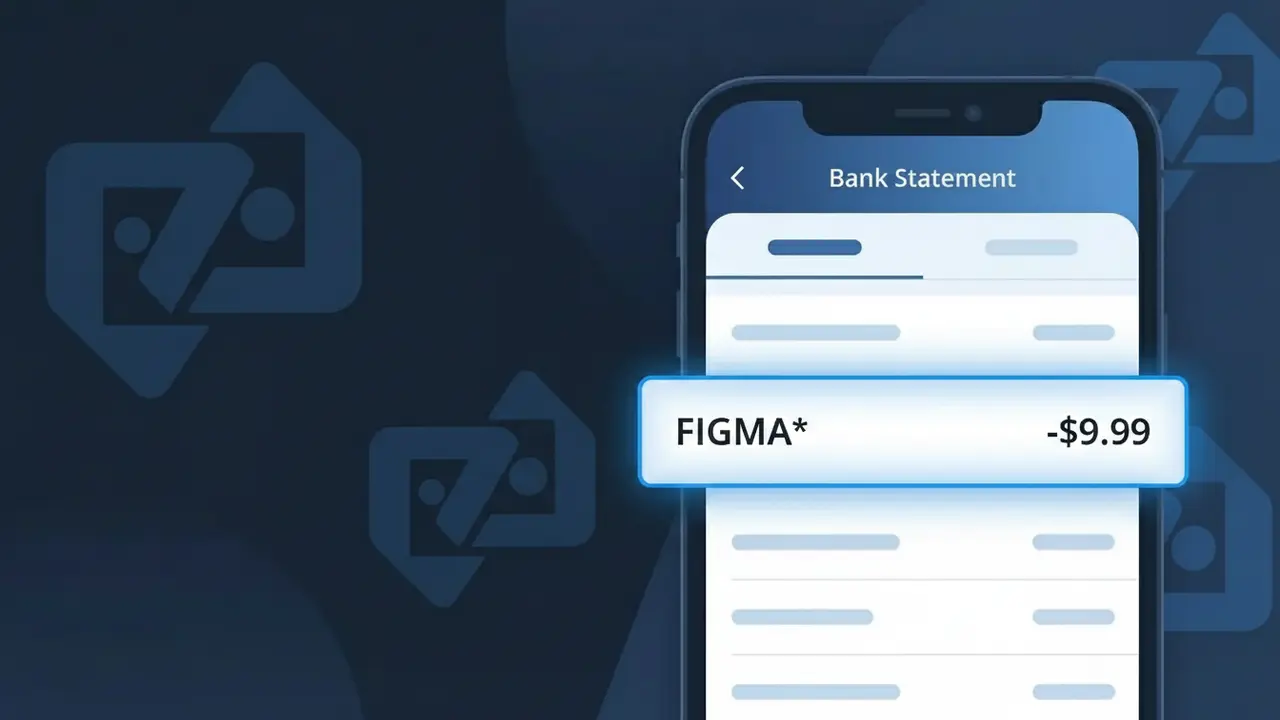
The FIGMA* charge on your bank statement comes from Figma, the popular cloud-based design and prototyping tool used by UI/UX designers, product teams, and developers worldwide. This charge represents a subscription payment for access to Figma's design platform, which allows users to create, collaborate on, and share digital designs in real time. You'll typically see this charge monthly or annually depending on the billing plan you or your organization selected. If you recently signed up for a Figma Starter, Professional, or Organization plan, this is the corresponding billing charge.
The FIGMA* descriptor appears on your bank statement because Figma uses a truncated version of their company name when processing payments through their billing system. The asterisk following the name is commonly used by SaaS companies to separate the merchant name from additional billing details such as a plan type or invoice reference. This is standard practice for subscription-based software companies and does not indicate any fraudulent activity.
Is the FIGMA* Charge Legitimate or Fraud?
The FIGMA* charge on your bank or credit card statement is almost always a legitimate billing from Figma, the popular cloud-based design and prototyping platform used by designers and developers worldwide. Figma uses the FIGMA* descriptor when processing subscription payments, so this charge typically reflects an active Starter, Professional, or Organization plan.
- Figma bills monthly or annually depending on your chosen subscription plan
- Team and Organization plans can generate per-seat charges, which may appear as multiple FIGMA* entries
- Free trial conversions to paid plans will trigger the first FIGMA* charge automatically
- Figma may charge separately for add-ons like additional editors, making multiple FIGMA* charges possible in one cycle
How to Verify the FIGMA* Charge
- 1
Log into your Figma account
Visit figma.com and sign in, then navigate to Settings > Billing to view your active plan, invoices, and the exact amounts billed. The charge date and amount should match the FIGMA* entry on your statement.
- 2
Search your email for Figma receipts
Search your inbox for emails from 'noreply@figma.com' or subject lines like 'Your Figma receipt.' Figma sends an invoice email for every successful payment that will confirm the FIGMA* charge.
- 3
Check if a household member or colleague signed up
If you share payment methods with others, ask whether a partner, family member, or coworker added your card to their Figma account or upgraded a shared team plan.
- 4
Review all Figma workspaces you belong to
You may be the billing owner for multiple Figma teams or organizations. Check each workspace's billing settings to see if your card is charged separately for each, explaining multiple FIGMA* entries.
- 5
Contact your bank for transaction details
If you still cannot verify the FIGMA* charge, call the number on the back of your card. Your bank can provide the exact merchant ID and transaction metadata to confirm whether it originated from Figma.
How to Dispute a FIGMA* Charge
- 1
Act within 60 days of the statement date
Most banks require disputes to be filed within 60 days of the statement date showing the FIGMA* charge. Act quickly to preserve your right to a chargeback if the charge is unauthorized or incorrect.
- 2
Contact Figma support first
Reach out to Figma directly at figma.com/support before disputing with your bank. Figma's billing team can often issue a refund faster than a chargeback, especially for accidental renewals or duplicate FIGMA* charges.
- 3
File a chargeback with your bank or card issuer
If Figma does not resolve the issue, contact your bank and formally dispute the FIGMA* charge. Provide your Figma account details, the charge amount, and any email correspondence as supporting evidence.
- 4
Request a new card number if fraud is suspected
If you believe your card was used fraudulently to pay for a Figma subscription you never authorized, ask your bank to cancel the card and issue a new one to prevent further FIGMA* charges.
Tips for Managing Figma Charges
Enable email notifications in Figma so you're alerted before each FIGMA* renewal charge hits your card.
Download your Figma invoices from Settings > Billing and store them for easy reconciliation of FIGMA* charges.
Audit your Figma workspaces regularly and remove yourself as billing owner from any teams you no longer actively use.
Switch to an annual Figma plan to reduce the frequency of FIGMA* charges and often save up to 20% versus monthly billing.
Use a virtual card number for your Figma subscription to easily block FIGMA* charges if your plan changes.
Use WhatIsThisCharge.net to identify any related or unfamiliar charges that appear alongside FIGMA* on your statement.
Frequently Asked Questions About the FIGMA* Charge
ℹ️ Note
In most cases, the FIGMA* charge is a routine, legitimate billing from Figma for a Professional or Organization subscription — often forgotten after a free trial or a team plan upgrade. A quick check of your Figma account's billing page will usually confirm the charge and put your mind at ease.
Was this article helpful?