Why You're Seeing "MICROSOFTSTORE*" on Your Bank Statement
Why You're Seeing "MICROSOFTSTORE*" on Your Bank Statement
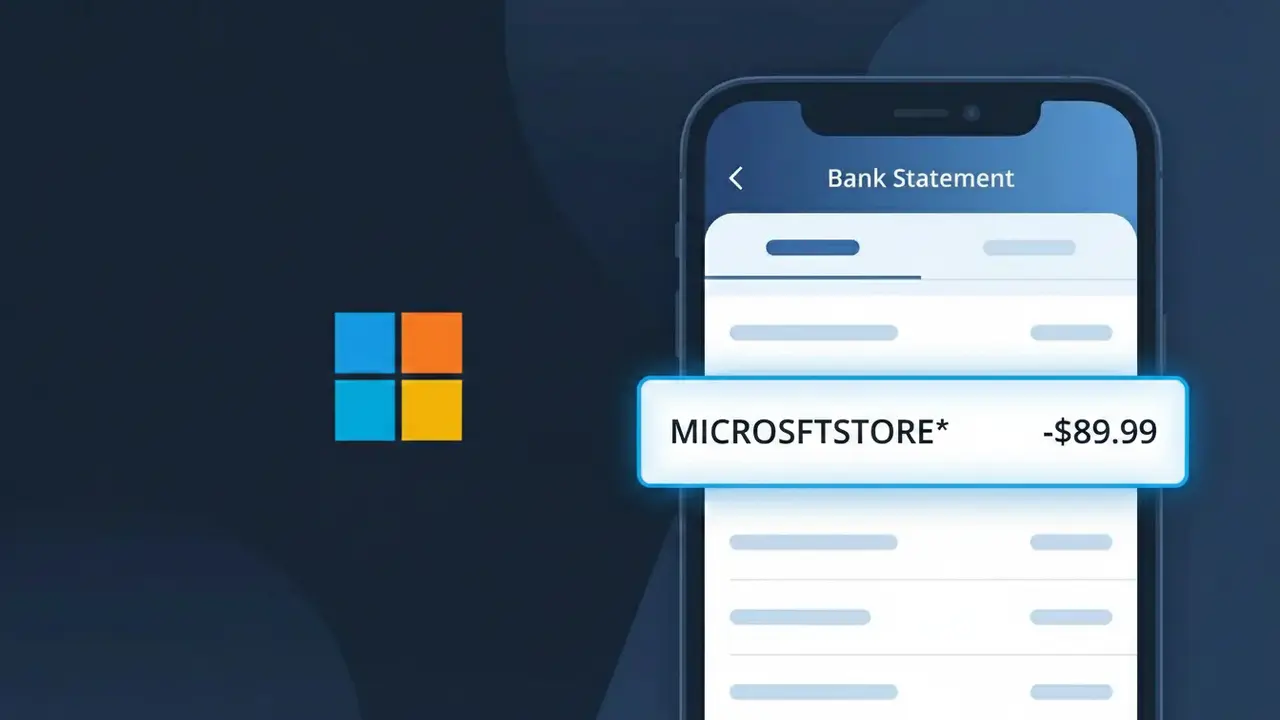
A MICROSOFTSTORE* charge on your bank statement comes from the Microsoft Store, Microsoft's official retail platform for software, games, apps, and devices. This charge appears when you've made a purchase through the Microsoft Store, whether that's a new app, a game for Xbox or PC, a subscription upgrade, or a physical product like a Surface laptop or accessory. The descriptor MICROSOFTSTORE* is used by Microsoft to identify transactions processed through their store platform. If you see this charge and don't immediately recognize it, it's worth checking your Microsoft account purchase history to identify the exact item or service you were billed for.
The MICROSOFTSTORE* descriptor appears on your bank statement because Microsoft processes its retail transactions under this standardized billing name rather than simply listing 'Microsoft.' The asterisk (*) following the descriptor is commonly used by large retailers to separate the merchant identifier from any additional purchase details, such as a product name or order number, that may appear alongside it. Payment processors and banks display the merchant's registered billing name, which in this case is formatted as MICROSOFTSTORE* to clearly indicate the transaction originated from Microsoft's retail storefront.
Is the MICROSOFTSTORE* Charge Legitimate or Fraud?
A MICROSOFTSTORE* charge on your bank or credit card statement is typically a legitimate transaction from the Microsoft Store, Microsoft's official digital and physical retail platform. This charge appears when you purchase apps, games, software, hardware, or subscriptions through Microsoft Store online or in-app.
- You or a family member purchased an app, game, or software from Microsoft Store
- A Microsoft 365, Xbox Game Pass, or other subscription auto-renewed through Microsoft Store
- You bought a digital movie, book, or media item via the Microsoft Store marketplace
- A device or accessory was ordered directly from the Microsoft Store website
How to Verify the MICROSOFTSTORE* Charge
- 1
Check your Microsoft account order history
Log into account.microsoft.com and navigate to 'Order History' to see all Microsoft Store purchases tied to your account, including dates and amounts.
- 2
Search your email for Microsoft Store receipts
Search your inbox for emails from 'microsoft.com' or 'no-reply@microsoft.com' — Microsoft Store sends an email receipt for every completed transaction.
- 3
Check household or family members
If you share a Microsoft Family account, a family member may have made the Microsoft Store purchase. Check with anyone who has access to your payment method.
- 4
Review active Microsoft subscriptions
Visit account.microsoft.com/services to see all active subscriptions like Microsoft 365 or Xbox Game Pass that bill through MICROSOFTSTORE* on your statement.
- 5
Contact your bank for more details
Call the number on the back of your card and ask for the full merchant name and transaction details associated with the MICROSOFTSTORE* charge.
How to Dispute a MICROSOFTSTORE* Charge
- 1
Act within 60 days of the charge
Most banks require disputes to be filed within 60 days of the MICROSOFTSTORE* charge appearing on your statement, so act promptly if something looks wrong.
- 2
Contact Microsoft Store support first
Visit support.microsoft.com or call 1-800-642-7676 to report an unauthorized MICROSOFTSTORE* charge — Microsoft can often issue a refund faster than a bank dispute.
- 3
File a chargeback with your bank
If Microsoft Store does not resolve the issue, contact your bank or card issuer to file a formal chargeback, citing the unauthorized MICROSOFTSTORE* transaction.
- 4
Request a new card number
If you suspect your card was compromised and used for fraudulent MICROSOFTSTORE* charges, ask your bank to cancel the card and issue a replacement with a new number.
Tips for Managing Microsoft Store Charges
Enable purchase notifications in your Microsoft account to get alerts every time a MICROSOFTSTORE* charge is made.
Regularly review your Microsoft Store order history at account.microsoft.com to catch unexpected charges early.
Secure your Microsoft Store account with two-factor authentication to prevent unauthorized purchases.
Note the renewal dates of your Microsoft Store subscriptions to anticipate recurring MICROSOFTSTORE* billing charges.
Set up a spending limit or require a password for Microsoft Store purchases to protect against accidental charges.
Use WhatIsThisCharge.net to identify related charges that may appear alongside MICROSOFTSTORE* on your statement.
Frequently Asked Questions About the MICROSOFTSTORE* Charge
ℹ️ Note
In most cases, a MICROSOFTSTORE* charge is a legitimate transaction from the Microsoft Store — often a forgotten app purchase, an auto-renewing Microsoft 365 subscription, or an Xbox Game Pass charge. A quick check of your Microsoft account order history at account.microsoft.com will usually clear up any confusion.
🔍 Decode this charge instantly
Search our database for MICROSOFTSTORE* and similar charges.
Decode MICROSOFTSTORE* →Was this article helpful?