Why You're Seeing "QUICKBOOKS*" on Your Bank Statement
Why You're Seeing "QUICKBOOKS*" on Your Bank Statement
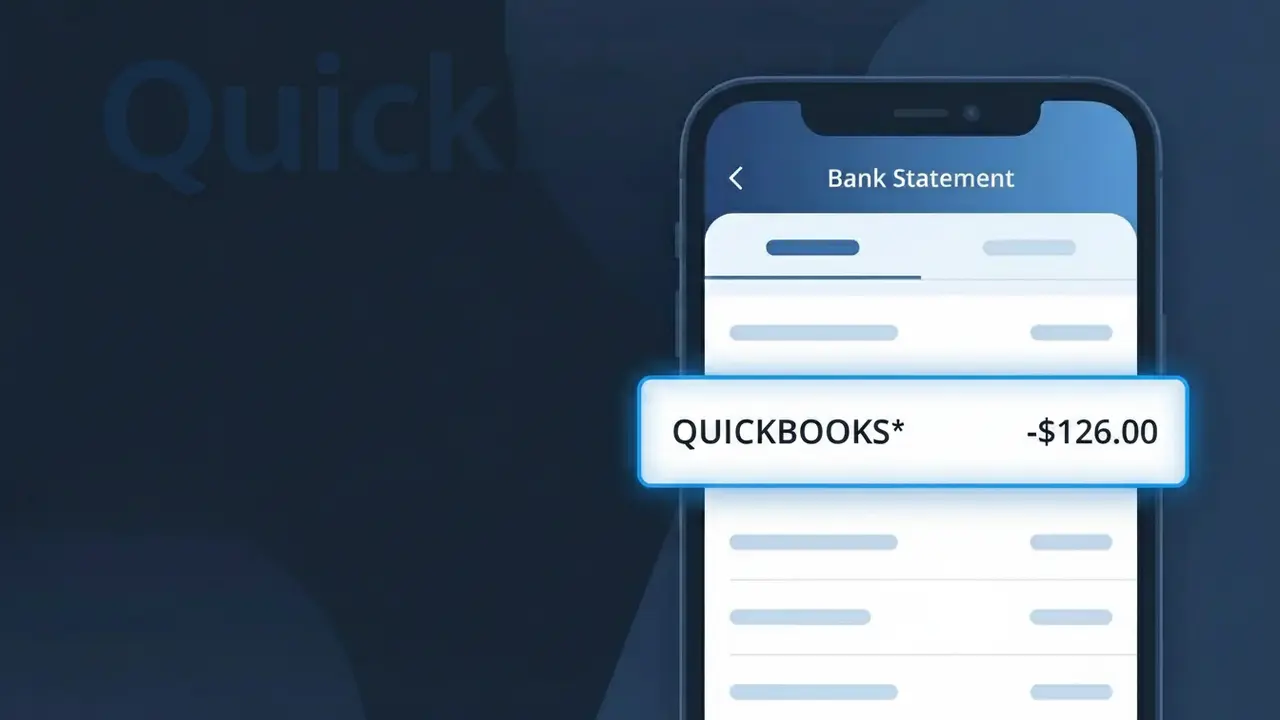
A QUICKBOOKS* charge on your bank statement comes from Intuit's QuickBooks, one of the most widely used accounting software platforms for small businesses and freelancers. This charge typically represents a recurring subscription to one of QuickBooks' online plans, such as Simple Start, Essentials, Plus, or Advanced. The asterisk following 'QUICKBOOKS' is a common formatting convention used by Intuit to separate the brand name from additional billing details. If you or someone at your company signed up for QuickBooks Online, this is almost certainly the source of the charge.
The QUICKBOOKS* descriptor appears on your bank statement because Intuit, the parent company behind QuickBooks, uses this shorthand format when processing subscription billing through major payment networks. The asterisk is typically followed by additional text such as a plan name or partial account identifier, though this can be truncated depending on your bank's display settings. This is a standard billing practice for SaaS companies, where the software brand name is used as the primary descriptor rather than the parent company name 'Intuit.'
Is the QUICKBOOKS* Charge Legitimate or Fraud?
A QUICKBOOKS* charge on your bank or credit card statement is most commonly a legitimate billing from Intuit's QuickBooks accounting software platform. QuickBooks uses the QUICKBOOKS* descriptor — often followed by a plan name or suffix — for subscription billing on plans like Simple Start, Essentials, Plus, or Advanced.
- You or someone at your business signed up for a QuickBooks Online subscription
- Your QuickBooks free trial converted to a paid plan automatically
- A QuickBooks add-on such as Payroll or Payments was activated on your account
- A bookkeeper or accountant added your card to their QuickBooks account on your behalf
How to Verify the QUICKBOOKS* Charge
- 1
Log into your QuickBooks account
Visit quickbooks.intuit.com and sign in. Navigate to Settings > Account and Settings > Billing & Subscription to review your active plan and recent charges matching the QUICKBOOKS* amount.
- 2
Search your email for QuickBooks receipts
Search your inbox for emails from 'intuit.com' or 'quickbooks.com'. QuickBooks sends automated billing receipts each time a QUICKBOOKS* charge is processed to your card.
- 3
Check with household or business members
Ask colleagues, business partners, or family members if they set up a QuickBooks subscription using your shared payment method, as QUICKBOOKS* charges can appear from multiple accounts.
- 4
Review your active subscriptions
Check subscription management tools like your bank's subscription tracker or a third-party app to see if a QuickBooks plan is listed as an active recurring charge tied to your card.
- 5
Contact your bank for details
If you still can't place the QUICKBOOKS* charge, call the number on your bank card and ask for the full merchant descriptor and transaction date to help narrow down which QuickBooks account was billed.
How to Dispute a QUICKBOOKS* Charge
- 1
Act within 60 days
Most banks require disputes to be filed within 60 days of the QUICKBOOKS* charge appearing on your statement. Act quickly to preserve your right to a chargeback if the charge turns out to be unauthorized.
- 2
Contact QuickBooks support first
Reach out to QuickBooks customer support at 1-800-446-8848 or via chat at quickbooks.intuit.com/support. Explain the unexpected QUICKBOOKS* charge — many billing errors or duplicate charges are resolved directly and quickly.
- 3
File a chargeback with your bank
If QuickBooks support cannot resolve the issue, contact your bank or credit card issuer and formally dispute the QUICKBOOKS* charge as unauthorized or erroneous. Provide any correspondence with QuickBooks as supporting evidence.
- 4
Request a new card number
If the QUICKBOOKS* charge appears to be fraudulent and you never had a QuickBooks account, ask your bank to issue a new card number to prevent any further unauthorized charges from appearing.
Tips for Managing QuickBooks Charges
Set a billing alert in your bank app to flag QUICKBOOKS* charges the moment they hit your account.
Keep a record of your QuickBooks plan tier and price so you can spot unexpected QUICKBOOKS* amount changes.
Use a dedicated business card for your QuickBooks subscription to easily separate it from personal spending.
Note your QuickBooks billing renewal date to anticipate the QUICKBOOKS* charge each month or year.
Enable two-factor authentication on your QuickBooks account to prevent unauthorized plan upgrades or charges.
Use WhatIsThisCharge.net to identify other unfamiliar charges that may appear alongside QUICKBOOKS*.
Frequently Asked Questions About the QUICKBOOKS* Charge
ℹ️ Note
Most QUICKBOOKS* charges are legitimate recurring billings from Intuit's QuickBooks accounting platform for an active subscription you or a team member set up. A quick login to your QuickBooks account at quickbooks.intuit.com will usually confirm the charge within minutes.
🔍 Decode this charge instantly
Search our database for QUICKBOOKS* and similar charges.
Decode QUICKBOOKS* →Was this article helpful?