Why You're Seeing "SHOPIFY*" on Your Bank Statement
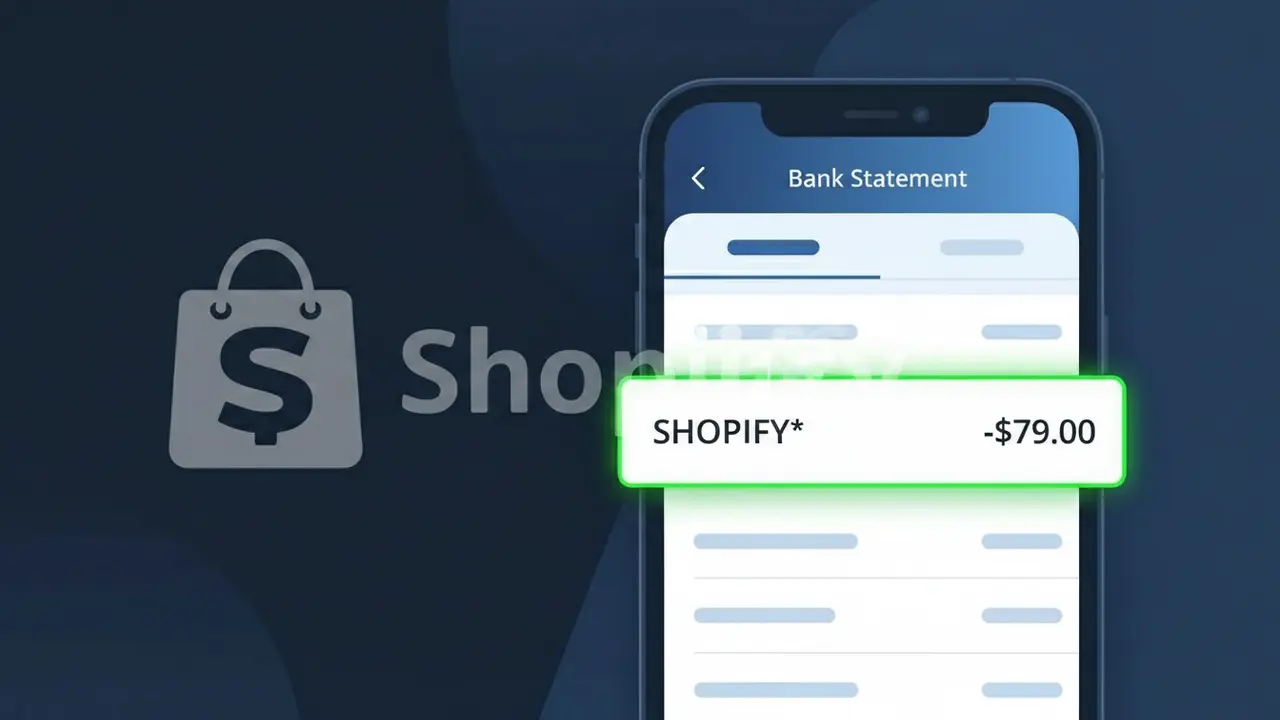
Why You're Seeing "SHOPIFY*" on Your Bank Statement
The SHOPIFY* charge on your bank statement comes from Shopify, one of the world's leading ecommerce platforms used by businesses to build and manage online stores. This charge typically represents a recurring subscription fee for one of Shopify's monthly or annual plans, which range from basic starter tiers to advanced enterprise-level packages. You may also see SHOPIFY* if you've signed up for additional Shopify services such as Shopify Payments, Shopify Apps, or third-party tools billed through the Shopify platform. If you or someone with access to your payment method runs an online store or recently started a free trial, this is almost certainly the source of the charge.
The descriptor SHOPIFY* appears on bank statements because Shopify processes subscription and service payments under their company name followed by an asterisk, which is a common formatting convention used by payment processors to indicate a merchant billing identifier. The asterisk often precedes additional transaction details such as a store name or service type, though this varies depending on your bank's display format. This truncated descriptor is registered with card networks like Visa and Mastercard, meaning it will appear consistently across most financial institutions rather than showing a more descriptive label.
Is the SHOPIFY* Charge Legitimate or Fraud?
A SHOPIFY* charge on your bank or credit card statement is almost always a legitimate billing from Shopify, the popular e-commerce platform used by millions of online store owners worldwide. This charge typically appears when you or someone with access to your payment method has an active Shopify subscription, paid app, or theme purchase. Common reasons you might see a SHOPIFY* charge include:
- A monthly or annual Shopify plan subscription (Basic, Shopify, Advanced, or Plus)
- A Shopify App Store purchase or recurring app subscription fee
- A premium Shopify theme purchased from the official theme store
- Shopify Payments or POS hardware/software fees tied to your store
How to Verify the SHOPIFY* Charge
- 1
Log into your Shopify account
Visit shopify.com and sign in. Navigate to Settings > Billing to view your full invoice history and match the SHOPIFY* charge amount to a specific billing date.
- 2
Search your email for Shopify receipts
Search your inbox for emails from 'billing@shopify.com' or 'no-reply@shopify.com'. Shopify sends a receipt for every charge, making it easy to match the SHOPIFY* transaction.
- 3
Check if a household member opened a store
Ask family members or anyone with access to your card if they signed up for a Shopify free trial or paid plan, as the SHOPIFY* charge would appear once the trial ends.
- 4
Review any Shopify app subscriptions
If you run a Shopify store, check your installed apps under Apps > Installed apps. Many third-party Shopify apps bill separately and can generate additional SHOPIFY* line items.
- 5
Contact your bank for more details
If you still can't identify the SHOPIFY* charge, call your bank and ask for the full merchant descriptor and transaction ID to help pinpoint the exact Shopify service billed.
How to Dispute a SHOPIFY* Charge
- 1
Act within 60 days
Most banks require disputes to be filed within 60 days of the SHOPIFY* charge appearing on your statement. Acting quickly protects your right to a chargeback if the charge is unauthorized.
- 2
Contact Shopify support first
Reach out to Shopify directly at help.shopify.com or via live chat. Shopify's billing team can often issue a refund for erroneous SHOPIFY* charges faster than a bank dispute can be resolved.
- 3
File a chargeback with your bank
If Shopify does not resolve the issue, contact your bank or card issuer to formally dispute the SHOPIFY* charge. Provide your email receipts or lack thereof as evidence.
- 4
Request a new card number
If the SHOPIFY* charge appears to be fully unauthorized and fraudulent, ask your bank to issue a new card number to prevent Shopify or any other merchant from billing the compromised card again.
Tips for Managing Shopify Charges
Enable Shopify billing email alerts so you're notified every time a SHOPIFY* charge is processed to your card.
Review your Shopify invoice page monthly under Settings > Billing to catch unexpected SHOPIFY* charges early.
Use a dedicated card for your Shopify account so SHOPIFY* charges are easy to identify and separate from personal spending.
Note your Shopify plan renewal date to anticipate the SHOPIFY* charge and avoid being caught off guard by annual billing.
Remove unused payment methods from your Shopify account to prevent unintended SHOPIFY* charges on old cards.
Use WhatIsThisCharge.net to identify related charges that may appear alongside SHOPIFY* on your statement.
Frequently Asked Questions About the SHOPIFY* Charge
ℹ️ Note
In most cases, a SHOPIFY* charge is a routine, expected billing from Shopify for an active store subscription or app — if you or someone in your household runs an online store, this charge is almost certainly legitimate and easy to verify in your Shopify billing dashboard.
🔍 Decode this charge instantly
Search our database for SHOPIFY* and similar charges.
Decode SHOPIFY* →Was this article helpful?