Why You're Seeing "SLACK*" on Your Bank Statement
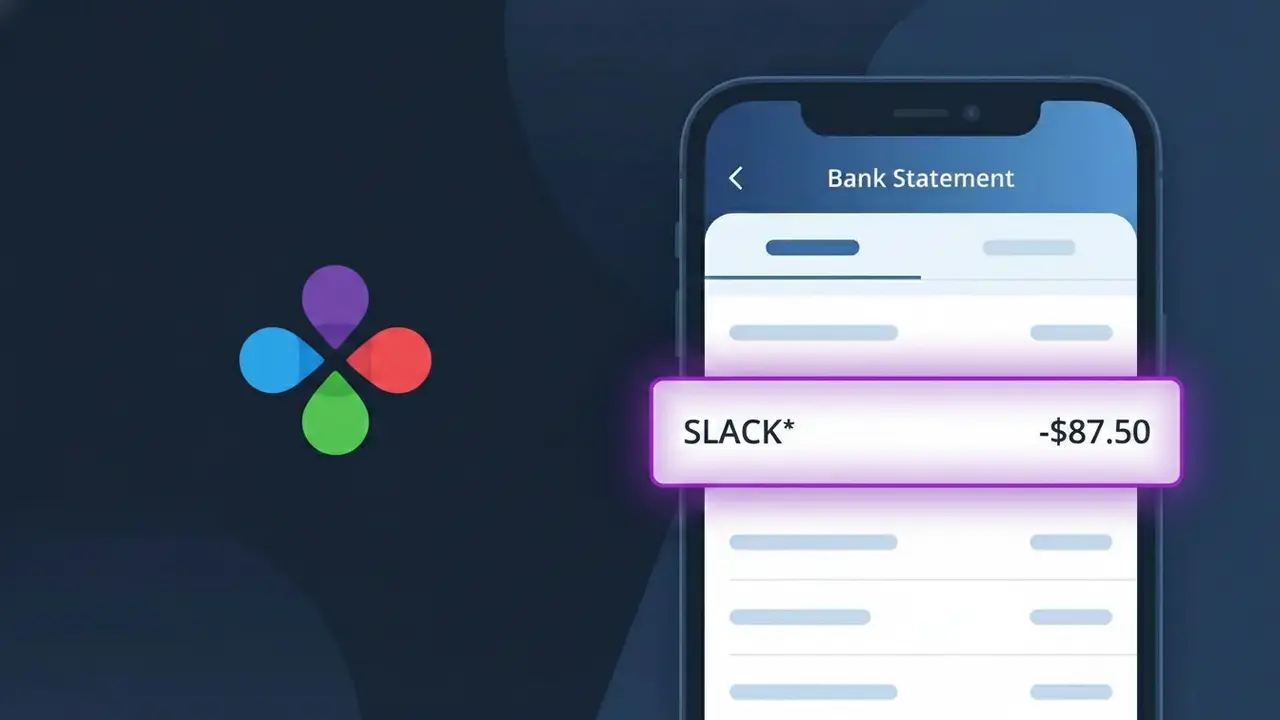
Why You're Seeing "SLACK*" on Your Bank Statement
A charge appearing as SLACK* on your bank statement comes from Slack, the popular business messaging and collaboration platform. This charge represents a subscription payment for a Slack workspace, typically billed monthly or annually depending on your plan. Slack offers several paid tiers — including Pro, Business+, and Enterprise Grid — which unlock features like unlimited message history, video calls, and advanced security controls. If you or your company uses Slack for team communication, this charge is almost certainly a legitimate subscription fee.
The SLACK* descriptor appears on bank statements because Slack uses a truncated version of its brand name followed by an asterisk, a common billing practice among SaaS companies to indicate a subscription charge. The asterisk typically signals that additional identifying information, such as a workspace name or plan type, may follow depending on your bank's display formatting. If you don't recognize the charge, it's worth checking whether a colleague or administrator set up a paid Slack workspace using your payment details.
Is the SLACK* Charge Legitimate or Fraud?
A SLACK* charge on your bank or credit card statement is almost always a legitimate billing from Slack Technologies, the popular workplace messaging and collaboration platform. Slack uses the SLACK* descriptor when billing for Pro, Business+, or Enterprise Grid subscription plans. Here are the most common reasons you might see this charge:
- You or your company subscribed to a paid Slack plan (Pro or Business+)
- Your free Slack workspace was upgraded to a paid tier by a workspace admin
- An annual or monthly Slack subscription renewed automatically
- A team member added paid features or extra storage to your Slack workspace
How to Verify the SLACK* Charge
- 1
Log into your Slack account
Visit slack.com and sign in. Navigate to Settings & Administration > Billing to review your active plan and see recent SLACK* charges associated with your workspace.
- 2
Search your email for Slack receipts
Search your inbox for emails from 'billing@slack.com' or 'noreply@slack.com'. Slack sends itemized receipts for every SLACK* charge, including the billing date and amount.
- 3
Check with coworkers or admins
If you're part of a shared workspace, ask your Slack admin whether they upgraded the plan. A workspace owner's card may be billed with the SLACK* descriptor on behalf of the whole team.
- 4
Review all active Slack workspaces
You may belong to multiple Slack workspaces. Check each one at slack.com/intl/en-us/help/articles/212675257 to see if you hold a billing role in more than one paid workspace.
- 5
Contact your bank for details
Ask your bank for the full merchant name and last four digits tied to the SLACK* charge. This can help confirm whether it originated from Slack Technologies or a different vendor.
How to Dispute a SLACK* Charge
- 1
Act within 60 days
Most banks require disputes to be filed within 60 days of the SLACK* charge appearing on your statement. Don't delay — gather your Slack billing history as evidence before contacting anyone.
- 2
Contact Slack support first
Reach out to Slack's billing team at slack.com/help/requests/new. Explain the unauthorized or unexpected SLACK* charge; Slack often resolves billing errors and can issue refunds directly.
- 3
File a chargeback with your bank
If Slack does not resolve the issue, contact your bank or credit card issuer and formally dispute the SLACK* charge. Provide your Slack billing records and any email correspondence as supporting documentation.
- 4
Request a new card number
If the SLACK* charge appears fraudulent and you didn't create a Slack account, ask your bank to issue a replacement card to prevent further unauthorized charges from appearing.
Tips for Managing Slack Charges
Enable Slack billing email alerts so you're notified before each SLACK* charge hits your card.
Download your Slack invoices monthly from the Billing section to reconcile SLACK* charges quickly.
Limit Slack workspace billing roles to one trusted admin to avoid surprise SLACK* charges from plan upgrades.
Note your Slack renewal date — annual plans trigger a larger SLACK* charge once per year.
Use a virtual card number for Slack billing so you can freeze it if fraudulent SLACK* charges appear.
Use WhatIsThisCharge.net to identify any other unfamiliar charges alongside SLACK* on your statement.
Frequently Asked Questions About the SLACK* Charge
ℹ️ Note
In most cases, a SLACK* charge is a routine, legitimate billing from Slack for your team's messaging subscription — simply log into your Slack workspace's Billing settings to confirm the charge and download your receipt.
Was this article helpful?