Why You're Seeing "TWITCH*" on Your Bank Statement
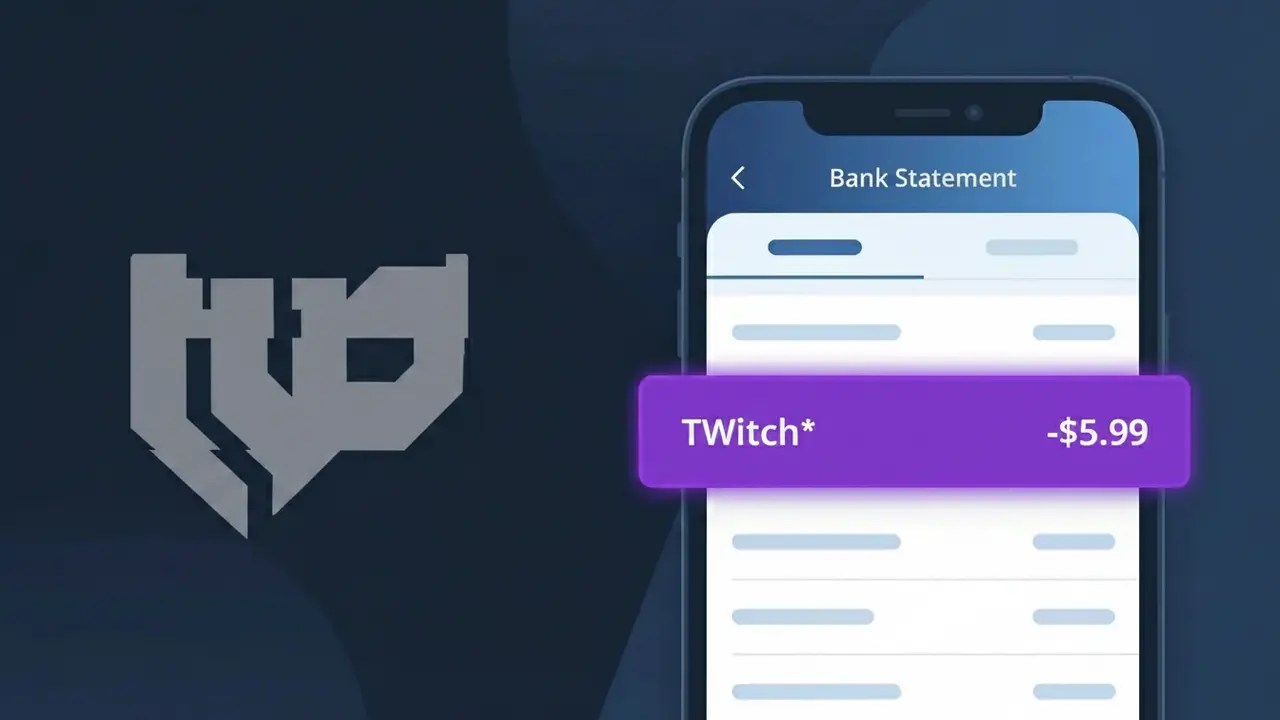
Why You're Seeing "TWITCH*" on Your Bank Statement
A TWITCH* charge on your bank statement comes from Twitch, the popular live streaming platform owned by Amazon. This charge typically represents a subscription to support a favorite streamer, a Twitch Turbo subscription for an ad-free experience, or a Bits purchase used to cheer and donate during live streams. The asterisk following 'TWITCH' is a common formatting convention used by payment processors to separate the company name from additional transaction details. If you or someone with access to your account uses Twitch regularly, this charge is almost certainly tied to one of these in-platform purchases.
The TWITCH* descriptor appears on your bank statement because Twitch processes payments through its own billing system, which truncates and formats the merchant name followed by an asterisk and sometimes a subscription type or username. Payment networks like Visa and Mastercard have limited character space for merchant descriptors, so the full transaction context is condensed into this shorthand format. This is standard practice for digital subscription and streaming platforms, which is why you may not immediately recognize the charge despite having authorized it yourself.
Is the TWITCH* Charge Legitimate or Fraud?
A TWITCH* charge on your bank or credit card statement almost always comes from Twitch, Amazon's live-streaming platform. This charge typically appears when you've purchased a subscription, donated Bits, or subscribed to a streamer's channel. Common legitimate reasons you might see TWITCH* include:
- A Twitch Turbo subscription — Twitch's ad-free premium tier billed monthly or annually
- A paid channel subscription to support a specific streamer (Tier 1, 2, or 3)
- A Bits purchase used to cheer or tip streamers on the platform
- A gift subscription purchased for another Twitch user by someone in your household
How to Verify the TWITCH* Charge
- 1
Check your Twitch account
Log into your Twitch account at twitch.tv, go to Settings > Subscriptions to see all active channel subs and Twitch Turbo billing details.
- 2
Search your email for Twitch receipts
Search your inbox for emails from no-reply@twitch.tv or noreply@amazon.com — Twitch sends receipts for every subscription and Bits purchase.
- 3
Check household members
Ask family members or roommates if they used your payment method to subscribe to a Twitch streamer or purchase Bits on their own account.
- 4
Review your Twitch billing history
Visit twitch.tv/settings/billing to view a full history of TWITCH* charges linked to your account, including dates and amounts.
- 5
Contact your bank
If the TWITCH* charge amount doesn't match any Twitch activity you recognize, call the number on the back of your card to flag it for review.
How to Dispute a TWITCH* Charge
- 1
Act within 60 days
Most banks require you to dispute an unrecognized TWITCH* charge within 60 days of the statement date, so don't delay if something looks wrong.
- 2
Contact Twitch support first
Visit help.twitch.tv and submit a billing support ticket — Twitch can often issue a refund for accidental subscriptions or unauthorized charges faster than a chargeback.
- 3
File a chargeback with your bank
If Twitch support doesn't resolve the issue, contact your bank or credit card issuer to dispute the TWITCH* charge and provide any evidence like emails or screenshots.
- 4
Request a new card number
If the TWITCH* charge appears to be fraudulent and your card details were compromised, ask your bank to issue a new card to prevent future unauthorized charges.
Tips for Managing Twitch Charges
Enable email notifications in Twitch settings so you're alerted every time a TWITCH* charge is processed.
Review your active Twitch channel subscriptions monthly — free trials auto-convert to paid TWITCH* charges.
Secure your Twitch account with two-factor authentication to prevent unauthorized purchases and subscriptions.
Note that Twitch billing cycles renew on the same date each month — check twitch.tv/settings/billing to confirm.
Use a virtual card number for Twitch to limit exposure if your payment info is ever compromised.
Use WhatIsThisCharge.net to identify related charges that may appear alongside TWITCH* on your statement.
Frequently Asked Questions About the TWITCH* Charge
ℹ️ Note
In most cases, a TWITCH* charge is completely legitimate — it simply means you or someone in your household subscribed to a Twitch streamer or purchased Bits on the platform. A quick check of your Twitch account's billing history at twitch.tv/settings/billing will usually explain the charge in seconds.
Was this article helpful?