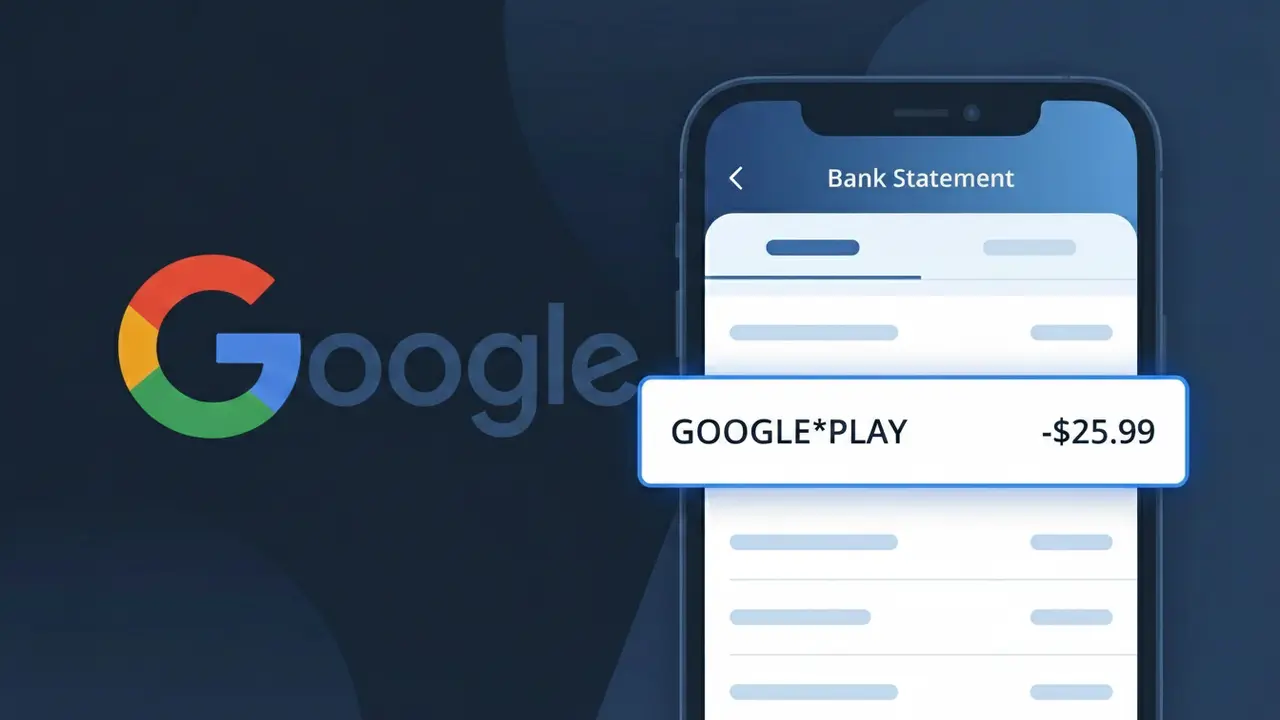
GOOGLE*PLAY Charge (What It Is + Is It Legit?)
✓ LegitimateThe "GOOGLE*PLAY" charge is from Google Play Store. Purchase or subscription from Google Play Store.
Google Play Store
Purchase or subscription from Google Play Store.
Category
Shopping
Avg. Charge
Variable
Country
US
Billing Cycle
Variable
Cancel At
play.google.com/store/account/subscriptions
Support
See website
What is this charge?
Google Play Store uses the shortened descriptor "GOOGLE*PLAY" on bank statements because payment processors and card networks impose strict character limits on transaction descriptors, typically capping them at 22-25 characters. Google structures the descriptor using their parent brand name followed by an asterisk and a product identifier, a common billing convention that helps Google route and categorize transactions across its many services, including Google Play, Google One, and YouTube. If you see "GOOGLE*PLAY" on your statement, it refers specifically to a purchase or subscription made through the Google Play Store, such as an app, game, in-app purchase, or recurring subscription fee.
How to handle this charge
Check Your Google Play Purchase History
Visit play.google.com and sign in to your Google account. Navigate to your order history to find the exact purchase or subscription that triggered the GOOGLE*PLAY charge on your bank statement, including the app name, date, and amount.
Review Active Google Play Subscriptions
Go to play.google.com/store/account/subscriptions to see all active subscriptions linked to your Google account. This will help you identify which app or service is billing you and confirm whether the GOOGLE*PLAY charge matches a subscription you intentionally signed up for.
Check for Family or Shared Account Purchases
If you use Google Play Family Library, the GOOGLE*PLAY charge may have been made by a family member on your shared payment method. Visit play.google.com and check the family payment settings to see if another member of your Google Family Group made the purchase.
Manage or Cancel the Google Play Charge Going Forward
If the GOOGLE*PLAY charge is from a subscription you no longer want, return to play.google.com/store/account/subscriptions, find the specific subscription, and select Cancel Subscription to prevent future billing cycles from appearing on your bank statement.
Quick fraud check
No, this is a legitimate charge from Google Play Store. However, if you did not authorize this charge or cancelled your subscription, you may be eligible for a refund.
ℹ️ Note
In most cases, seeing "GOOGLE*PLAY" on your statement is completely normal. Before assuming fraud, check your recent purchases — most mystery charges have a simple explanation.
Is the GOOGLE*PLAY Charge Legitimate or Fraud?
If you see GOOGLE*PLAY on your bank or credit card statement, this charge almost always comes from Google and is associated with a purchase or subscription made through the Google Play Store. This is the official marketplace for Android apps, games, movies, books, and digital subscriptions. Most of the time, this charge is entirely legitimate — but it's worth taking a closer look if the amount seems unfamiliar.
- App or game purchases made on an Android device through the Google Play Store
- In-app purchases such as extra lives, coins, or premium features within a game or app young
- Monthly or annual subscriptions like Google One, YouTube Premium, or third-party apps billed through Google
- Movie, TV show, book, or audiobook rentals and purchases from Google Play
- Family group purchases made by another member of your Google Family Library
If you don't recognize the exact amount, consider that a family member may have made the purchase, or you may have forgotten about a free trial that converted to a paid subscription through Google Play.
How to Verify the GOOGLE*PLAY Charge
- 1
Check your Google Play purchase history
Open the Google Play Store app or visit play.google.com, tap your profile icon, and go to 'Payments & subscriptions' > 'Budget & history' to see a full list of GOOGLE*PLAY transactions.
- 2
Search your email for Google receipts
Search your inbox for emails from 'noreply@google.com' or 'Google Play' — GOOGLE sends an email receipt for every GOOGLE*PLAY charge, showing exactly what was purchased and when.
- 3
Check your active subscriptions
In the Google Play Store, go to 'Payments & subscriptions' > 'Subscriptions' to see all active recurring charges tied to your GOOGLE account that may be generating GOOGLE*PLAY entries.
- 4
Ask household or family members
If you share a Google Family Group, another member can make purchases that appear as GOOGLE*PLAY on your payment method. Check with family members before assuming the charge is fraud.
- 5
Cross-reference the charge date and amount
Match the date and amount of the GOOGLE*PLAY charge on your statement with your Google Play purchase history — if they align, the charge is legitimate and originated from GOOGLE.
How to Dispute a GOOGLE*PLAY Charge
- 1
Act quickly — ideally within 48 hours
Google's refund window for GOOGLE*PLAY purchases is typically 48 hours for apps and games. The sooner you act after noticing an unauthorized or accidental charge, the better your chances of a full refund from GOOGLE.
- 2
Request a refund directly from Google
Visit play.google.com/store/account/orderhistory, find the GOOGLE*PLAY charge, click 'Report a problem,' and select the appropriate reason. GOOGLE reviews refund requests and often approves them for first-time disputes.
- 3
Contact Google Play support
If the self-service refund option doesn't work, visit support.google.com/googleplay to chat or email GOOGLE's support team directly and explain why the GOOGLE*PLAY charge should be refunded.
- 4
File a chargeback with your bank
If GOOGLE denies your refund request and you believe the charge is unauthorized, contact your bank or card issuer to dispute the GOOGLE*PLAY charge and initiate a formal chargeback process.
- 5
Request a new payment card
If you suspect your card details were used fraudulently to make GOOGLE*PLAY purchases, ask your bank for a replacement card and update your payment method in your GOOGLE account settings.
Tips for Managing GOOGLE*PLAY Charges
Enable Google Play purchase notifications in your GOOGLE account so you're alerted by email every time a GOOGLE*PLAY charge occurs.
Regularly review your subscriptions at play.google.com to cancel any GOOGLE*PLAY recurring charges you no longer need.
Require authentication for all GOOGLE*PLAY purchases by enabling 'Require authentication for purchases' in your Google Play settings.
Note the billing dates of your GOOGLE subscriptions so GOOGLE*PLAY charges never catch you off guard on your monthly statement.
Set spending limits for family members in Google Family Link to prevent unexpected GOOGLE*PLAY charges from children's devices.
Use WhatIsThisCharge.net to identify related charges from GOOGLE and other merchants that appear on your bank statement.
Frequently Asked Questions
Was this page helpful?
Community Reports (0)
0 votesNo votes yet — be the first to report on this charge!
Have you seen this charge? Help others by voting:
Community Comments (0)
No comments yet. Be the first to share your experience!
Share your experience
Your email is only used to verify your comment and will never be shown publicly.
Search Another Charge
Popular Charges

Amazon Marketplace
AMZN MKTP US
Netflix
NETFLIX *SUBSCRIPTION
Netflix
NETFLIX.COM *
Apple
APPLE *SUBSCRIPTION
Apple
APPLE.COM/BILL
Related Charges
Need to dispute this charge?
Generate a professional dispute letter in seconds with our AI tool.
Open Charge AssistantCommunity Verified
Real user reports
Free to Use
Always free to check
Secure & Private
Your data is safe
Help Millions
48K+ charges identified