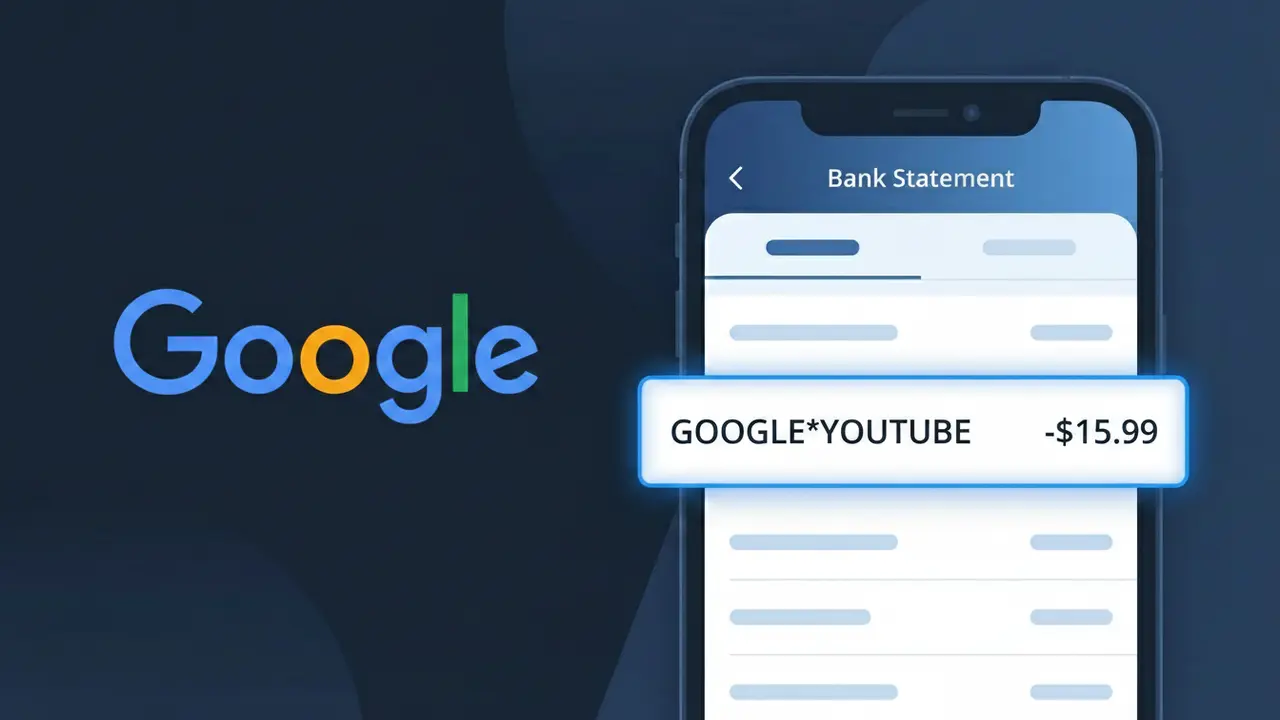
GOOGLE*YOUTUBE Charge (What It Is + Is It Legit?)
✓ LegitimateThe "GOOGLE*YOUTUBE" charge is from YouTube Premium. YouTube Premium subscription via Google.
YouTube Premium
YouTube Premium subscription via Google.
Category
Streaming
Avg. Charge
$13.99
Country
US
Billing Cycle
Monthly
Cancel At
youtube.com/paid_memberships
Support
See website
Why does this charge appear?
YouTube Premium is owned and operated by Google LLC, which means all subscription billing runs through Google's payment infrastructure rather than under the YouTube brand name alone. When you sign up for YouTube Premium, the transaction is processed by Google's billing system, which stamps its own identifier onto the charge before it reaches your bank, resulting in the "GOOGLE*YOUTUBE" descriptor you see on your statement. The asterisk between the two names is a standard formatting convention used by Google's payment processor to separate the parent company name from the specific product or service being billed.
Your next steps
Confirm Your YouTube Premium Membership
Visit youtube.com and sign in to your Google account. Navigate to your account settings and look under Memberships to confirm that you have an active YouTube Premium subscription. The GOOGLE*YOUTUBE charge on your bank statement is the standard billing label used for this service.
Review Your YouTube Premium Billing History
Go to youtube.com/paid_memberships and check your billing history to verify that the charge amount and date match what appears on your bank statement. YouTube Premium charges recur monthly or annually depending on the plan you selected when you signed up.
Check for Family or Student Plan Details
At youtube.com/paid_memberships, confirm whether you are on an individual, family, or student YouTube Premium plan, since pricing differs between them. If the charge amount looks unfamiliar, a recent plan change or price adjustment from Google may explain the difference.
Cancel YouTube Premium if No Longer Needed
If you no longer want the subscription and wish to stop future GOOGLE*YOUTUBE charges, go directly to youtube.com/paid_memberships, select your YouTube Premium membership, and follow the prompts to cancel. Your access will continue until the end of the current billing period.
How to cancel YouTube Premium
YouTube Premium bills you Monthly. To stop future charges, cancel from your account directly.
Cancel at YouTube PremiumLegitimate or scam?
No, this is a legitimate charge from YouTube Premium. However, if you did not authorize this charge or cancelled your subscription, you may be eligible for a refund.
How to Verify the GOOGLE*YOUTUBE Charge
- 1
Check your Google account subscriptions
Go to myaccount.google.com, then navigate to 'Payments & subscriptions' to see all active YouTube plans billed by Google, including YouTube Premium and YouTube TV.
- 2
Search your email for Google receipts
Search your inbox for emails from 'payments-noreply@google.com' or with the subject 'Your Google payment receipt' to find the exact GOOGLE*YOUTUBE transaction details.
- 3
Check your YouTube account directly
Open YouTube, click your profile icon, and go to 'Purchases and memberships' to see any active subscriptions or channel memberships tied to your GOOGLE account.
- 4
Ask household members
If you share a Google Family Group or YouTube Premium Family Plan, another member may have triggered the GOOGLE*YOUTUBE charge using your payment method on file.
- 5
Review free trial start dates
A GOOGLE*YOUTUBE charge may appear if a YouTube Premium or YouTube TV free trial ended and automatically converted to a paid subscription without a separate reminder.
How to Dispute a GOOGLE*YOUTUBE Charge
- 1
Act within 60 days of the charge
Most banks require disputes to be filed within 60 days of the statement date. Identify the GOOGLE*YOUTUBE charge quickly and don't delay starting the dispute process.
- 2
Contact Google Support first
Visit support.google.com/payments and request a refund directly from Google. Google may issue a refund for accidental GOOGLE*YOUTUBE charges, especially within a short window after billing.
- 3
File a chargeback with your bank
If Google denies your refund request, contact your bank or credit card issuer and formally dispute the GOOGLE*YOUTUBE charge as unauthorized or unrecognized.
- 4
Request a new card number
If you believe the GOOGLE*YOUTUBE charge is the result of fraud or unauthorized account access, ask your bank to issue a replacement card to prevent future unauthorized charges.
Tips for Managing GOOGLE Charges
Enable Google billing alerts so you're notified every time a GOOGLE*YOUTUBE charge is processed to your card.
Review all YouTube subscriptions at myaccount.google.com monthly to catch unwanted GOOGLE*YOUTUBE recurring charges early.
Secure your Google account with two-factor authentication to prevent unauthorized YouTube purchases appearing as GOOGLE*YOUTUBE charges.
Note your YouTube Premium or YouTube TV billing date so the GOOGLE*YOUTUBE charge never catches you off guard each month.
Use a virtual card number for Google subscriptions to limit exposure if your payment details are ever compromised.
Use WhatIsThisCharge.net to identify related charges from Google that may appear alongside GOOGLE*YOUTUBE on your statement.
Quick answers
Was this page helpful?
Community Reports (0)
0 votesNo votes yet — be the first to report on this charge!
Have you seen this charge? Help others by voting:
Community Comments (0)
No comments yet. Be the first to share your experience!
Share your experience
Your email is only used to verify your comment and will never be shown publicly.
Search Another Charge
Popular Charges

Amazon Marketplace
AMZN MKTP US
Netflix
NETFLIX *SUBSCRIPTION
Netflix
NETFLIX.COM *
Apple
APPLE *SUBSCRIPTION
Apple
APPLE.COM/BILL
Related Charges
Need to dispute this charge?
Generate a professional dispute letter in seconds with our AI tool.
Open Charge AssistantCommunity Verified
Real user reports
Free to Use
Always free to check
Secure & Private
Your data is safe
Help Millions
48K+ charges identified