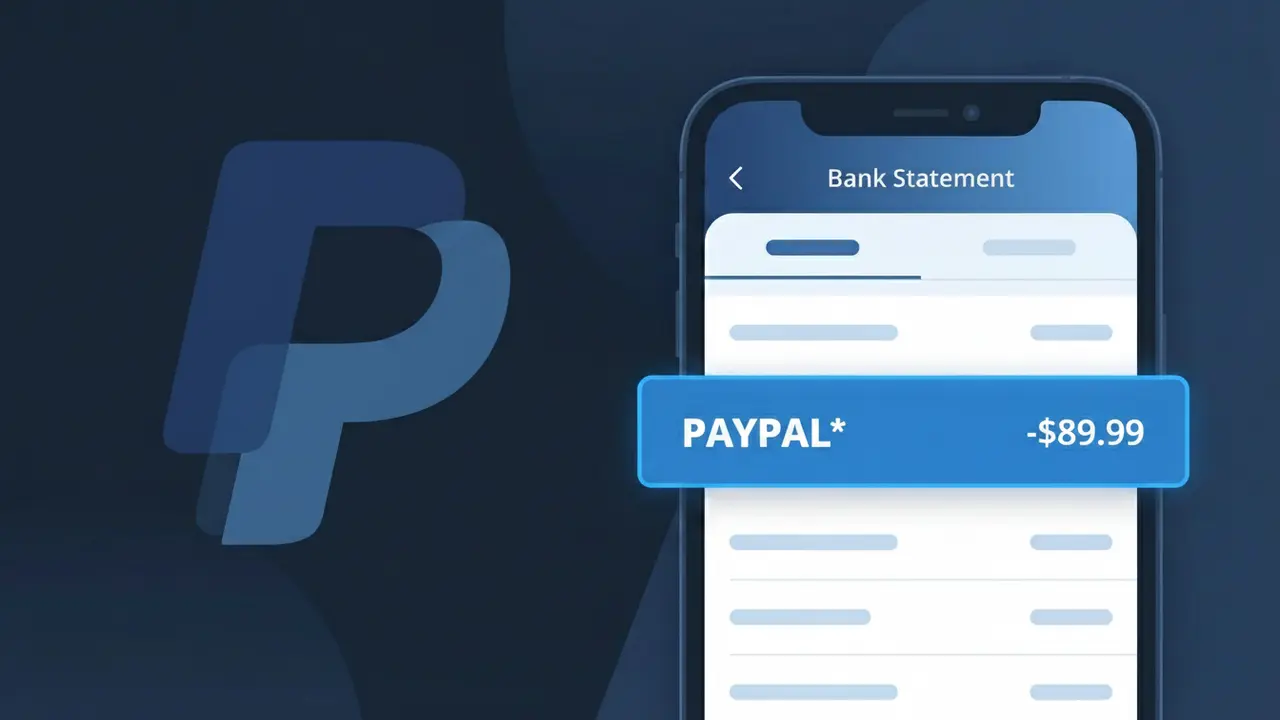
PAYPAL* Charge (What It Is + Is It Legit?)
✓ LegitimateThe "PAYPAL*" charge is from PayPal. PayPal payment or transfer.
PayPal
PayPal payment or transfer.
Category
Finance
Avg. Charge
Variable
Country
US
Billing Cycle
One-time
Cancel At
paypal.com/disputes
Support
See website
What is this charge?
PayPal uses the truncated "PAYPAL*" descriptor on bank statements because of character limits enforced by card networks like Visa and Mastercard, which typically cap merchant descriptors at 22-25 characters, leaving PayPal to use an asterisk as a separator before appending a brief description of the specific transaction or merchant involved. Since PayPal acts as both a payment processor and a digital wallet, the "PAYPAL*" prefix helps cardholders identify that a payment was routed through PayPal's platform rather than directly from a retailer, even when the purchase was made at a third-party store or service. You may see variations like "PAYPAL*EBAY" or "PAYPAL*NETFLIX" following the asterisk, which indicate the underlying merchant where the transaction originated.
How to handle this charge
Log into Your PayPal Account
Visit paypal.com and sign in to your account to review your transaction history. Look for the matching PAYPAL* charge amount and date to identify whether it was a payment you sent, a purchase through a merchant, or a transfer you authorized.
Check Your PayPal Activity Details
Inside your PayPal account, navigate to the Activity section and locate the specific transaction matching the PAYPAL* charge on your bank statement. PayPal provides detailed records including the recipient name, merchant, or service associated with every transaction.
Review Any Linked Subscriptions or Recurring Payments
If you do not immediately recognize the PAYPAL* charge, go to your PayPal account settings and check the Payments section for any active subscriptions or automatic billing agreements that may have triggered the charge without a direct action from you.
Open a Dispute Through PayPal If Needed
If after reviewing your PayPal account you still cannot verify the PAYPAL* charge as something you authorized, visit paypal.com/disputes to open a dispute directly with PayPal. Their Resolution Center allows you to flag unauthorized transactions and request a refund or investigation into the charge.
Quick fraud check
No, this is a legitimate charge from PayPal. However, if you did not authorize this charge or cancelled your subscription, you may be eligible for a refund.
ℹ️ Note
In most cases, seeing "PAYPAL*" on your statement is completely normal. Before assuming fraud, check your recent purchases — most mystery charges have a simple explanation.
Is the PAYPAL* Charge Legitimate or Fraud?
If you see a charge beginning with PAYPAL* on your bank or credit card statement, it is most commonly a legitimate transaction processed through PayPal's payment platform. PayPal uses the prefix PAYPAL* followed by a merchant name or descriptor to identify purchases made via PayPal, subscriptions billed through PayPal, or peer-to-peer transfers. However, because PAYPAL* charges can appear from thousands of different merchants, an unfamiliar charge should always be investigated carefully.
Common legitimate reasons you may see a PAYPAL* charge include:
- An online purchase from a retailer that uses PayPal as its payment processor
- A recurring subscription or membership billed automatically through your PayPal account
- A payment sent to another person using PayPal's peer-to-peer transfer feature
- A purchase made using PayPal Credit or PayPal Pay Later that has begun billing
- An app or digital service (such as a game, streaming tool, or software) that charges via PayPal
If you do not recall authorizing any such payment, it is possible your PayPal account credentials were compromised, or a family member used your linked payment method without your knowledge. Always log in directly at paypal.com to investigate before assuming fraud.
How to Verify the PAYPAL* Charge
- 1
Log into your PayPal account
Visit paypal.com and sign in to review your full transaction history. The PAYPAL* charge on your bank statement should correspond to a specific transaction listed in your PayPal activity feed, complete with merchant name and date.
- 2
Search your email for PayPal receipts
PayPal sends an email confirmation for every completed transaction. Search your inbox for emails from service@paypal.com around the date of the PAYPAL* charge to match the amount and merchant.
- 3
Check for active subscriptions in PayPal
Log into PayPal, navigate to Settings > Payments > Manage Automatic Payments to see all active subscriptions and merchants authorized to bill you. A recurring PAYPAL* charge will appear here if it is a subscription.
- 4
Ask household members
If your bank account or card is shared or linked to a family PayPal account, check with household members to see if one of them made a purchase or sent a payment that generated the PAYPAL* charge.
- 5
Contact PayPal support directly
If you still cannot identify the PAYPAL* charge, contact PayPal customer support at 1-888-221-1161 or via the Help Center at paypal.com. They can trace the transaction ID and identify the exact source of the charge.
How to Dispute a PAYPAL* Charge
- 1
Act quickly — time limits apply
PayPal's buyer protection requires disputes to be opened within 180 days of the transaction date. For bank chargebacks, your card issuer typically requires you to act within 60 days of the statement date showing the PAYPAL* charge.
- 2
Open a dispute through PayPal's Resolution Center
Log into your PayPal account and go to the Resolution Center at paypal.com/disputes. Select the unrecognized or unauthorized PAYPAL* transaction and follow the prompts to open a dispute — PayPal will investigate and may issue a refund.
- 3
Escalate to a PayPal claim if needed
If the seller does not respond or the dispute is unresolved within 20 days, escalate it to a formal PayPal claim. PayPal will then step in to make a final decision, which may result in a full refund for unauthorized PAYPAL* charges.
- 4
File a chargeback with your bank
If PayPal does not resolve the issue to your satisfaction, contact your bank or card issuer and file a chargeback for the PAYPAL* charge. Provide your bank with the PayPal transaction ID and any correspondence as supporting evidence.
- 5
Request a new card and secure your PayPal account
If the PAYPAL* charge was fraudulent, ask your bank to issue a replacement card and immediately change your PayPal password, enable two-factor authentication, and remove any unrecognized linked payment methods.
Tips for Managing PAYPAL* Charges
Enable PayPal instant payment notifications in Settings so every PAYPAL* charge triggers an email or push alert in real time.
Regularly review PayPal's Automatic Payments list to audit all merchants authorized to create recurring PAYPAL* charges.
Secure your PayPal account with a strong, unique password and two-factor authentication to prevent unauthorized PAYPAL* charges.
Note the billing dates of any subscriptions charged via PAYPAL* so you can anticipate and verify charges each month.
Use PayPal Buyer Protection when shopping online — eligible PAYPAL* purchases can be disputed if items don't arrive or match the description.
Use WhatIsThisCharge.net to identify related charges and learn more about unfamiliar PAYPAL* billing descriptors.
Frequently Asked Questions
Was this page helpful?
Community Reports (0)
0 votesNo votes yet — be the first to report on this charge!
Have you seen this charge? Help others by voting:
Community Comments (0)
No comments yet. Be the first to share your experience!
Share your experience
Your email is only used to verify your comment and will never be shown publicly.
Search Another Charge
Popular Charges

Amazon Marketplace
AMZN MKTP US
Netflix
NETFLIX *SUBSCRIPTION
Netflix
NETFLIX.COM *
Apple
APPLE *SUBSCRIPTION
Apple
APPLE.COM/BILL
Related Charges
Need to dispute this charge?
Generate a professional dispute letter in seconds with our AI tool.
Open Charge AssistantCommunity Verified
Real user reports
Free to Use
Always free to check
Secure & Private
Your data is safe
Help Millions
48K+ charges identified