Why You're Seeing "STEAM*" on Your Bank Statement
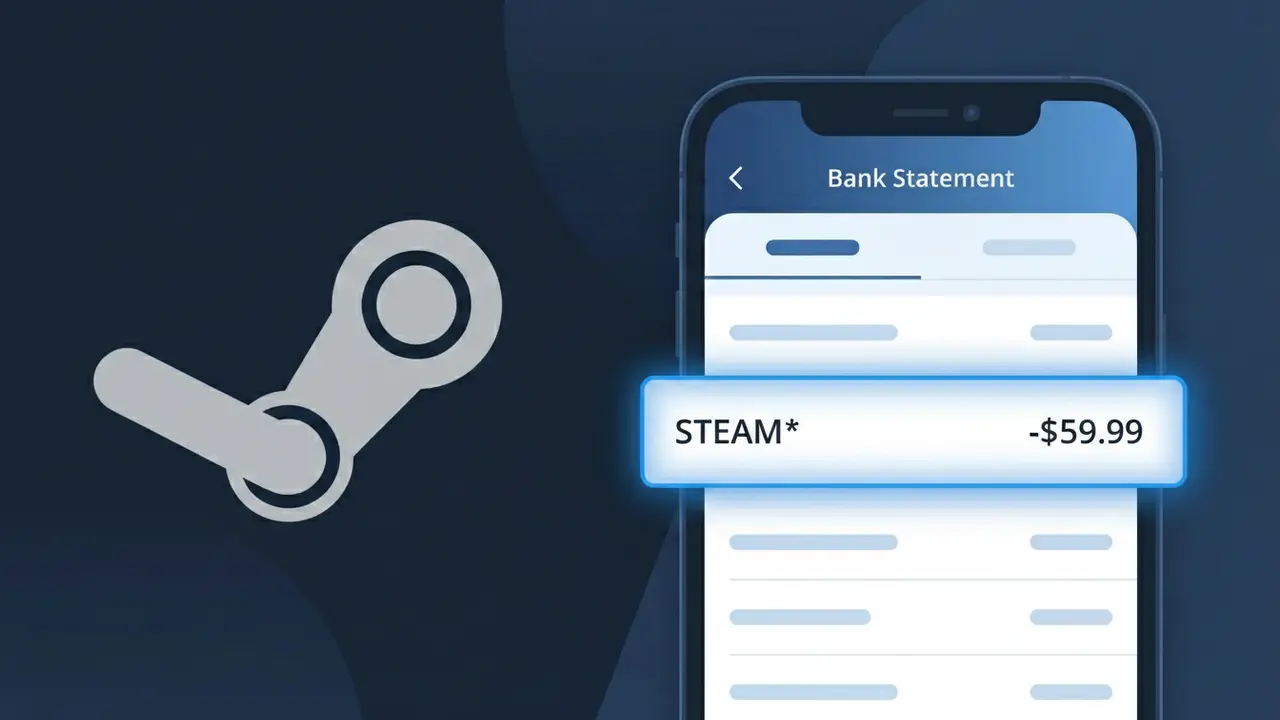
Why You're Seeing "STEAM*" on Your Bank Statement
A charge showing STEAM* on your bank statement comes from Steam, the popular digital gaming platform owned by Valve Corporation. This charge typically represents a game purchase, downloadable content (DLC), in-game item, or a subscription service processed through your Steam account. The STEAM* descriptor appears alongside a partial transaction identifier, making it easy to spot but sometimes confusing if you don't recall a recent purchase. If you or someone with access to your account has been gaming recently, this charge is almost certainly tied to activity on the Steam storefront.
Steam uses the shortened descriptor STEAM* on bank statements because payment processors truncate merchant names to fit standardized character limits on billing records. Valve, the company behind Steam, routes transactions through their own payment infrastructure, which appends the STEAM* prefix followed by a transaction or order reference code. This is standard practice for large digital storefronts that handle millions of transactions globally, and it helps distinguish individual purchases from one another while keeping the source platform identifiable.
Is the STEAM* Charge Legitimate or Fraud?
A STEAM* charge on your bank or credit card statement is almost always a legitimate transaction from Steam, the popular PC gaming platform operated by Valve Corporation. Steam uses the billing descriptor STEAM* followed by a game title or purchase type, which is why it may look unfamiliar at first glance. Common legitimate reasons you might see this charge include:
- A recent game, DLC, or in-game item purchase made on the Steam store
- An active Steam subscription such as Steam Game Pass or a third-party subscription purchased through Steam
- A pre-order or Early Access game that recently released and was charged upon launch
- A purchase made by a family member using Steam Family Sharing or your saved payment method
How to Verify the STEAM* Charge
- 1
Check your Steam purchase history
Log into your Steam account at store.steampowered.com, click your username, and select 'Account Details' then 'View purchase history' to match the charge amount and date.
- 2
Search your email for Steam receipts
Search your inbox for emails from noreply@steampowered.com. Steam sends a receipt for every transaction, including the exact amount that appears as STEAM* on your statement.
- 3
Check household or family members
Ask family members if they used your payment method on Steam. Steam's Family Sharing feature allows others to play games, and shared billing info can result in unexpected STEAM* charges.
- 4
Review active Steam subscriptions
In your Steam Account Details, review any recurring subscriptions or Steam services you may have signed up for, as these generate regular STEAM* charges each billing cycle.
- 5
Contact your bank for charge details
If the STEAM* charge still seems unfamiliar, ask your bank for the full merchant descriptor. The suffix after STEAM* often contains the game or product name that triggered the charge.
How to Dispute a STEAM* Charge
- 1
Act within 60 days
Most banks require you to dispute an unauthorized STEAM* charge within 60 days of the statement date. Act quickly to preserve your right to a full chargeback.
- 2
Contact Steam Support first
Visit help.steampowered.com and submit a support ticket about the STEAM* charge. Steam has a refund policy that may resolve the issue faster than a bank dispute, especially for recent purchases.
- 3
Request a Steam refund
Steam offers refunds for games played less than 2 hours within 14 days of purchase. Navigate to your purchase history, select the transaction, and click 'I would like a refund' to initiate the process.
- 4
File a chargeback with your bank
If Steam Support cannot resolve the unauthorized STEAM* charge, contact your bank or card issuer to file a formal chargeback. Provide your Steam purchase history and any correspondence as evidence.
- 5
Request a new card number
If the STEAM* charge is confirmed fraudulent, ask your bank to issue a new card number immediately to prevent further unauthorized charges from Steam or any other merchant.
Tips for Managing Steam Charges
Enable Steam purchase confirmation emails so every STEAM* charge is instantly documented in your inbox.
Review your Steam purchase history monthly to reconcile every STEAM* entry on your bank statement.
Enable Steam Guard two-factor authentication to prevent unauthorized purchases that generate fraudulent STEAM* charges.
Note the billing dates of any Steam subscriptions so recurring STEAM* charges never catch you off guard.
Set a Steam spending limit or use a prepaid card to cap the total amount any STEAM* charge can reach.
Use WhatIsThisCharge.net to identify related charges from Steam or other gaming platforms on your statement.
Frequently Asked Questions About STEAM*
Was this article helpful?