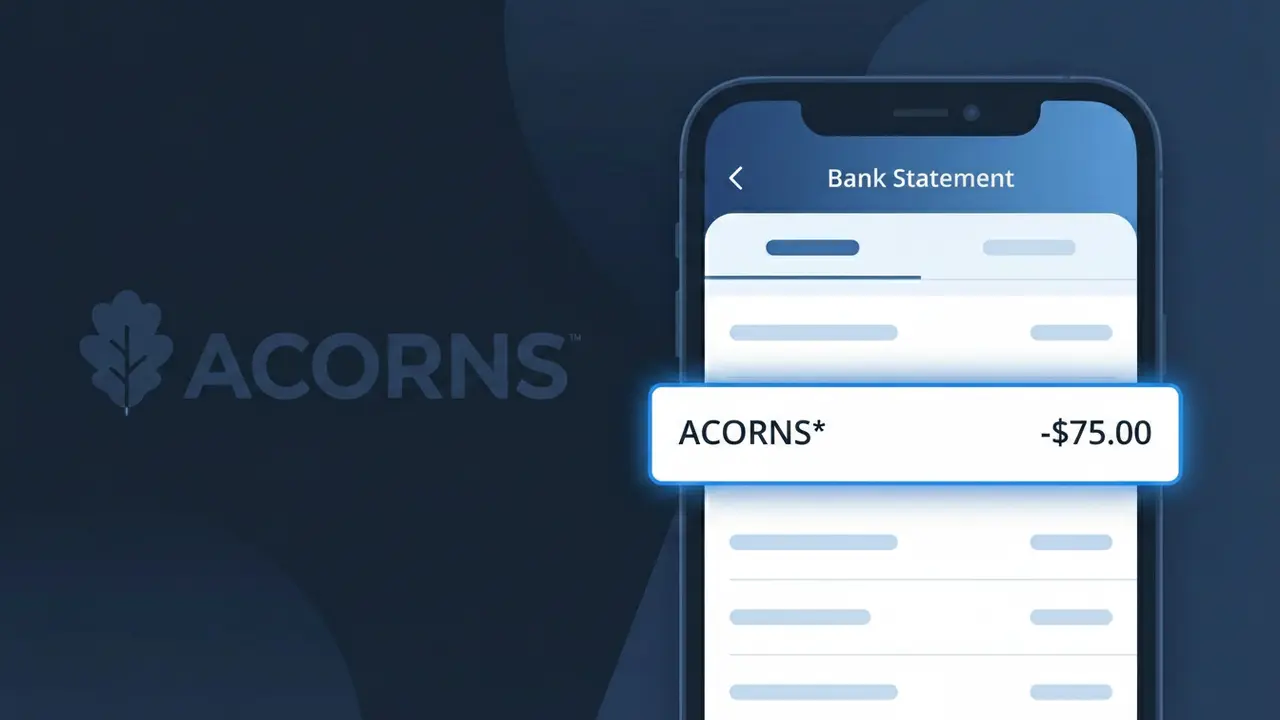
ACORNS* Charge (What It Is + Is It Legit?)
✓ LegitimateThe "ACORNS*" charge is from Acorns. Acorns micro-investing subscription.
Acorns
Acorns micro-investing subscription.
Category
Finance
Avg. Charge
$3.00
Country
US
Billing Cycle
Monthly
Cancel At
acorns.com/account
Support
See website
Why this shows on your statement
When Acorns processes its monthly subscription billing through payment networks, the asterisk in "ACORNS*" serves as a delimiter that separates the merchant name from any additional transaction identifier or plan detail that may follow it, a formatting convention commonly used by subscription-based services to pass extra information alongside the charge. Payment processors like Stripe, which Acorns has used to handle recurring billing for its micro-investing plans, often append this asterisk notation to help distinguish subscription charges from one-time transactions in bank processing systems. If you see ACORNS* on your statement followed by a subscription tier name or partial descriptor, it is almost certainly the $3.00 monthly fee for your Acorns investment account.
What should you do?
Confirm your Acorns subscription
Log into your Acorns account at acorns.com and navigate to your subscription settings to verify that the ACORNS* charge on your bank statement matches your current plan tier, whether that is Acorns Personal, Personal Plus, or Premium.
Check your Acorns investment activity
While logged into acorns.com, review your Round-Ups, recurring investments, and portfolio activity to confirm the charge aligns with your expected monthly subscription fee and that your account is actively investing on your behalf.
Manage or cancel your Acorns subscription
If you no longer wish to continue the Acorns micro-investing service, visit acorns.com/account to manage your subscription settings or initiate a cancellation to prevent future ACORNS* charges from appearing on your bank statement.
Contact Acorns support if the amount looks wrong
If the ACORNS* charge amount does not match your expected subscription plan price, reach out to Acorns customer support directly through acorns.com to clarify the billing discrepancy before contacting your bank.
How to cancel Acorns
Acorns bills you Monthly. To stop future charges, cancel from your account directly.
Cancel at AcornsShould you be worried?
No, this is a legitimate charge from Acorns. However, if you did not authorize this charge or cancelled your subscription, you may be eligible for a refund.
ℹ️ Note
In most cases, seeing "ACORNS*" on your statement is completely normal. Before assuming fraud, check your recent purchases — most mystery charges have a simple explanation.
Is the ACORNS* Charge Legitimate or Fraud?
If you've spotted ACORNS* on your bank or credit card statement, it is most likely a legitimate charge from ACORNS, the popular micro-investing and financial wellness app. ACORNS charges a monthly subscription fee for access to its investment, retirement, and banking features, and this fee appears as ACORNS* on your statement.
Here are common reasons you may see the ACORNS* charge:
- You signed up for an ACORNS personal investment account (Acorns Personal, Family, or Lite plan)
- Your free ACORNS trial period ended and billing began automatically
- A family member or household member signed up using your payment method
- ACORNS renewed your annual or monthly subscription on its regular billing date
However, if you have never created an ACORNS account and do not recognize this charge, it could be an unauthorized transaction and should be investigated promptly.
How to Verify the ACORNS* Charge
- 1
Log into your ACORNS account
Visit acorns.com or open the ACORNS app and check your subscription plan and billing history. Your payment records will confirm whether the ACORNS* charge matches a subscription fee.
- 2
Search your email for ACORNS receipts
Search your inbox for emails from ACORNS (support@acorns.com or noreply@acorns.com). ACORNS sends confirmation emails when subscriptions begin, renew, or change plans.
- 3
Check with household members
Ask family members or anyone who shares your payment method if they signed up for an ACORNS account. ACORNS Family plans cover multiple family members under one billing account.
- 4
Review your active subscriptions
Check your phone's app subscription settings (Apple App Store or Google Play) to see if ACORNS is listed as an active subscription billed through your device's payment method.
- 5
Contact ACORNS support
If you still can't verify the charge, reach out to ACORNS directly at support.acorns.com. Their support team can look up any account associated with your payment information.
How to Dispute an ACORNS* Charge
- 1
Act within 60 days
Most banks require disputes to be filed within 60 days of the charge appearing on your statement. Identify the ACORNS* charge date and act quickly to preserve your right to a chargeback.
- 2
Contact ACORNS first
Reach out to ACORNS customer support at support.acorns.com before disputing with your bank. ACORNS may issue a refund directly, especially if the charge was accidental or the account was already cancelled.
- 3
File a chargeback with your bank
If ACORNS does not resolve the issue, contact your bank or credit card issuer and formally dispute the ACORNS* charge. Provide any documentation such as cancellation confirmations or ACORNS correspondence.
- 4
Request a new card number
If you believe the ACORNS* charge is fraudulent and your card details were compromised, ask your bank to issue a new card number to prevent any further unauthorized charges from appearing.
Tips for Managing ACORNS Charges
Enable billing notifications in the ACORNS app so you're alerted each time an ACORNS* charge is processed.
Review your ACORNS subscription plan regularly to ensure you're on the right tier and not paying for unused features.
Keep your ACORNS account login credentials secure and update your password periodically to prevent unauthorized access.
Note your ACORNS billing cycle date so the ACORNS* charge never comes as a surprise on your monthly statement.
If you cancel ACORNS, save the cancellation confirmation email as proof in case ACORNS* charges continue afterward.
Use WhatIsThisCharge.net to identify related charges that may appear alongside ACORNS* on your statement.
Questions and answers
Was this page helpful?
Community Reports (0)
0 votesNo votes yet — be the first to report on this charge!
Have you seen this charge? Help others by voting:
Community Comments (0)
No comments yet. Be the first to share your experience!
Share your experience
Your email is only used to verify your comment and will never be shown publicly.
Search Another Charge
Popular Charges

Amazon Marketplace
AMZN MKTP US
Netflix
NETFLIX *SUBSCRIPTION
Apple
APPLE *SUBSCRIPTION
Netflix
NETFLIX.COM *
Apple
APPLE.COM/BILL
Need to dispute this charge?
Generate a professional dispute letter in seconds with our AI tool.
Open Charge AssistantCommunity Verified
Real user reports
Free to Use
Always free to check
Secure & Private
Your data is safe
Help Millions
48K+ charges identified