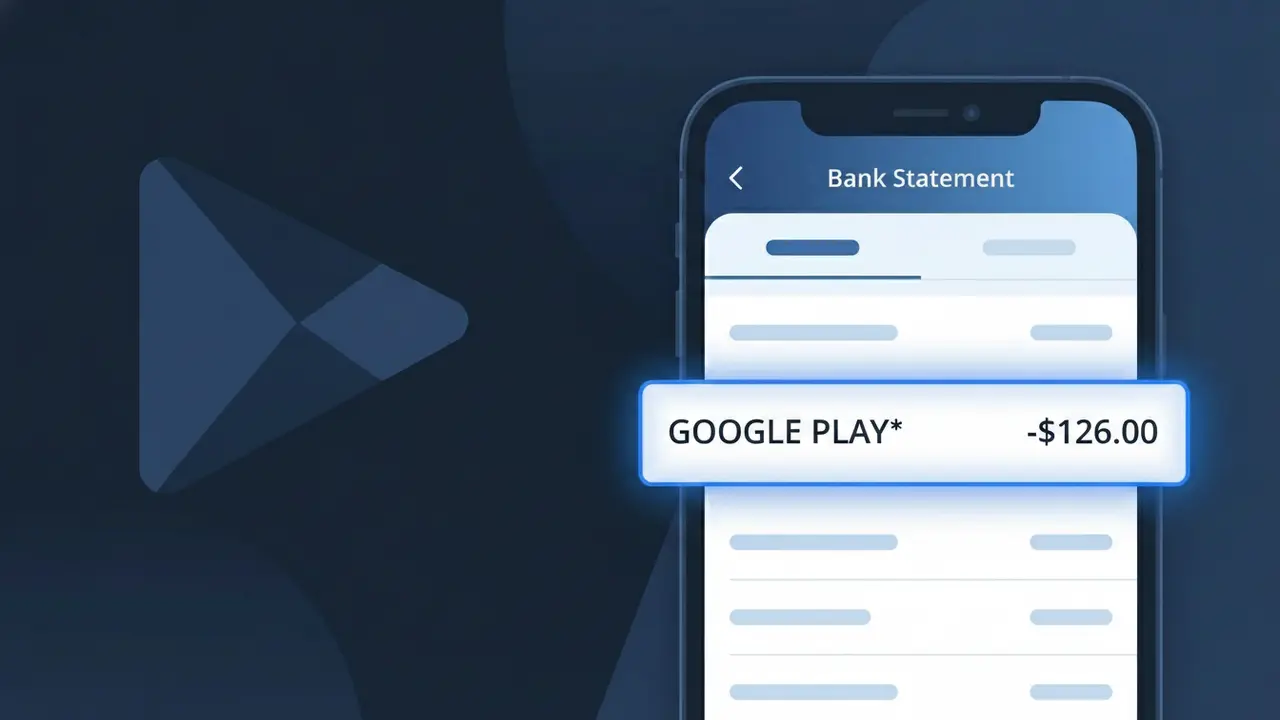
GOOGLE PLAY* Charge (What It Is + Is It Legit?)
✓ LegitimateThe "GOOGLE PLAY*" charge is from Google Play. Google Play Store purchase.
Google Play
Google Play Store purchase.
Category
Shopping
Avg. Charge
Variable
Country
US
Billing Cycle
Variable
Cancel At
play.google.com/store/account/subscriptions
Support
See website
Why does this charge appear?
When Google processes purchases made through its Google Play digital storefront, the transaction is submitted to your bank using the shortened descriptor "GOOGLE PLAY*" followed by an asterisk and a brief identifier, such as the app name or transaction type. Google uses this truncated format because most bank statement systems have a strict character limit for merchant descriptors, typically between 22 and 25 characters, making the full display of additional purchase details impossible without abbreviation. The asterisk acts as a separator that Google's billing infrastructure uses to append a secondary identifier, helping you distinguish between different types of Play Store transactions like app purchases, subscriptions, or in-app content on the same statement.
Your next steps
Check Your Google Play Purchase History
Log into your Google account and visit play.google.com to review your recent purchase history. Google Play labels charges as GOOGLE PLAY* followed by the app or service name, so cross-reference the exact amount on your bank statement with your order history to identify which app, game, or subscription triggered the charge.
Review Your Active Google Play Subscriptions
Visit play.google.com/store/account/subscriptions to see a full list of your active Google Play subscriptions. Many GOOGLE PLAY* charges are recurring subscription fees for apps, streaming services, or in-app memberships that you may have forgotten about. Check renewal dates and amounts to confirm the charge matches.
Check for Family or Shared Account Purchases
If you use Google Play Family Library or have family members linked to your Google account, the GOOGLE PLAY* charge may have originated from a family member's app purchase or subscription. Review your Google Payments account at pay.google.com to see which account holder made the transaction.
Cancel Unwanted Google Play Subscriptions
If the GOOGLE PLAY* charge is from a subscription you no longer want, go to play.google.com/store/account/subscriptions and cancel it immediately to prevent future billing. Google Play subscriptions can be cancelled at any time, and you will typically retain access until the end of the current billing period.
Legitimate or scam?
No, this is a legitimate charge from Google Play. However, if you did not authorize this charge or cancelled your subscription, you may be eligible for a refund.
Is the GOOGLE PLAY* Charge Legitimate or Fraud?
A GOOGLE PLAY* charge on your bank or credit card statement is most commonly a legitimate transaction from Google Play, Google's official digital marketplace for apps, games, movies, books, and subscriptions. The charge typically appears with a descriptor like GOOGLE PLAY* followed by an app or service name. However, if you don't recognize it, it's worth investigating before assuming fraud.
- Google Play uses the GOOGLE PLAY* billing descriptor for all purchases including apps, in-app purchases, and subscriptions
- A family member sharing your Google account or payment method may have made a purchase on Google Play without your knowledge
- Free trials on Google Play automatically convert to paid subscriptions, which appear as GOOGLE PLAY* charges
- Unauthorized charges under GOOGLE PLAY* can occur if your Google account credentials have been compromised
How to Verify the GOOGLE PLAY* Charge
- 1
Check your Google Play purchase history
Log into play.google.com, go to Account > Order History, and match the charge amount and date to a GOOGLE PLAY* transaction on your statement.
- 2
Search your email for Google Play receipts
Search your inbox for emails from 'googleplay-noreply@google.com' — Google Play sends a receipt for every purchase that will match the GOOGLE PLAY* charge.
- 3
Check household members or family group
If you use Google Family Library, another family member may have made a Google Play purchase billed to your shared payment method.
- 4
Review your active Google Play subscriptions
In the Google Play app, tap your profile icon > Payments & subscriptions > Subscriptions to see all recurring charges linked to your account.
- 5
Contact your bank for more details
Ask your bank for the full merchant descriptor on the GOOGLE PLAY* charge — it often includes a partial app or service name that can help you identify the purchase.
How to Dispute a GOOGLE PLAY* Charge
- 1
Act within 60 days of the charge
Most banks require disputes to be filed within 60 days of the GOOGLE PLAY* charge appearing on your statement, so don't delay your investigation.
- 2
Request a refund directly from Google Play
Visit support.google.com/googleplay and use the 'Request a refund' option. Google Play offers refunds within 48 hours of purchase for many app and in-app transactions.
- 3
File a chargeback with your bank
If Google Play denies your refund request and the charge is unauthorized, contact your bank to file a formal chargeback dispute against the GOOGLE PLAY* transaction.
- 4
Secure your Google account and request a new card
If the GOOGLE PLAY* charge was fraudulent, change your Google account password immediately and ask your bank to issue a new card to prevent further unauthorized charges.
Tips for Managing Google Play Charges
Enable purchase notifications in the Google Play app so every GOOGLE PLAY* charge triggers an instant alert.
Regularly review your Google Play Order History to catch unexpected GOOGLE PLAY* charges early.
Enable purchase authentication in Google Play settings to require a password or fingerprint before every charge.
Note the billing cycle dates for Google Play subscriptions so recurring GOOGLE PLAY* charges are never a surprise.
Set up a Google Play spending limit to cap how much can be charged to your payment method each month.
Use WhatIsThisCharge.net to identify related charges that may appear alongside GOOGLE PLAY* on your statement.
Quick answers
Was this page helpful?
Community Reports (0)
0 votesNo votes yet — be the first to report on this charge!
Have you seen this charge? Help others by voting:
Community Comments (0)
No comments yet. Be the first to share your experience!
Share your experience
Your email is only used to verify your comment and will never be shown publicly.
Search Another Charge
Popular Charges

Amazon Marketplace
AMZN MKTP US
Netflix
NETFLIX *SUBSCRIPTION
Netflix
NETFLIX.COM *
Apple
APPLE *SUBSCRIPTION
Apple
APPLE.COM/BILL
Related Charges
Need to dispute this charge?
Generate a professional dispute letter in seconds with our AI tool.
Open Charge AssistantCommunity Verified
Real user reports
Free to Use
Always free to check
Secure & Private
Your data is safe
Help Millions
48K+ charges identified