Why You're Seeing "EA*" on Your Bank Statement
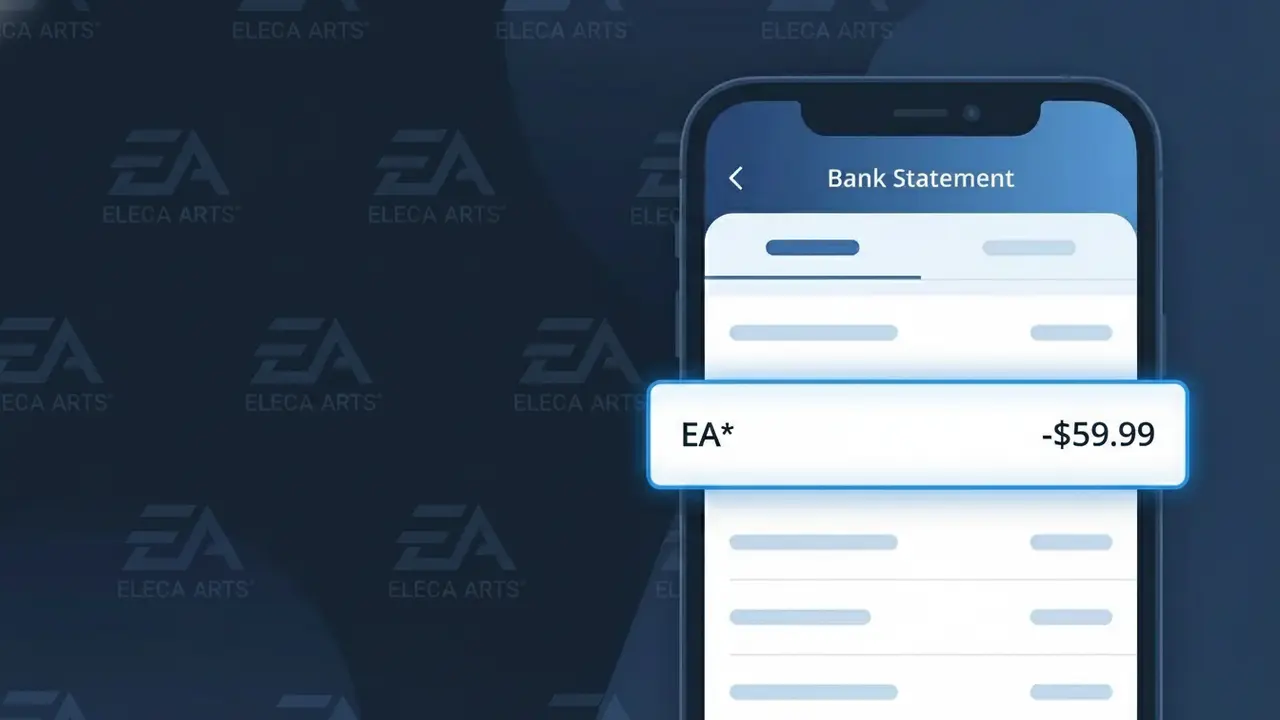
Why You're Seeing "EA*" on Your Bank Statement
An EA* charge on your bank statement comes from Electronic Arts (EA Games), one of the world's largest video game publishers. This charge typically represents a purchase made through the EA app, Origin platform, or an EA Play subscription — EA's gaming membership service offering access to a library of games. The 'EA*' prefix is EA's standard billing descriptor, and it may be followed by additional text such as 'EA*EAPLAY' or 'EA*ORIGIN'. If you or someone in your household plays EA titles like FIFA, Madden, The Sims, or Battlefield, this charge is almost certainly related.
The EA* descriptor appears on bank statements because Electronic Arts uses a shortened billing code when processing payments through their payment systems and third-party processors. Rather than displaying the full company name, their billing system prefixes transactions with 'EA*' followed by a product or service identifier, which is a common practice among large digital companies to standardize payment processing across multiple regions and platforms. This is why the charge may look unfamiliar at first glance, even though it simply reflects a routine purchase or recurring subscription from EA Games.
Is the EA* Charge Legitimate or Fraud?
An EA* charge on your bank or credit card statement is most likely a legitimate transaction from EA Games, one of the world's largest video game publishers. EA uses the prefix "EA*" followed by a product or service name when processing payments, which can make the charge look unfamiliar at first glance. Common reasons you might see an EA* charge include:
- An active EA Play or EA Play Pro subscription renewing automatically
- A game purchase made directly through the EA App or EA's official website
- An in-game purchase or add-on content bought within an EA Games title
- A free trial of EA Play that converted into a paid subscription without cancellation
How to Verify the EA* Charge
- 1
Log into your EA account
Visit EA.com and sign in to your EA account. Navigate to 'EA Wallet' and 'Purchase History' to see a full list of recent transactions that would match the EA* charge on your statement.
- 2
Search your email for EA receipts
Search your inbox for emails from 'ea.com' or 'EA Games.' EA sends order confirmation emails for every purchase, and the amount should match the EA* charge you see on your bank statement.
- 3
Check household members
Ask family members or others who share your payment method if they made a purchase through EA Games, the EA App, or bought an EA title on PlayStation, Xbox, or PC recently.
- 4
Review your EA Play subscription
Log into your EA account and go to 'Subscriptions' to check if you have an active EA Play membership. EA Play charges appear as EA* on statements and renew monthly or annually.
- 5
Contact your bank for details
If you still can't place the EA* charge, call the number on the back of your card. Your bank can provide the full merchant name, transaction date, and sometimes a contact number for EA Games billing.
How to Dispute an EA* Charge
- 1
Act within 60 days
Most banks require disputes to be filed within 60 days of the charge appearing on your statement. Don't delay if you believe the EA* charge is unauthorized or fraudulent — time limits are strictly enforced.
- 2
Contact EA Games support first
Reach out to EA Help at help.ea.com before filing a bank dispute. EA Games support can often issue a refund faster than a chargeback, especially for accidental purchases or unauthorized EA* charges.
- 3
File a chargeback with your bank
If EA Games is unresponsive or denies your refund request, contact your bank or credit card issuer to formally dispute the EA* charge. Provide your EA purchase history records as supporting documentation.
- 4
Request a new card if compromised
If the EA* charge appears to be fraudulent and you never had an EA Games account, request a new card number immediately. This prevents further unauthorized charges from EA or any other merchant.
Tips for Managing EA Games Charges
Enable email notifications in your EA account so you're alerted before any EA* charge is processed.
Regularly review your EA Games purchase history at EA.com to catch unexpected EA* charges early.
Secure your EA Games account with a strong password and two-factor authentication to prevent unauthorized EA* charges.
Note your EA Play renewal date so recurring EA* billing charges never catch you off guard.
Use a virtual card number for EA Games purchases to limit exposure if your payment info is ever compromised.
Use WhatIsThisCharge.net to identify EA* and other related gaming charges on your statement.
Frequently Asked Questions About the EA* Charge
ℹ️ Note
In most cases, an EA* charge is a completely legitimate transaction from EA Games — likely an EA Play subscription renewal or a recent game purchase you or a household member made. A quick check of your EA account's purchase history at EA.com will usually clear up any confusion in minutes.
Was this article helpful?