Why You're Seeing "ZOOM*" on Your Bank Statement
Why You're Seeing "ZOOM*" on Your Bank Statement
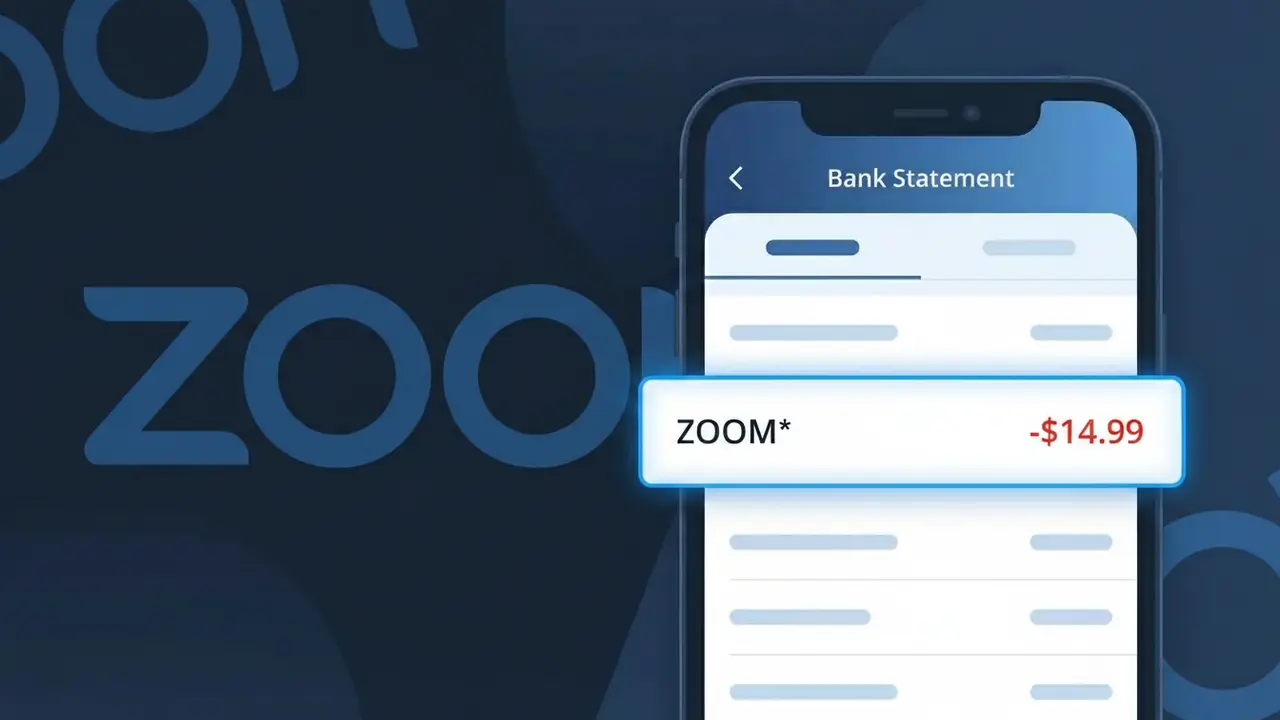
A charge labeled ZOOM* on your bank statement comes from Zoom Video Communications, the popular video conferencing and online meeting platform. This charge typically represents a subscription to one of Zoom's paid plans, such as Pro, Business, or Enterprise, which unlock features beyond the free tier's limits. The asterisk following ZOOM* is commonly used by payment processors to separate the brand name from additional billing details like an account identifier or plan type. If you or someone in your household uses Zoom for work, remote learning, or virtual meetings, this charge is almost certainly your recurring subscription fee.
The descriptor ZOOM* appears on your bank statement because Zoom's payment processing system submits charges using a truncated version of their brand name followed by an asterisk, which is a standard formatting convention used by many SaaS companies. The asterisk often serves as a separator, and your bank may display additional characters after it depending on how much descriptor space is available. This abbreviated format is assigned through their payment gateway and is the official identifier Zoom uses for billing purposes.
Is the ZOOM* Charge Legitimate or Fraud?
A ZOOM* charge on your bank or credit card statement is almost always a legitimate billing from Zoom Video Communications, the popular video conferencing and collaboration platform. Zoom uses the ZOOM* prefix when processing subscription payments through third-party billing processors, which is why it may look unfamiliar. Before assuming fraud, consider these common reasons you may see this charge:
- An active Zoom Pro, Business, or Enterprise monthly or annual subscription renewal
- A recent upgrade from Zoom's free Basic plan to a paid tier
- A Zoom add-on purchase such as Zoom Phone, Zoom Webinar, or extra cloud recording storage
- A family member or colleague signing up for Zoom using your payment method
How to Verify the ZOOM* Charge
- 1
Log into your Zoom account
Visit zoom.us and sign in. Navigate to 'Admin' > 'Account Management' > 'Billing' to view your current plan, billing history, and the exact amount of your most recent ZOOM* charge.
- 2
Search your email for Zoom receipts
Search your inbox for emails from 'no-reply@zoom.us' or 'billing@zoom.us'. Zoom sends order confirmation and renewal receipt emails that will match the ZOOM* charge date and amount on your statement.
- 3
Check household or team members
Ask family members or colleagues whether they signed up for a Zoom paid plan using a shared payment method. Zoom allows account owners to add members under a single billing profile.
- 4
Review third-party app subscriptions
If you subscribed to Zoom through the Apple App Store or Google Play, check those platforms for active Zoom subscriptions, as the billing may still route through ZOOM* on your card statement.
- 5
Contact your bank for details
If the charge date, amount, or merchant details still don't match anything in your Zoom account, call the number on the back of your card and ask your bank for the full merchant descriptor and transaction ID for the ZOOM* charge.
How to Dispute a ZOOM* Charge
- 1
Act within 60 days
Most banks require you to dispute an unauthorized ZOOM* charge within 60 days of the statement date. Don't delay — gather your Zoom billing history and bank statement as documentation before reaching out.
- 2
Contact Zoom support first
Reach Zoom's billing team at zoom.us/support or via live chat. Zoom's billing department can often issue a refund for accidental renewals or duplicate ZOOM* charges faster than a bank chargeback.
- 3
File a chargeback with your bank
If Zoom declines to refund an unauthorized ZOOM* charge, contact your bank or credit card issuer to file a formal chargeback. Provide your Zoom account records showing the charge does not match any active subscription.
- 4
Request a new card number
If the ZOOM* charge appears fraudulent and you did not authorize any Zoom account, ask your bank to issue a replacement card with a new number to prevent further unauthorized charges from appearing.
Tips for Managing Zoom Charges
Enable Zoom billing email alerts so you're notified before each ZOOM* renewal charge hits your card.
Download your Zoom invoice from the Billing portal and match it line-by-line against the ZOOM* amount on your statement.
Audit your Zoom account's licensed users regularly — unused seats on paid Zoom plans silently generate recurring ZOOM* charges.
Note whether your Zoom plan is monthly or annual — annual plans generate a single large ZOOM* charge that can appear unexpected.
Never share your Zoom login credentials; unauthorized account access can lead to fraudulent ZOOM* add-on purchases.
Use WhatIsThisCharge.net to identify any related charges that may appear alongside ZOOM* on your statement.
Frequently Asked Questions About the ZOOM* Charge
ℹ️ Note
In most cases, a ZOOM* charge is simply Zoom billing you for an active Pro, Business, or add-on subscription — a routine and expected transaction that millions of users see each month. A quick check of your Zoom billing portal at zoom.us will usually match the charge and put your mind at ease.
Was this article helpful?