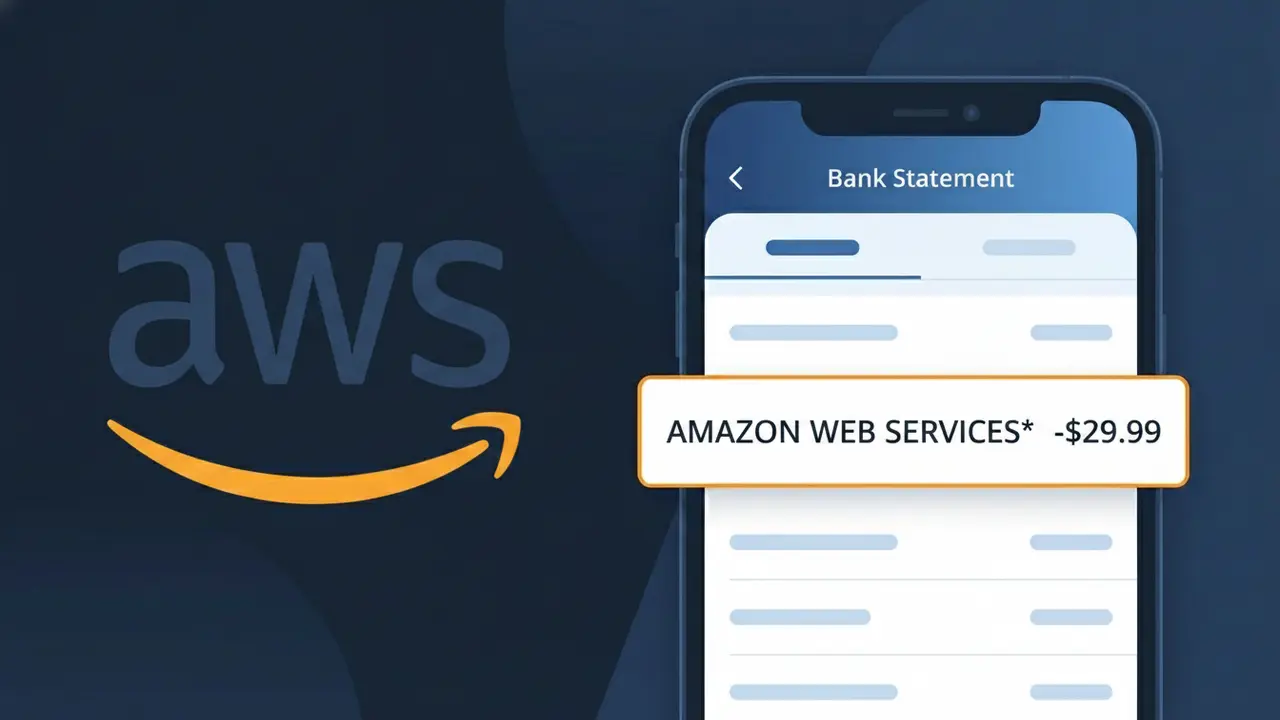
AMAZON WEB SERVICES* Charge (What It Is + Is It Legit?)
✓ LegitimateThe "AMAZON WEB SERVICES*" charge is from Amazon Web Services. AWS cloud services charge.

Amazon Web Services
AWS cloud services charge.
Category
Tech
Avg. Charge
Variable
Country
US
Billing Cycle
Monthly
Cancel At
console.aws.amazon.com/billing
Support
See website
What is this charge?
Amazon Web Services uses the truncated descriptor "AMAZON WEB SERVICES*" on bank statements because payment card networks like Visa and Mastercard impose a strict character limit on merchant descriptors, typically capping them at 22-25 characters including spaces. The asterisk in the descriptor is a standard separator used by AWS's billing system to distinguish the base merchant name from any additional reference information, such as an account ID or service region, that may follow it depending on your bank's display settings. If you're seeing this charge, it almost certainly relates to an active AWS account being billed for cloud services like EC2 instances, S3 storage, or other Amazon Web Services products on their standard monthly billing cycle.
How to handle this charge
Log into your AWS account
Visit aws.amazon.com and sign in to your Amazon Web Services account to review your active services and recent usage that may have triggered the AMAZON WEB SERVICES* charge on your statement.
Review your AWS billing dashboard
Navigate to console.aws.amazon.com/billing to see a detailed breakdown of your Amazon Web Services charges, including which specific cloud services such as EC2, S3, or Lambda generated the bill.
Check for unexpected usage spikes
Inside the Amazon Web Services billing console, review your usage metrics and cost explorer to confirm the AMAZON WEB SERVICES* charge aligns with your expected cloud resource consumption for that billing period.
Manage or cancel unused AWS services
If you want to prevent future AMAZON WEB SERVICES* charges, return to console.aws.amazon.com/billing to shut down any unused cloud services, set billing alerts, or adjust your Amazon Web Services subscription plan to better match your actual needs.
How to cancel Amazon Web Services
Amazon Web Services bills you Monthly. To stop future charges, cancel from your account directly.
Cancel at Amazon Web ServicesQuick fraud check
No, this is a legitimate charge from Amazon Web Services. However, if you did not authorize this charge or cancelled your subscription, you may be eligible for a refund.
ℹ️ Note
In most cases, seeing "AMAZON WEB SERVICES*" on your statement is completely normal. Before assuming fraud, check your recent purchases — most mystery charges have a simple explanation.
Is the AMAZON WEB SERVICES* Charge Legitimate or Fraud?
If you've spotted AMAZON WEB SERVICES* on your bank or credit card statement, it is most likely a legitimate charge from AMAZON WEB SERVICES (AWS), Amazon's cloud computing platform. AWS charges customers for usage of services like cloud storage (S3), computing power (EC2), databases, and more — often on a pay-as-you-go model. However, if you don't recall signing up for AWS, it's worth investigating further.
- You or someone in your organization signed up for an AWS free tier that has now expired or exceeded limits
- A developer or IT staff member linked your payment method to an AWS account for a business project
- You may have a forgotten AWS account with active resources still running and billing
- In rare cases, unauthorized use of your card details could result in fraudulent AWS charges — always verify if you have no AWS account
How to Verify the AMAZON WEB SERVICES* Charge
- 1
Log into your AWS account
Visit aws.amazon.com and sign in. Go to 'Billing & Cost Management' to view your invoices and confirm whether the AMAZON WEB SERVICES* charge matches your account activity.
- 2
Search your email for AWS receipts
Search your inbox for emails from 'aws-receivables-support@email.amazon.com' or 'no-reply@billing.amazon.com'. AMAZON WEB SERVICES sends itemized billing receipts monthly.
- 3
Check with team members or colleagues
If you share finances with a business partner or team, ask whether anyone set up an AMAZON WEB SERVICES account using your company's payment method for a project or experiment.
- 4
Review your AWS Cost Explorer
Inside your AWS account, use the Cost Explorer tool to break down exactly which services generated the AMAZON WEB SERVICES* charge — such as EC2 instances, S3 storage, or data transfer fees.
- 5
Contact your bank for transaction details
Ask your bank for the full merchant descriptor and transaction ID associated with the AMAZON WEB SERVICES* charge. This can help confirm whether the charge originated from a legitimate AWS billing event.
How to Dispute a AMAZON WEB SERVICES* Charge
- 1
Act within 60 days of the charge
Most banks require disputes to be filed within 60 days of the statement date. If you see an unexpected AMAZON WEB SERVICES* charge, don't wait — begin the dispute process as soon as possible.
- 2
Contact AMAZON WEB SERVICES support first
Reach out to AWS directly at aws.amazon.com/contact-us or call AWS support. AMAZON WEB SERVICES has a billing support team that can review your account and issue refunds for erroneous or unintended charges.
- 3
File a chargeback with your bank
If AMAZON WEB SERVICES does not resolve the issue, contact your bank or credit card issuer to initiate a formal chargeback. Provide your billing statements and any communication with AWS as evidence.
- 4
Request a new card number
If you suspect fraud — meaning someone opened an AWS account using your card without permission — ask your bank to cancel your current card and issue a new one to prevent further unauthorized AMAZON WEB SERVICES* charges.
Tips for Managing AMAZON WEB SERVICES Charges
Set AWS billing alerts in your AMAZON WEB SERVICES* account to get notified when charges exceed a threshold you define.
Review your AWS Cost & Usage Report monthly to spot unexpected AMAZON WEB SERVICES* service charges early.
Enable MFA on your AMAZON WEB SERVICES account to prevent unauthorized access that could lead to surprise charges.
AWS bills on the 1st of each month — mark your calendar to review your AMAZON WEB SERVICES* charges right after billing.
Use AWS Budgets to cap spending limits, protecting yourself from runaway AMAZON WEB SERVICES* costs due to misconfigured resources.
Use WhatIsThisCharge.net to identify related charges that may appear alongside AMAZON WEB SERVICES* on your statement.
Frequently Asked Questions
Was this page helpful?
Community Reports (0)
0 votesNo votes yet — be the first to report on this charge!
Have you seen this charge? Help others by voting:
Community Comments (0)
No comments yet. Be the first to share your experience!
Share your experience
Your email is only used to verify your comment and will never be shown publicly.
Search Another Charge
Popular Charges

Amazon Marketplace
AMZN MKTP US
Netflix
NETFLIX *SUBSCRIPTION
Netflix
NETFLIX.COM *
Apple
APPLE *SUBSCRIPTION
Apple
APPLE.COM/BILL
Related Charges
Need to dispute this charge?
Generate a professional dispute letter in seconds with our AI tool.
Open Charge AssistantCommunity Verified
Real user reports
Free to Use
Always free to check
Secure & Private
Your data is safe
Help Millions
48K+ charges identified