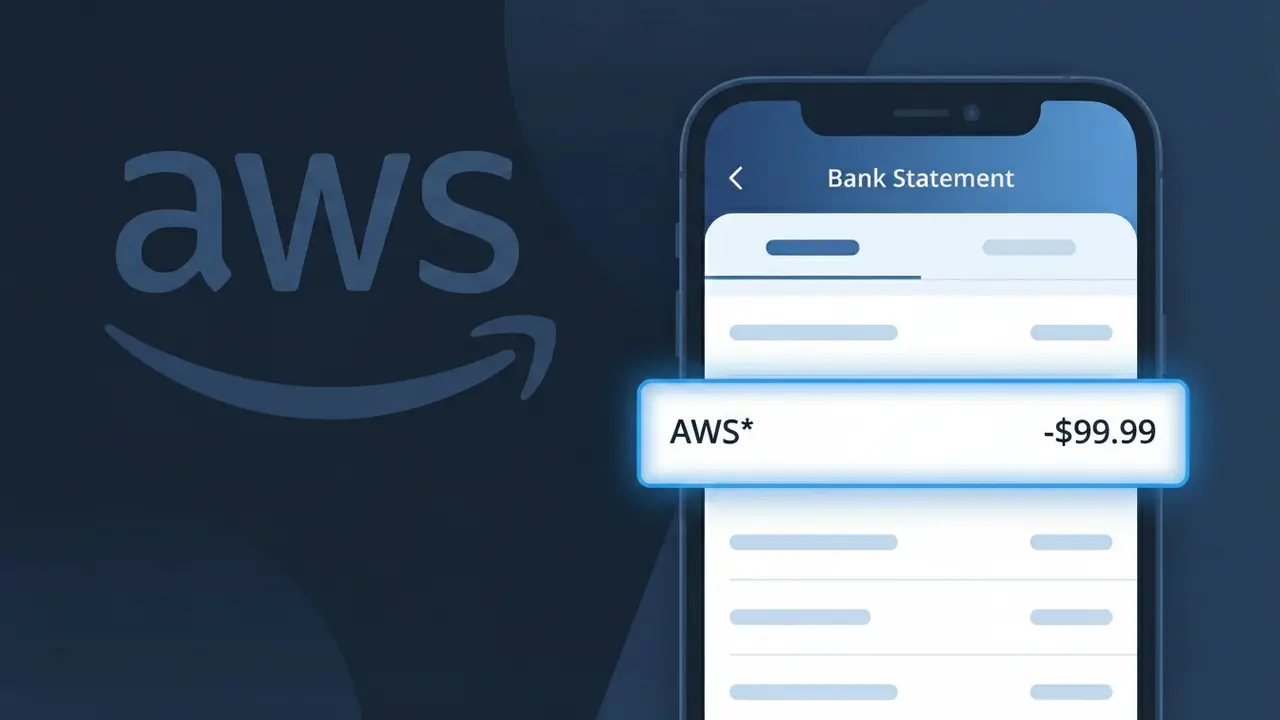
AWS* Charge (What It Is + Is It Legit?)
✓ LegitimateThe "AWS*" charge is from Amazon Web Services. Amazon Web Services cloud usage charge.

Amazon Web Services
Amazon Web Services cloud usage charge.
Category
Tech
Avg. Charge
Variable
Country
US
Billing Cycle
Monthly
Cancel At
console.aws.amazon.com/billing
Support
See website
Why does this charge appear?
Amazon Web Services uses the abbreviated "AWS*" descriptor on bank statements because their billing system truncates the full company name to fit within the character limits imposed by card payment networks, which typically cap merchant descriptors at 22 characters or fewer. The asterisk following "AWS" is a standard separator used by Amazon's payment processing infrastructure to distinguish between different Amazon business units and service lines, preventing confusion with other Amazon charges like Prime or retail purchases. If you see "AWS*" on your statement, it almost certainly relates to cloud computing services such as EC2 instances, S3 storage, or other pay-as-you-go Amazon Web Services products billed to your account.
Your next steps
Sign in to AWS Billing Console
Visit console.aws.amazon.com/billing and log in with your Amazon Web Services account credentials to view a detailed breakdown of what services generated the AWS* charge on your statement.
Review Your AWS Service Usage
Inside the AWS Billing Dashboard, check the Cost Explorer or Bills section to identify which specific Amazon Web Services resources such as EC2 instances, S3 storage, or Lambda functions contributed to the charge during that billing period.
Check for Multiple AWS Accounts
If you do not recognize the AWS* charge, consider whether you or a family member may have created a separate Amazon Web Services account, as charges can come from free tier expirations or forgotten test accounts tied to different email addresses.
Set Up AWS Billing Alerts
To avoid surprise AWS* charges in the future, go to aws.amazon.com and enable billing alerts and AWS Budgets within your account settings so you receive notifications whenever your Amazon Web Services spending exceeds a threshold you define.
How to cancel Amazon Web Services
Amazon Web Services bills you Monthly. To stop future charges, cancel from your account directly.
Cancel at Amazon Web ServicesLegitimate or scam?
No, this is a legitimate charge from Amazon Web Services. However, if you did not authorize this charge or cancelled your subscription, you may be eligible for a refund.
ℹ️ Note
In most cases, seeing "AWS*" on your statement is completely normal. Before assuming fraud, check your recent purchases — most mystery charges have a simple explanation.
Is the AWS* Charge Legitimate or Fraud?
An AWS* charge on your bank or credit card statement almost always comes from Amazon Web Services (AWS), Amazon's cloud computing platform. AWS bills customers for services like cloud storage (S3), computing power (EC2), databases, and dozens of other cloud infrastructure tools. If you or someone in your household uses AWS, this charge is very likely legitimate.
Common reasons you might see an AWS* charge include:
- An active AWS Free Tier account that has exceeded free usage limits
- A running EC2 instance, RDS database, or other paid AWS service
- A business or developer subscription tied to your payment method
- A family member or colleague who linked your card to their AWS account
If you do not recognize the charge, it is worth verifying before assuming fraud, as AWS billing can appear unexpectedly when free tiers expire or usage spikes.
How to Verify the AWS* Charge
- 1
Log into your AWS account
Visit console.aws.amazon.com and sign in. Navigate to 'Billing & Cost Management' to view your detailed invoices and confirm whether the AWS* charge matches your billing history.
- 2
Search your email for AWS receipts
Search your inbox for emails from 'aws-receipts@amazon.com' or 'no-reply@aws.amazon.com'. AWS sends monthly billing statements and service charge notifications that should match the AWS* amount on your statement.
- 3
Check if household members use AWS
Ask family members, roommates, or business partners whether they linked a shared card to an AWS account. AWS accounts can be associated with any stored payment method without the cardholder's immediate awareness.
- 4
Review AWS Free Tier usage
If you recently signed up for the AWS Free Tier, check your Free Tier usage dashboard. AWS automatically charges for any usage that exceeds free tier limits, which can result in unexpected AWS* charges.
- 5
Contact AWS Support or your bank
If you still cannot identify the AWS* charge, contact AWS customer support at aws.amazon.com/contact-us with your charge amount and date. Your bank can also provide the merchant ID linked to the AWS* transaction.
How to Dispute an AWS* Charge
- 1
Act within 60 days of the charge
Most banks require you to dispute an unrecognized AWS* charge within 60 days of your statement date. Acting quickly gives you the best chance of a successful chargeback or refund.
- 2
Contact AWS Support first
Reach out to AWS directly at aws.amazon.com/contact-us before filing a bank dispute. AWS support can often identify the source of the AWS* charge and may issue a refund for accidental or unexpected billing more quickly than a chargeback.
- 3
File a chargeback with your bank
If AWS does not resolve the issue, call the number on the back of your card and report the AWS* charge as unauthorized. Provide your statement, any AWS emails, and a summary of your dispute to support your claim.
- 4
Request a new card number
If the AWS* charge appears to be fraudulent and you did not create an AWS account, ask your bank to issue a new card number to prevent any future unauthorized AWS or AWS* charges from occurring.
Tips for Managing AWS* Charges
Set AWS billing alerts in the AWS Console to get notified before charges exceed your budget.
Review your AWS Cost Explorer monthly to track exactly which AWS services are generating charges.
Enable MFA on your AWS account to prevent unauthorized users from adding services that cause unexpected AWS* charges.
AWS bills on the 1st of each month — reconcile your AWS* charges against your invoice on that date.
Use AWS Budgets to set hard spending limits and automatically receive alerts if usage spikes.
Use WhatIsThisCharge.net to identify related charges that may appear alongside AWS* on your statement.
Quick answers
Was this page helpful?
Community Reports (0)
0 votesNo votes yet — be the first to report on this charge!
Have you seen this charge? Help others by voting:
Community Comments (0)
No comments yet. Be the first to share your experience!
Share your experience
Your email is only used to verify your comment and will never be shown publicly.
Search Another Charge
Popular Charges

Amazon Marketplace
AMZN MKTP US
Netflix
NETFLIX *SUBSCRIPTION
Netflix
NETFLIX.COM *
Apple
APPLE *SUBSCRIPTION
Apple
APPLE.COM/BILL
Related Charges
Need to dispute this charge?
Generate a professional dispute letter in seconds with our AI tool.
Open Charge AssistantCommunity Verified
Real user reports
Free to Use
Always free to check
Secure & Private
Your data is safe
Help Millions
48K+ charges identified