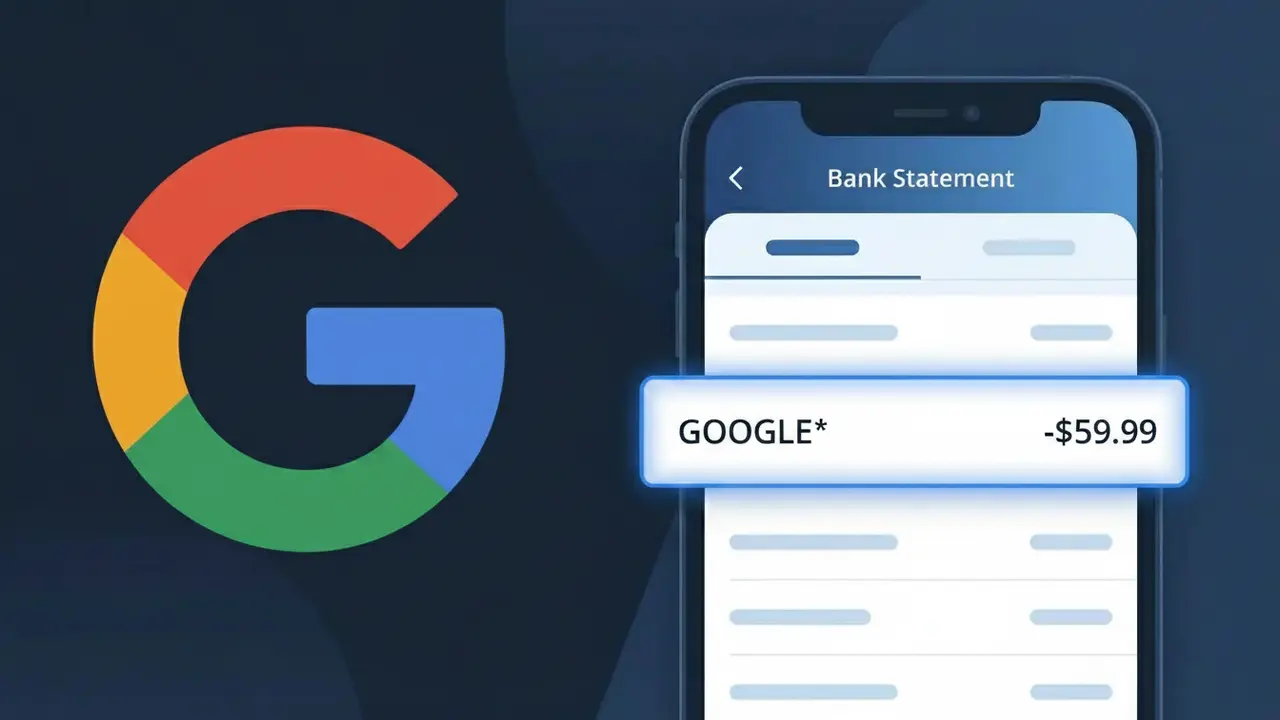
GOOGLE* Charge (What It Is + Is It Legit?)
✓ LegitimateThe "GOOGLE*" charge is from Google. Google service or subscription charge.
Google service or subscription charge.
Category
Tech
Avg. Charge
Variable
Country
US
Billing Cycle
Variable
Cancel At
myaccount.google.com/payments
Support
See website
Why this shows on your statement
Google uses the truncated descriptor "GOOGLE*" on bank statements because payment card networks like Visa and Mastercard impose a strict character limit on merchant descriptors, typically capping them at 22-25 characters. To stay within this limit while still making the charge identifiable, Google appends an asterisk followed by a short descriptor indicating which specific service was billed, such as "GOOGLE*YOUTUBE" or "GOOGLE*STORAGE." This format is part of Google's standardized billing system across its wide range of products and subscriptions, allowing the company to route charges from services like Google One, YouTube Premium, and Google Play through a single recognizable billing identifier.
What should you do?
Check Your Google Payment History
Visit myaccount.google.com/payments to view all charges associated with your Google account. The GOOGLE* charge should appear here with a detailed description of which specific Google service or subscription triggered the payment.
Identify the Google Service
Look through your active Google subscriptions such as Google One, YouTube Premium, Google Play apps or games, or Google Workspace. The charge amount can help you match it to a specific service listed at google.com to confirm what you are being billed for.
Review Your Google Subscriptions
At myaccount.google.com/payments, click on Subscriptions and Memberships to see a full list of active Google services you are paying for. Verify that the GOOGLE* charge matches one of these active subscriptions and that the billing cycle and amount are correct.
Cancel Unwanted Google Services
If the GOOGLE* charge is for a Google service you no longer want, go to myaccount.google.com/payments and select the subscription you wish to cancel. You can manage or cancel any Google service from this page to prevent future charges from appearing on your bank statement.
Should you be worried?
No, this is a legitimate charge from Google. However, if you did not authorize this charge or cancelled your subscription, you may be eligible for a refund.
ℹ️ Note
GOOGLE* is an official billing descriptor used by Google LLC. If you or someone in your household uses any Google service — such as Google One, YouTube Premium, Google Play, or Google Workspace — this charge is most likely a routine, authorized payment from Google appearing on your statement.
Is the GOOGLE* Charge Legitimate or Fraud?
If you see a GOOGLE* charge on your bank or credit card statement, it is most likely a legitimate transaction from GOOGLE for one of their many paid services or subscriptions. GOOGLE uses the billing descriptor GOOGLE* followed by a product name (e.g., GOOGLE*PLAY, GOOGLE*STORAGE, GOOGLE*YOUTUBE) to identify charges from their ecosystem.
Common legitimate reasons you may see a GOOGLE* charge include:
- Google One storage subscription (expanded Gmail/Drive/Photos storage)
- Google Play Store app purchases, in-app purchases, or subscriptions
- YouTube Premium or YouTube TV membership fees
- Google Workspace (formerly G Suite) business plan billing
- Google Ads campaign charges billed to your card on file
While most GOOGLE* charges are genuine, fraudulent charges can occur if your Google account or payment method has been compromised. Always verify the charge against your Google account activity before assuming it is unauthorized.
How to Verify the GOOGLE* Charge
- 1
Check your Google account payments
Go to pay.google.com and sign in. Under 'Transactions,' you can see a full history of every GOOGLE* charge billed to your payment methods, including dates and amounts.
- 2
Search your email for GOOGLE receipts
Search your inbox for emails from 'noreply@google.com' or 'payments-noreply@google.com.' GOOGLE sends a receipt email for every charge, detailing exactly what was purchased.
- 3
Review your Google Play purchase history
Open the Google Play Store app or visit play.google.com, tap your profile, and go to 'Payments & subscriptions > Budget & history' to match the GOOGLE* charge to a specific app or subscription.
- 4
Check household or family members
If you share a Google Family Group, a family member may have made a purchase that billed to your card. Review Google Family Library settings at families.google.com to check shared purchases.
- 5
Contact Google Support directly
If you still cannot identify the GOOGLE* charge, visit support.google.com/pay and use the chat or phone support to have a GOOGLE agent trace the specific transaction for you.
How to Dispute a GOOGLE* Charge
- 1
Act within 60 days of the charge
Most banks require disputes to be filed within 60 days of the GOOGLE* charge appearing on your statement. Note the exact charge date and amount before taking any action.
- 2
Request a refund from GOOGLE first
Visit support.google.com/googleplay/answer/2479637 to request a refund directly from GOOGLE. For Google One or Workspace, contact Google Billing support. Resolving it with GOOGLE is faster than a bank dispute.
- 3
Secure your Google account
If you suspect fraud, immediately change your Google account password, enable two-factor authentication at myaccount.google.com/security, and remove any unrecognized payment methods from pay.google.com.
- 4
File a chargeback with your bank
If GOOGLE denies your refund request and the charge is unauthorized, contact your bank or card issuer to dispute the GOOGLE* charge. Provide your Google support case number as evidence to strengthen your claim.
- 5
Request a new card number
If your card was used fraudulently for a GOOGLE* charge, ask your bank to issue a new card number. Then update your payment method in your Google account at pay.google.com to avoid service interruptions.
Tips for Managing GOOGLE Charges
Enable Google payment notifications at pay.google.com so you get an alert every time a GOOGLE* charge is processed.
Regularly review all active subscriptions at pay.google.com/subscriptions to cancel any GOOGLE* services you no longer use.
Use a strong, unique password and two-factor authentication on your Google account to prevent unauthorized GOOGLE* charges.
Note your GOOGLE One or Google Play subscription renewal dates so GOOGLE* billing charges never catch you by surprise.
Set spending limits on Google Play for family members to prevent unexpected GOOGLE* charges from shared accounts.
Use WhatIsThisCharge.net to identify related charges like GOOGLE*PLAY or GOOGLE*STORAGE on your statement.
Questions and answers
Was this page helpful?
Community Reports (0)
0 votesNo votes yet — be the first to report on this charge!
Have you seen this charge? Help others by voting:
Community Comments (0)
No comments yet. Be the first to share your experience!
Share your experience
Your email is only used to verify your comment and will never be shown publicly.
Search Another Charge
Popular Charges

Amazon Marketplace
AMZN MKTP US
Netflix
NETFLIX *SUBSCRIPTION
Netflix
NETFLIX.COM *
Apple
APPLE *SUBSCRIPTION
Apple
APPLE.COM/BILL
Related Charges
Need to dispute this charge?
Generate a professional dispute letter in seconds with our AI tool.
Open Charge AssistantCommunity Verified
Real user reports
Free to Use
Always free to check
Secure & Private
Your data is safe
Help Millions
48K+ charges identified