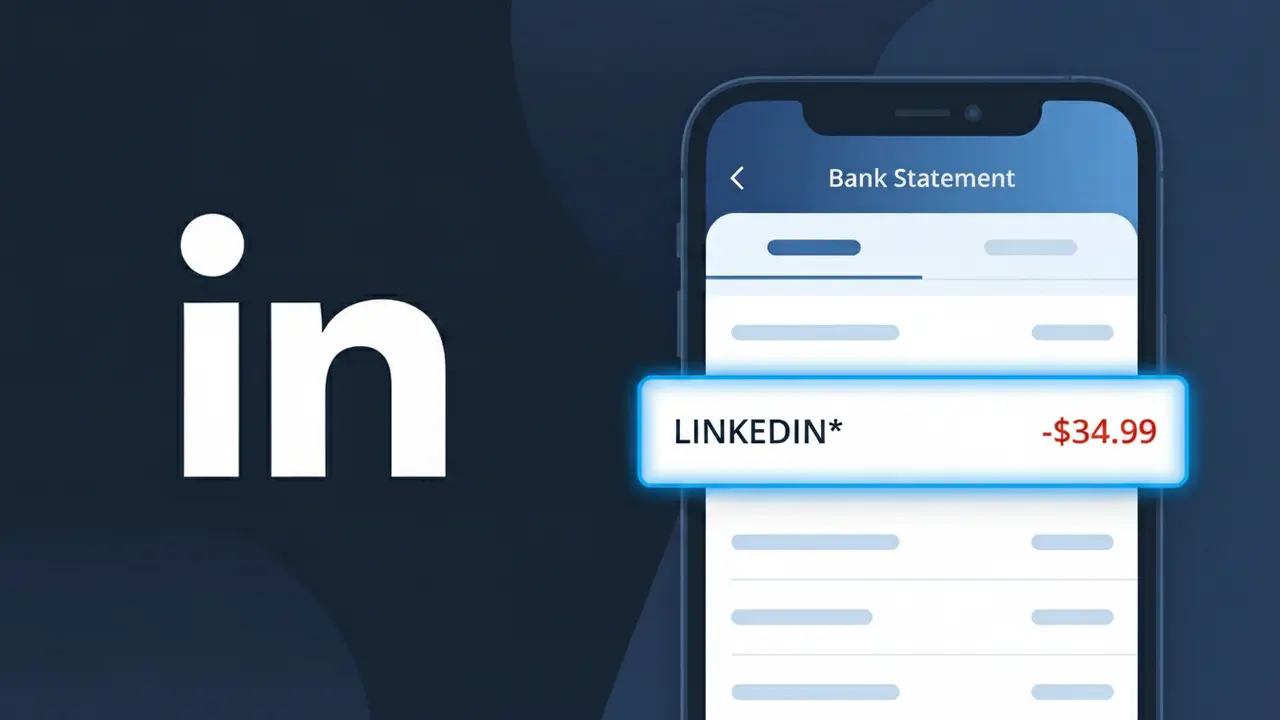
LINKEDIN* Charge (What It Is + Is It Legit?)
✓ LegitimateThe "LINKEDIN*" charge is from LinkedIn Premium. LinkedIn Premium subscription.
LinkedIn Premium
LinkedIn Premium subscription.
Category
SaaS
Avg. Charge
$39.99
Country
US
Billing Cycle
Monthly
Cancel At
linkedin.com/premium
Support
See website
What is this charge?
LinkedIn bills its Premium subscription through Microsoft's payment infrastructure, since Microsoft acquired LinkedIn in 2016 and consolidated billing operations under the parent company's systems. When your LinkedIn Premium monthly charge of $39.99 processes, the descriptor is truncated to "LINKEDIN*" because merchant descriptors on bank statements are limited in character length, and the asterisk is used by the payment processor to separate the brand name from any additional billing detail that may follow, such as a product tier or transaction ID. If you're seeing this on your statement and recently signed up for LinkedIn Premium or had your subscription renew, this charge is almost certainly legitimate.
How to handle this charge
Confirm Your LinkedIn Premium Plan
Log in to your LinkedIn account at linkedin.com and navigate to your profile to check if you have an active LinkedIn Premium subscription. The LINKEDIN* charge on your statement corresponds directly to a paid Premium tier such as Career, Business, Sales Navigator, or Recruiter Lite.
Review Your LinkedIn Billing History
Visit linkedin.com/premium and click on 'Manage Premium account' to view your full billing history. Here you can verify the exact amount charged matches the LINKEDIN* charge on your bank statement and confirm the billing date aligns with your subscription renewal cycle.
Check for Shared or Forgotten Subscriptions
If you do not recall signing up, check whether a family member or colleague may have used your payment method for their LinkedIn Premium trial that converted to a paid plan. LinkedIn also offers free trials that automatically charge once the trial period ends, which may explain an unexpected LINKEDIN* charge.
Cancel LinkedIn Premium If No Longer Needed
If you want to stop future LINKEDIN* charges, go directly to linkedin.com/premium and select 'Cancel subscription' before your next billing date. LinkedIn Premium cancellations take effect at the end of the current billing period, so you will retain Premium access until that date without being charged again.
How to cancel LinkedIn Premium
LinkedIn Premium bills you Monthly. To stop future charges, cancel from your account directly.
Cancel at LinkedIn PremiumQuick fraud check
No, this is a legitimate charge from LinkedIn Premium. However, if you did not authorize this charge or cancelled your subscription, you may be eligible for a refund.
Is the LINKEDIN* Charge Legitimate or Fraud?
The LINKEDIN* charge on your bank or credit card statement is almost always a legitimate billing from LinkedIn Premium, Microsoft's paid subscription tier for the LinkedIn professional networking platform. This charge appears when you have an active LinkedIn Premium plan such as Career, Business, Sales Navigator, or Recruiter Lite. Common reasons you might see this charge include:
- You signed up for a LinkedIn Premium free trial that has since converted to a paid monthly or annual subscription
- Your LinkedIn Premium subscription renewed automatically at the start of a new billing cycle
- A household member or colleague signed up for LinkedIn Premium using your shared payment method
- You upgraded your LinkedIn plan tier, triggering a prorated or new billing charge under the LINKEDIN* descriptor
How to Verify the LINKEDIN* Charge
- 1
Log into your LinkedIn account
Visit linkedin.com and go to Settings & Privacy > Subscriptions & Payments to confirm whether you have an active LinkedIn Premium plan and review your billing history.
- 2
Search your email for LinkedIn receipts
Search your inbox for emails from 'LinkedIn' or 'no-reply@linkedin.com' — LinkedIn Premium sends a receipt each time the LINKEDIN* charge is processed.
- 3
Check with household members
Ask family members or colleagues who may share your payment method whether they signed up for LinkedIn Premium, as the LINKEDIN* charge would appear on your shared account.
- 4
Review connected payment methods
In your LinkedIn Premium account, navigate to Manage Subscription to see exactly which card is being billed and the date the LINKEDIN* charge recurs each month.
- 5
Contact your bank for details
If you still can't place the LINKEDIN* charge, call your bank and ask for the full merchant name and transaction ID to confirm it originated from LinkedIn Premium.
How to Dispute a LINKEDIN* Charge
- 1
Act within 60 days
Most banks require disputes to be filed within 60 days of the LINKEDIN* charge appearing on your statement, so don't delay if you believe the charge is unauthorized or incorrect.
- 2
Contact LinkedIn Premium support first
Visit the LinkedIn Help Center at linkedin.com/help and submit a billing inquiry — LinkedIn Premium support can often issue a refund directly, resolving the LINKEDIN* dispute faster than a bank chargeback.
- 3
File a chargeback with your bank
If LinkedIn Premium support does not resolve the issue, contact your bank or card issuer and formally dispute the LINKEDIN* charge as unauthorized, providing any supporting email correspondence.
- 4
Request a new card number
If the LINKEDIN* charge appears fraudulent and you did not authorize any LinkedIn Premium subscription, request a replacement card to prevent further unauthorized charges.
Tips for Managing LinkedIn Premium Charges
Set a calendar alert before your LinkedIn Premium trial ends to avoid an unexpected LINKEDIN* charge on your statement.
Save LinkedIn Premium email receipts in a dedicated folder so you can quickly match them to any LINKEDIN* charge.
Regularly review your LinkedIn Premium subscription tier to ensure you're only paying for features you actively use.
Note your LinkedIn Premium billing date — LINKEDIN* charges recur monthly or annually on the same date each cycle.
Use a virtual card number for LinkedIn Premium to isolate LINKEDIN* charges and protect your main account.
Use WhatIsThisCharge.net to identify any unfamiliar LINKEDIN* or related Microsoft billing charges on your statement.
ℹ️ Note
The LINKEDIN* charge is a standard billing descriptor from LinkedIn Premium and is recognized by banks worldwide as a legitimate SaaS subscription charge. In most cases, seeing LINKEDIN* simply means your LinkedIn Premium plan has renewed — a quick login to your LinkedIn account will confirm your subscription status and put your mind at ease.
Frequently Asked Questions
Was this page helpful?
Community Reports (0)
0 votesNo votes yet — be the first to report on this charge!
Have you seen this charge? Help others by voting:
Community Comments (0)
No comments yet. Be the first to share your experience!
Share your experience
Your email is only used to verify your comment and will never be shown publicly.
Search Another Charge
Popular Charges

Amazon Marketplace
AMZN MKTP US
Netflix
NETFLIX *SUBSCRIPTION
Apple
APPLE *SUBSCRIPTION
Netflix
NETFLIX.COM *
Apple
APPLE.COM/BILL
Related Charges
Need to dispute this charge?
Generate a professional dispute letter in seconds with our AI tool.
Open Charge AssistantCommunity Verified
Real user reports
Free to Use
Always free to check
Secure & Private
Your data is safe
Help Millions
48K+ charges identified