How to Cancel Any Subscription — Complete Guide
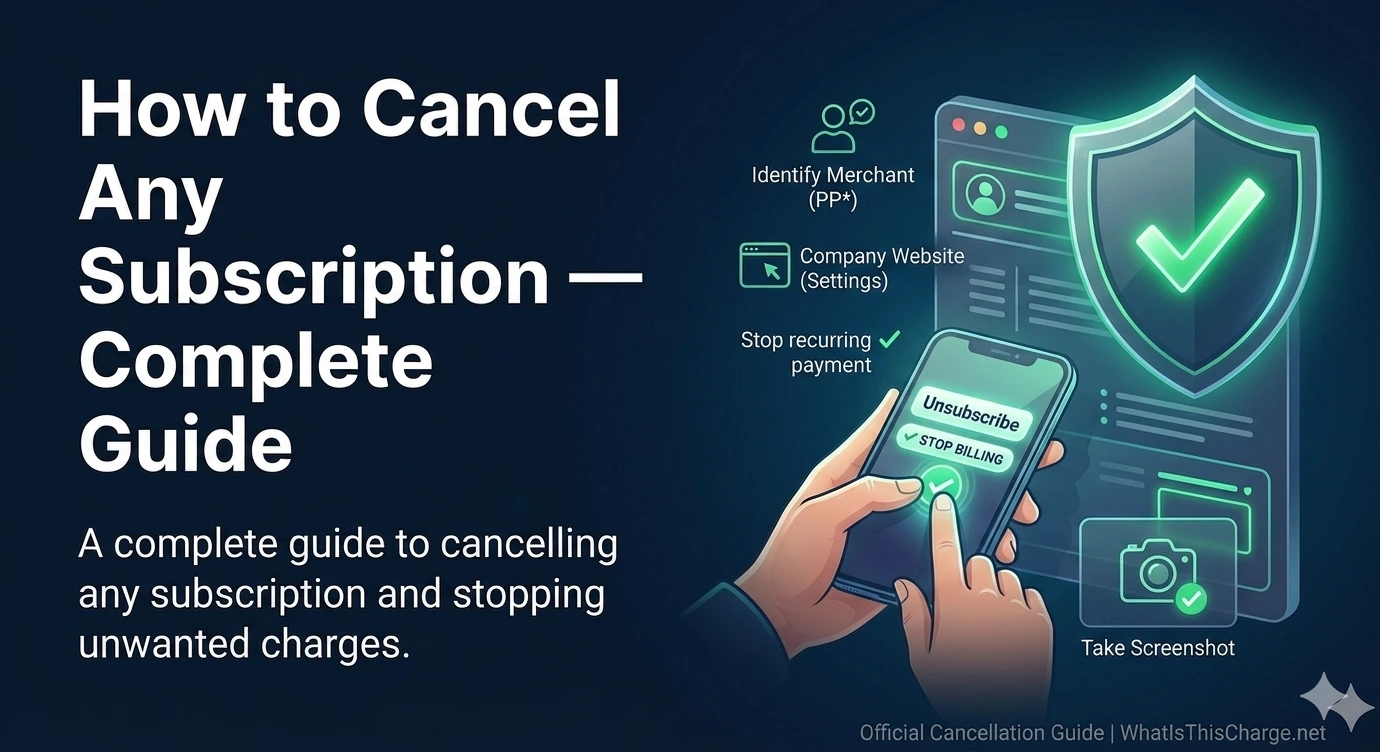
Why Cancelling Subscriptions Is Harder Than It Should Be
Subscription services are designed to retain customers. Cancellation flows are often buried in settings, require multiple confirmation steps, or are only accessible via phone or chat.
In the US alone, the average consumer pays for 4 to 5 subscriptions they have forgotten about. Learning how to identify and cancel them systematically can save hundreds of dollars per year.
How to Cancel Any Subscription (Universal Method)
- 1
Identify the subscription
Check your bank statement for the recurring charge. Search the descriptor on WhatIsThisCharge.net to identify the service, then log into that account.
- 2
Find the cancellation page
Go to Account Settings then Billing or Subscription. Most services have a Cancel Subscription or Manage Plan option here.
- 3
Cancel before the renewal date
Your subscription remains active until the end of the current billing period. Cancel at least 24 hours before renewal to avoid being charged for the next cycle.
- 4
Confirm cancellation via email
Always look for a confirmation email after cancelling. If you do not receive one within a few minutes, the cancellation may not have gone through.
- 5
Block future charges if unresponsive
If the merchant continues charging you, contact your bank and request a block on future charges from that merchant, or request a new card number.
💡 Tip
Take a screenshot of the cancellation confirmation page in addition to saving the email. This is valuable evidence if the company continues charging you.
How to Cancel Specific Popular Services
Direct cancellation paths for the most common subscriptions:
- Netflix: Account then Membership then Cancel Membership
- Spotify: Account then Your Plan then Change Plan then Cancel
- Amazon Prime: Account then Prime Membership then End Membership
- Apple: Settings then Your Name then Subscriptions
- Google Play: Play Store then Subscriptions then Cancel
- Adobe: Account then Plans then Manage Plan then Cancel Plan
- Disney+: Account then Billing Details then Cancel Subscription
⚠️ Warning
Some services charge a cancellation fee if you cancel before the end of an annual contract. Always check the terms before cancelling an annual plan mid-cycle.
How to Find All Your Subscriptions
Most people have more active subscriptions than they realize. Here is how to do a full audit:
- Search your email for words like renewal, receipt, or billing
- Check PayPal under Settings then Payments then Manage Automatic Payments
- Check Apple under Settings then Your Name then Subscriptions
- Check Google under pay.google.com then Subscriptions
- Review your bank and credit card statements for the past 3 months
Tips to Avoid Unwanted Subscriptions
Set a calendar reminder the day before any free trial ends.
Use a virtual card number for free trials so charges fail automatically.
Search your email monthly for renewal notices.
Enable bank alerts so you see every charge the moment it happens.
Keep a simple list of all active subscriptions with renewal dates.
Use Privacy.com or similar services to create disposable cards for trials.
Frequently Asked Questions
Is 'This Charge' Legitimate or Fraud?
If you've spotted 'this charge' on your bank or credit card statement from the company 'this charge,' you're likely wondering whether it's a valid transaction or something suspicious. In most cases, this charge appears when you've signed up for a service, subscription, or one-time purchase through this charge's platform. Before assuming fraud, consider the following common reasons this charge may appear:
- You or a household member recently signed up for a subscription offered by this charge
- A free trial period ended and this charge automatically billed your account
- You made a one-time purchase through this charge and the billing descriptor reflects their company name
- This charge may appear under a slightly different name due to how this charge processes payments through third-party billing systems
How to Verify the 'This Charge' Charge
- 1
Log into your this charge account
Visit the official this charge website and sign in. Navigate to your billing or payment history to see if the charge amount and date match what appears on your statement.
- 2
Search your email for receipts
Search your inbox for emails from this charge using keywords like 'this charge,' 'receipt,' or 'invoice.' A confirmation email should match the charge date and amount on your bank statement.
- 3
Check with household members
Ask family members or anyone who shares your payment method if they signed up for anything through this charge, as shared cards can lead to unrecognized but legitimate charges.
- 4
Review your active subscriptions
Check your device's subscription manager (Apple ID, Google Play, or your browser's saved subscriptions) to see if this charge is listed as an active recurring billing service.
- 5
Contact your bank for details
Call the number on the back of your card and ask for the full merchant details behind 'this charge.' Your bank can often provide a merchant contact number or website to help you confirm the charge.
How to Dispute a 'This Charge' Charge
- 1
Act within 60 days
Most banks require you to dispute unrecognized charges within 60 days of the statement date. If you believe this charge is unauthorized, don't delay — start the process as soon as possible.
- 2
Contact this charge directly first
Reach out to this charge's customer support via their official website. Explain the charge in question; many billing disputes are resolved faster when you contact this charge before escalating to your bank.
- 3
File a chargeback with your bank
If this charge does not resolve the issue, contact your bank or card issuer to file a formal chargeback. Provide your statement, any emails from this charge, and a brief explanation of the dispute.
- 4
Request a new card number
If you suspect the 'this charge' transaction is part of unauthorized card use or fraud, ask your bank to cancel the compromised card and issue a new one to prevent further charges.
Is the "This Charge" Charge on Your Bank Statement Legitimate?
Seeing "this charge" on your bank or credit card statement can be confusing, especially if you don't immediately recognize the merchant name. In many cases, "this charge" appears because a company uses a payment processor or billing descriptor that differs from their public-facing brand name. Before assuming fraud, it's worth taking a few minutes to investigate whether this charge is tied to a legitimate purchase or subscription you authorized.
- "This charge" may appear from an online retailer, subscription service, or app that uses a third-party billing system
- The charge amount and date can help you match it to a recent purchase or recurring billing cycle
- Some legitimate companies intentionally use shortened or generic descriptors like "this charge" on bank statements
- If you do not recognize this charge after investigating, it could indicate unauthorized use of your payment information
How to Verify the "This Charge" Charge on Your Statement
- 1
Check the exact charge amount and date
Note the exact dollar amount and date that "this charge" posted to your account. Cross-reference these details against your recent receipts, order confirmations, or subscription renewal dates to find a match.
- 2
Search your email for receipts
Search your inbox for keywords related to "this charge," including the amount, date, or any merchant name you suspect. Many services send email confirmations that can confirm whether this charge was authorized by you.
- 3
Check with household members
Ask family members or anyone who may have access to your payment method if they made a purchase that would result in "this charge" appearing on your statement.
- 4
Review your active subscriptions
Log into subscription management tools like those offered by your bank, PayPal, or Apple/Google accounts to see if "this charge" matches any recurring billing you have authorized.
- 5
Contact your bank for merchant details
Call the number on the back of your card and ask your bank to provide the full merchant information tied to "this charge." Banks can often reveal the complete business name and contact number behind the billing descriptor.
How to Dispute a "This Charge" Charge
- 1
Act within 60 days of the statement date
Most banks and credit card issuers require you to dispute an unrecognized charge like "this charge" within 60 days of the statement date on which it appeared. Acting quickly protects your rights under federal consumer protection laws.
- 2
Attempt to contact the merchant behind this charge first
If you can identify the merchant behind "this charge," contact them directly to request a refund or clarification. Many billing disputes are resolved faster by going to the source before escalating to your bank.
- 3
File a chargeback with your bank or card issuer
If the merchant is unresponsive or you cannot identify who placed "this charge," call your bank or log into your account online to formally file a chargeback dispute. Provide all documentation you have gathered.
- 4
Request a replacement card
If "this charge" appears to be fraudulent and unauthorized, ask your bank to cancel your current card and issue a new one with a different number to prevent any further unauthorized charges.
Was this article helpful?