Why You're Seeing "CLICKUP*" on Your Bank Statement
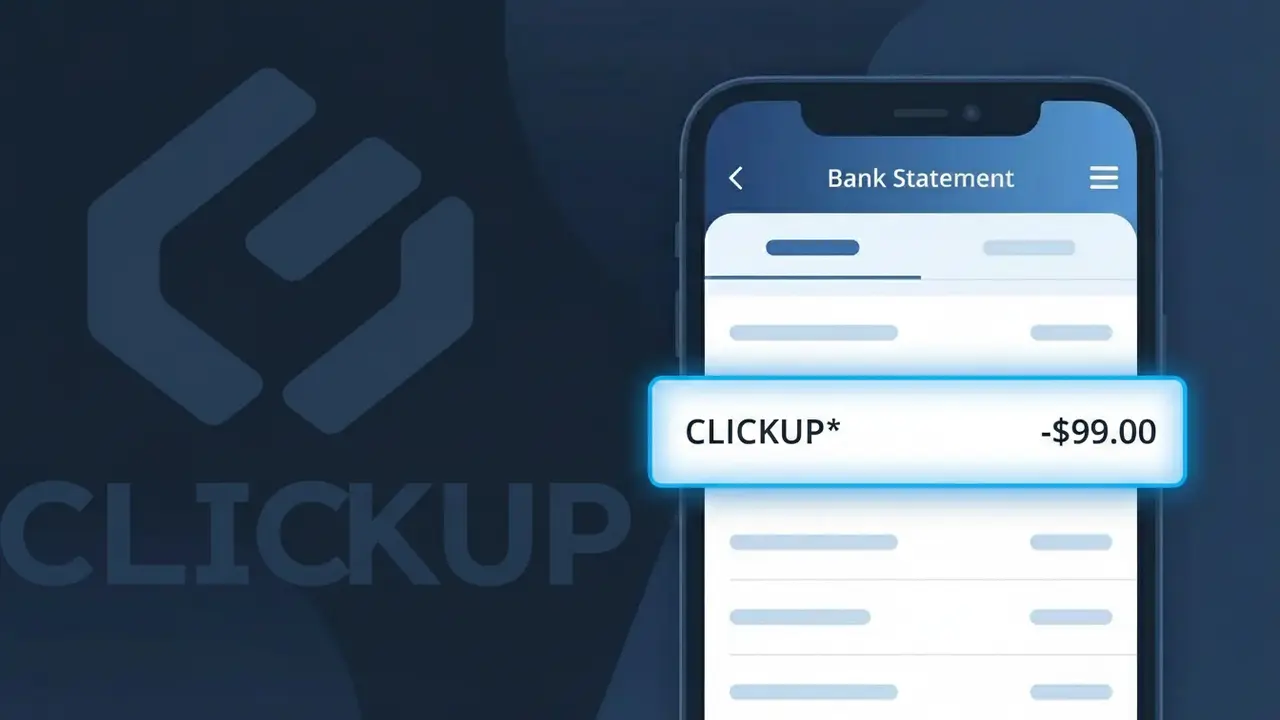
Why You're Seeing "CLICKUP*" on Your Bank Statement
The CLICKUP* charge on your bank statement comes from ClickUp, a popular project management and productivity platform used by teams and individuals worldwide. This charge typically represents a subscription fee for one of ClickUp's paid plans, which offer advanced features like unlimited storage, integrations, and collaboration tools. If you or someone with access to your payment method signed up for a ClickUp account, this is the recurring billing that follows. The asterisk after CLICKUP* is a common formatting convention used by payment processors to separate the company identifier from additional billing details.
The descriptor CLICKUP* appears on your bank statement because payment processors often truncate or abbreviate merchant names to fit within character limits on billing systems. ClickUp uses this shortened identifier when processing transactions through their payment gateway, which is standard practice for SaaS companies billing through third-party processors. In some cases, additional characters after the asterisk may indicate a specific plan, billing period, or transaction reference tied to your account.
Is the CLICKUP* Charge Legitimate or Fraud?
A CLICKUP* charge on your bank or credit card statement is most commonly a legitimate billing from ClickUp, the popular project management and productivity SaaS platform. ClickUp uses this abbreviated descriptor when processing subscription payments, which can cause confusion if you don't immediately recognize it. Here are the most common reasons you might see this charge:
- You or a team member signed up for a ClickUp Unlimited, Business, or Business Plus plan
- Your free ClickUp trial period ended and automatically converted to a paid subscription
- A workspace admin at your company added paid seats or upgraded the plan
- You purchased ClickUp AI add-ons or additional storage on top of your base plan
How to Verify the CLICKUP* Charge
- 1
Log into your ClickUp account
Visit app.clickup.com and sign in. Navigate to Settings > Billing to view your current plan, billing history, and the exact amount charged matching your CLICKUP* transaction.
- 2
Search your email for ClickUp receipts
Search your inbox for emails from billing@clickup.com or noreply@clickup.com. ClickUp sends payment confirmation emails that will match the CLICKUP* charge date and amount.
- 3
Check with household or team members
Ask colleagues or family members if they signed up for ClickUp using a shared card. A workspace owner may have upgraded a plan that your card was saved under.
- 4
Review your active subscriptions
Check any subscription manager apps or your device's app store subscriptions to see if a ClickUp plan is listed there as an active recurring charge.
- 5
Contact your bank for more details
Ask your bank for the full merchant descriptor and transaction ID associated with the CLICKUP* charge. This metadata can confirm whether the charge originated from ClickUp's official payment processor.
How to Dispute a CLICKUP* Charge
- 1
Act within 60 days
Most banks require you to dispute an unrecognized CLICKUP* charge within 60 days of the statement date. Don't delay — gather your transaction details and act quickly to preserve your dispute rights.
- 2
Contact ClickUp support first
Reach out to ClickUp's support team at clickup.com/contact or via in-app chat. ClickUp can often issue refunds for accidental charges or unauthorized upgrades faster than a bank dispute.
- 3
File a chargeback with your bank
If ClickUp does not resolve the issue, contact your bank or card issuer to file a formal chargeback for the CLICKUP* charge, citing it as unauthorized or unrecognized.
- 4
Request a new card number
If you suspect your card was used fraudulently to create a ClickUp subscription, ask your bank for a replacement card with a new number to prevent any recurring CLICKUP* charges.
Tips for Managing ClickUp Charges
Set a billing alert in your bank app to flag any new CLICKUP* charge the moment it posts.
Review your ClickUp workspace billing page monthly to catch unexpected seat additions or plan upgrades.
Limit ClickUp workspace admin roles to trusted users — only admins can trigger charges on your account.
Note your ClickUp renewal date in your calendar so a CLICKUP* annual charge never catches you off guard.
Use a virtual card number for your ClickUp subscription to isolate and control CLICKUP* billing easily.
Use WhatIsThisCharge.net to identify any related or unfamiliar charges appearing alongside CLICKUP*.
Frequently Asked Questions About the CLICKUP* Charge
ℹ️ Note
In most cases, a CLICKUP* charge is a routine and expected billing from ClickUp for an active project management subscription — often from a trial that converted to paid or an annual plan renewal. Logging into your ClickUp workspace and checking the Billing section takes less than a minute and will almost always explain the charge.
🔍 Decode this charge instantly
Search our database for CLICKUP* and similar charges.
Decode CLICKUP* →Was this article helpful?