Why You're Seeing "SHOPIFY PAYMENTS*" on Your Bank Statement
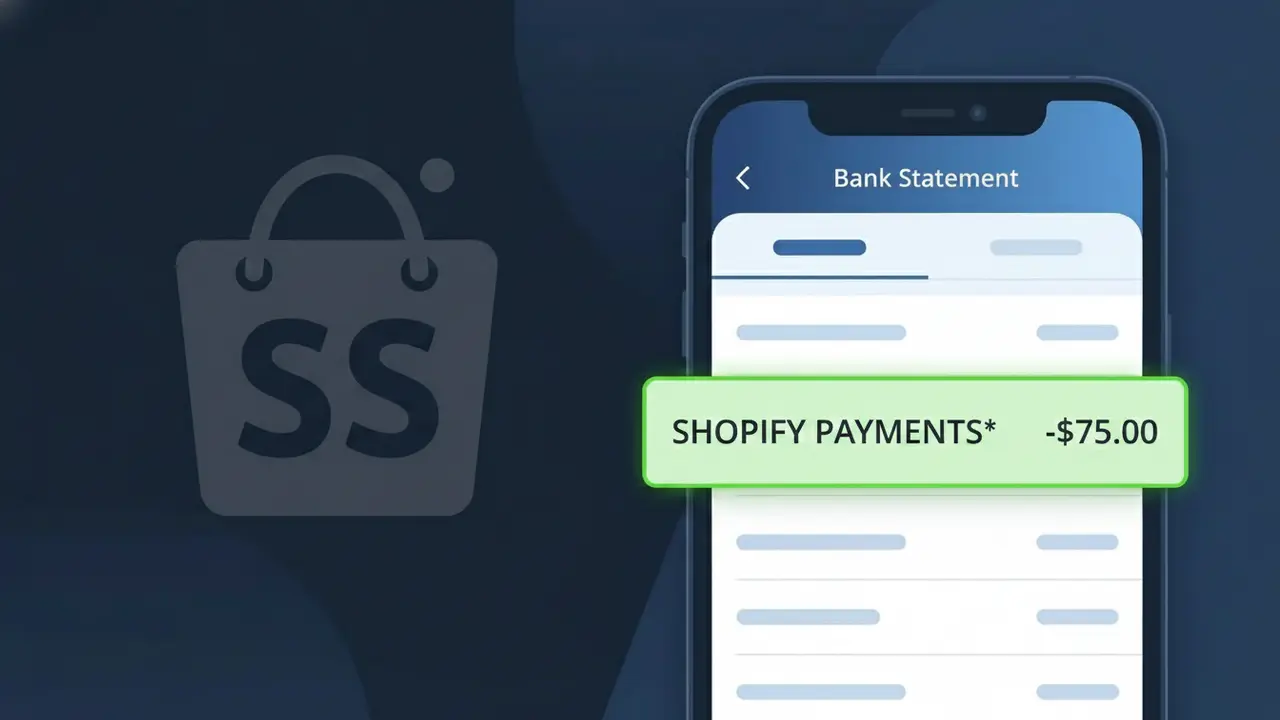
Why You're Seeing "SHOPIFY PAYMENTS*" on Your Bank Statement
A charge labeled SHOPIFY PAYMENTS* on your bank statement indicates a payment that was processed through Shopify's built-in payment processing system. Shopify is a Canadian e-commerce platform that allows businesses to create online stores, and Shopify Payments is their integrated payment gateway used by thousands of merchants worldwide. When you purchase something from an online store powered by Shopify, the transaction may be processed directly through Shopify Payments rather than a third-party processor. This means the charge appears under the Shopify Payments name rather than the individual merchant's store name.
The SHOPIFY PAYMENTS* descriptor appears on your bank statement because the merchant you purchased from uses Shopify's native payment processing system, which routes transactions through Shopify's own financial infrastructure rather than a standalone payment processor. Shopify, headquartered in Ottawa, Canada, consolidates these transactions under their own billing descriptor to standardize how payments are reported. The asterisk (*) following the descriptor is commonly used by payment processors to separate the processor name from any additional merchant or order details that may follow.
Is the SHOPIFY PAYMENTS* Charge Legitimate or Fraud?
The SHOPIFY PAYMENTS* charge on your bank or credit card statement is most commonly a legitimate transaction processed through Shopify's integrated payment system. This charge appears when you've made a purchase from an online store powered by Shopify, or when Shopify bills you for one of its merchant subscription plans or services.
- You recently purchased a product from a Shopify-hosted online store that uses Shopify Payments as its processor
- You are a Shopify merchant and were billed for your monthly plan (Basic, Shopify, Advanced, or Plus)
- A trial period ended and Shopify automatically charged your card for a subscription renewal
- A family member or employee with access to your card made a purchase through a Shopify-powered storefront
How to Verify the SHOPIFY PAYMENTS* Charge
- 1
Log into your Shopify account
Visit shopify.com and sign in. Navigate to Settings > Billing to review recent charges and invoices that match the SHOPIFY PAYMENTS* amount on your statement.
- 2
Search your email for Shopify receipts
Search your inbox for emails from 'Shopify' or 'no-reply@shopify.com'. Shopify sends order confirmations and billing receipts that will match the charge date and amount.
- 3
Check with household members
Ask family members or anyone with access to your card if they recently bought something from an online store — many don't realize the store runs on Shopify Payments.
- 4
Review any active Shopify subscriptions
If you run a Shopify store, check your billing cycle date. SHOPIFY PAYMENTS* may reflect your monthly or annual plan renewal billing automatically.
- 5
Contact your bank for details
Ask your bank for the full merchant descriptor and transaction ID linked to the SHOPIFY PAYMENTS* charge, which can help you trace exactly which store or service billed you.
How to Dispute a SHOPIFY PAYMENTS* Charge
- 1
Act within 60 days
Most banks require disputes to be filed within 60 days of the statement date. Don't delay if you don't recognize the SHOPIFY PAYMENTS* charge on your account.
- 2
Contact Shopify support first
Reach out to Shopify directly at shopify.com/support or via live chat. Shopify can identify which store or plan generated the charge and may issue a refund without a chargeback.
- 3
File a chargeback with your bank
If Shopify cannot resolve the issue, contact your bank or card issuer to dispute the SHOPIFY PAYMENTS* charge. Provide any communication with Shopify as supporting evidence.
- 4
Request a new card number
If you suspect your card details were used fraudulently on a Shopify-powered store, ask your bank to issue a new card to prevent further unauthorized SHOPIFY PAYMENTS* charges.
Tips for Managing Shopify Charges
Enable billing email alerts in your Shopify account so you're notified before every SHOPIFY PAYMENTS* charge hits your card.
Save your Shopify order confirmation emails — they make it easy to match any SHOPIFY PAYMENTS* line item on your statement.
Use a dedicated card for your Shopify store subscription to isolate SHOPIFY PAYMENTS* charges from personal spending.
Note your Shopify billing renewal date each month so SHOPIFY PAYMENTS* subscription charges never catch you off guard.
Enable two-factor authentication on your Shopify account to prevent unauthorized access that could trigger unexpected charges.
Use WhatIsThisCharge.net to identify any related or unfamiliar charges that appear alongside SHOPIFY PAYMENTS* on your statement.
Frequently Asked Questions About the SHOPIFY PAYMENTS* Charge
ℹ️ Note
In most cases, a SHOPIFY PAYMENTS* charge simply means you — or someone you know — made a purchase from one of the millions of stores powered by Shopify's payment system. A quick check of your email receipts or Shopify account billing history is usually all it takes to confirm the charge and put your mind at ease.
🔍 Decode this charge instantly
Search our database for SHOPIFY PAYMENTS* and similar charges.
Decode SHOPIFY PAYMENTS* →Was this article helpful?